
What's New in AcuityLogic 8.39 for On-Premises Multitenant Users
Eyefinity announces the newest version of AcuityLogic. This version resolves known issues in previous versions and offers new features and expanded functionality.
Topics include the following:
For more information on AcuityLogic features, training, and integrations, contact your account representative, or call Eyefinity at
System Enhancement
Name Field Expansion Update
To enable this feature, contact Eyefinity Customer Care.
This update enables you to enter up to 30 characters in the First Name and Last Name fields throughout the system. This change helps you maintain accurate records and provide better service for patients with longer names.
Admin Enhancements
Admin includes the following enhancements:
Turn on Back Dating of the Order/Service Date to Gain Flexibility and Accurate Reporting
You can enable the ability to backdate the service date when invoicing the order, providing greater flexibility for entering the correct service date when invoicing and ensuring accurate reporting for compliance when an order requires adjustments or corrections. The order date and invoice date remain as the current date.
When enabled, POS users with permissions, see a calendar icon to the right of the Order Date field when invoicing. The user can then select the date from the calendare.
The date cannot be more than 12 months in the past (or prior to your system go live) and it cannot be a future date. The claim is created with the new order/service date.
To enable the feature, you need to turn on the feature and give the appropriate users permission to back date:
-
Go to Company Information and in the Additional Attributes section, select the Allow Back Dating of Service Date checkbox. The enables the feature for your company.
-
For the users, assign the Change Order Dates access option. See Security Roles in AcuityLogic
Billing Enhancements
Billing includes the following enhancements:
Improved Claim Search Performance
We've updated Claim Search to deliver faster results and smoother performance. Filtering is now more dependable when searching by Reason Code or Insured Date of Birth, helping you find the right claim sooner.
Edit Payment Type on Carrier Payments
Users with the Edit Carrier Patient Checks security setting enabled can now change the Payment Type when editing carrier payments.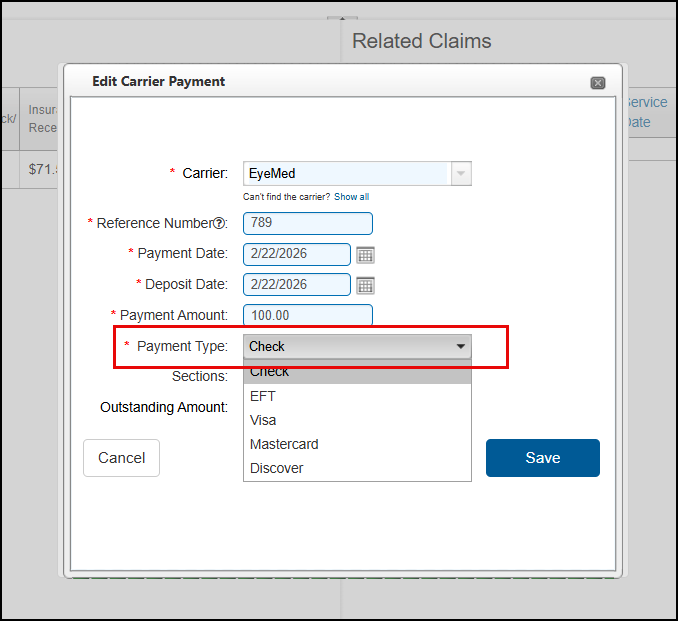
Confidently Run the Aged Claims Report with Clearer Filters
We've updated the Aged Claims Report (GB106) filtering options to be easier to understand, so you can generate the report with greater confidence. With this release, you'll see the following changes:
-
Report Type option buttons have replaced the Total By drop-down list. The options themselves haven't changed. By Location By Carrier is now selected by default.
-
The date filters are now located in an Aged Date Filter section. The By Billing Month option is selected by default, with the current month shown in the date field.
-
The Aging Type field is now called Aging Balance. This update was made for clarity; the options in the drop-down list have not changed.
-
Tooltips have been added to most fields. Hover your cursor over a tooltip to see information on how the filter works.

POS Enhancements
POS enhancements include:
Increase Reporting Accuracy with the Ability to Back Date the Order/Service Date when Invoicing
If enabled by your administrator and you have the appropriate permissions, you can now backdate the order/service date when invoicing an order. This provides greater flexibility for entering the correct service date and helps ensure accurate reporting for compliance when an order requires adjustments or corrections.
When invoicing an order, you will see a calendar icon to the right of the Order Date field, you can then select the appropriate date from the calendar. 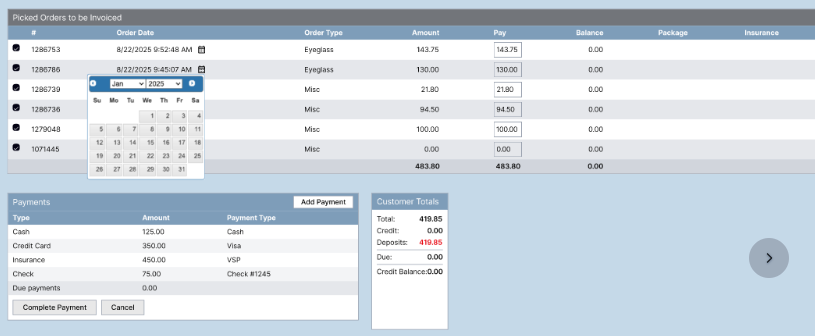 The order/service date cannot be more than 12 months in the past (or prior to your system go live) and it cannot be a future date. The claim is created with the new order/service date.
Fixed Issues
AcuityLogic 8.39 fixes issues in the following areas:
Admin
-
When loading a frame file, if the name includes a period, the file loads successfully. Previously, the file would error.
BackOffice
-
Fixed an issue where the Employee Commissions Report showed different totals when run in summary versus detail view; both report types now return consistent results aligned with commission rules.
Billing
-
The formatting of claim notes no longer unexpectedly changes after claims are edited.
-
Unknown errors no longer occur when exporting claim search results using the Reason filter that include more than 1000 line items.
-
We fixed an issue that was preventing some VSP claims from being submitted through the integration.
-
Editing a claim to change the insurance plan now correctly updates the associated PayerID when necessary. Previously, only the plan name changed.
DC
-
We improved the load time when you click the Pull From PO button.
POS
-
We corrected an issue that was preventing claims from being created and causing balances to remain on patients' accounts when orders were returned. The issue was caused when the patient's insurance record included a phone or fax number longer than 15 characters.
-
Printed lab orders no longer display the same phone number for both Phone #1 and Phone #2.
-
The system now prevents you from creating remakes of returned orders.
-
When creating an eyeglass order, changing the Frame Source from DC Provided to Lab Provided no longer causes both sources to display simultaneously on the lab order.
-
When creating an order, the system looks to the Item Order Replenish Rules established by your admin to ensure the frame is available before allowing the order to continue. If the frame is discontinued or sold out, a message displays telling the user not to continue with the order. However, the system only enforces the replenishment rules when you conduct an initial frame search and when you do a manual re-selection of a frame – for example, when editing an order or remaking an order. If you are not re-selecting the frame and going with the original frame on the order, the system does not check the replenishment rules and the warning will not display. The system does not apply replenishment rules and display the warning for the following: One-Click Remake, Copy Order, Remake with Manufacturer Changes other than frame re-selection. This will be addressed in a future release.
-
Orders created for a patient, who is a minor, are included in productivity and commissions calculations. Previously, the orders were not being included in commissions.
What's New in AcuityLogic 8.39.1
Release Date: July 8, 2026
This release includes the following fixed issues:
-
The Physical Inventory Variance Summary Report (INV104) and Inventory Variance Detail Report (INV105) no longer show incorrect On Hand values. Previously, the reports would show On Hand values that were double what they should have been, resulting in incorrect variances. This fix applies to both the POS and DC versions of the report.
-
The Physical Inventory Variance Summary Report (INV104) in DC no longer includes zero variance items not shown on the POS version of the report.
-
Errors no longer occur when generating the Inventory Variance Detail Report (INV105).
-
The on-hand quantity on the Physical Inventory Variance Detail (INV105) report and the Physical Inventory Variance Summary (INV104) reflects the actual quantity at time of inventory freeze; previously the on hand quantity had multiplied.
What's New in AcuityLogic 8.39.3
Release Date: Available September 2, 2026
POS Enhancements
CL Fit without Contacts Orders Prompt Identifies if Contacts are Formulary for Better Benefit Calculations
To reduce confusion and support accurate benefit calculations and patient pricing for contact lens fit (CL Fit) with and without Real-Time Eligibility (RTE), your Admin can now select from two methods:
-
CL fit without Contact for RTE Carrier – use this method when configured for RTE and using Spectera or Davis Vision insurance carriers.
-
CL fit without Contacts for Non-RTE Carrier - use this method when not configured for RTE but using an insurance carrier with Formulary and Non-Formulary contact lens and contact lens fit benefits.
The method CL Fit without Contacts is no longer available.
With either method, the contact lens fit benefit is based on the type of contact lenses the doctor intends to prescribe.
For standard and premium contact lens fit, price the contact lens fit based on the intended lens type and use when:
-
The doctor is fitting the patient for standard or premium lenses.
-
The patient intends to use their contact lens material benefit during the visit or at a future time.
The patient is not required to purchase contacts.
In POS, when you price a contact lens fit order without contact lenses, you are prompted to provide additional information.
For the field, Is the patient fitted with formulary contacts?, from the drop-down:
• Select Yes when the prescribed contact lens type is a formulary contact lens.
• Select No when the prescribed contact lens a non-formulary contact lens.
Based on your selection, the values are calculated using the fee schedule or you are prompted to enter the allowance, copay, etc., amounts.
Admin Enhancements
Updated CL Fit without Contacts Methods Tailored to RTE and Non-RTE Carriers
To reduce confusion and support accurate benefit calculations and patient pricing for contact lens fit (CL Fit) without Contacts, we renamed the method to CL fit for Non-RTE Carrier. Use this method for insurance carriers not setup of for Real-Time Eligibility (RTE) but with Formulary and Non-Formulary contact lens and contact lens fit benefits like Davis and Spectera.
With the updated method, the contact lens fit benefit is based on the type of contact lenses the doctor intends to prescribe.
For standard and premium contact lens fit, price the contact lens fit based on the intended lens type and use when:
-
The doctor is fitting the patient for standard or premium lenses.
-
The patient intends to use their contact lens material benefit during the visit or at a future time.
The patient is not required to purchase contacts.
Setting up Your Insurance Schedule using the Method CL Fit for Non-RTE Carriers
-
Edit your Standard CL Fit Insurance Schedule.
-
For the Method, select CL Fit for RTE.
-
Enter the Method Component Value/Calculation Type as follows:
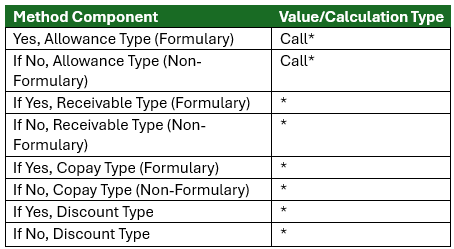
* When ‘Call’ is selected for the Yes/No Allowance Type for CL Fits, the POS user is prompted to answer Yes or No and enter in the Allowance amount for the Contact Lens Fitting.
You may use other Value/Calculation Types for the Allowance amount and based on your response to the prompt Is the patient fitted with formulary contacts?, the system calculates the amount based on the insurance schedule set up. -
Select Save.
This release includes the following fixed issues:
-
When you add a telehealth provider, the first and last name are correctly populated into the database. Previously, telehealth providers name fields were populating as null.
-
When refunding ATM/Debit paid orders, the payment type displays as ATM/Debit. Previously, the payment type changed to VISA