
What's New in AcuityLogic 8.41 for On-Premises Multitenant Users
Eyefinity announces the newest version of AcuityLogic. This version resolves known issues in previous versions and offers new features and expanded functionality.
Topics include the following:
For more information on AcuityLogic features, training, and integrations, contact your account representative, or call Eyefinity at
Admin Enhancements
Admin includes the following enhancements:
Handle Patient Payments More Efficiently with Your Choice of Company, Office or Custom Remit to Address
We moved the remit to address setup to the Statements and Invoice Customization menu in the Company Information window.
You can now choose the company, office or enter a custom "remit to" address on patient statements, enabling your company to receive patient payments directly at the office where services were provided. The new Remit Address to Display section applies to both detailed and summary statements printed from either POS or Billing.
To set up your "remit to" address:
- Open the Company Information window.
- Click the link for your company in the Company column.
The Company Information window opens.
- Open the Statements and Invoice Customization menu. On the Patient Billing Statements tab, under Remit Address To Display, select one of the three options: Company, Office or Custom.
If you select company or office, the fields pull from what is entered in the system.
If you select custom, enter the address fields.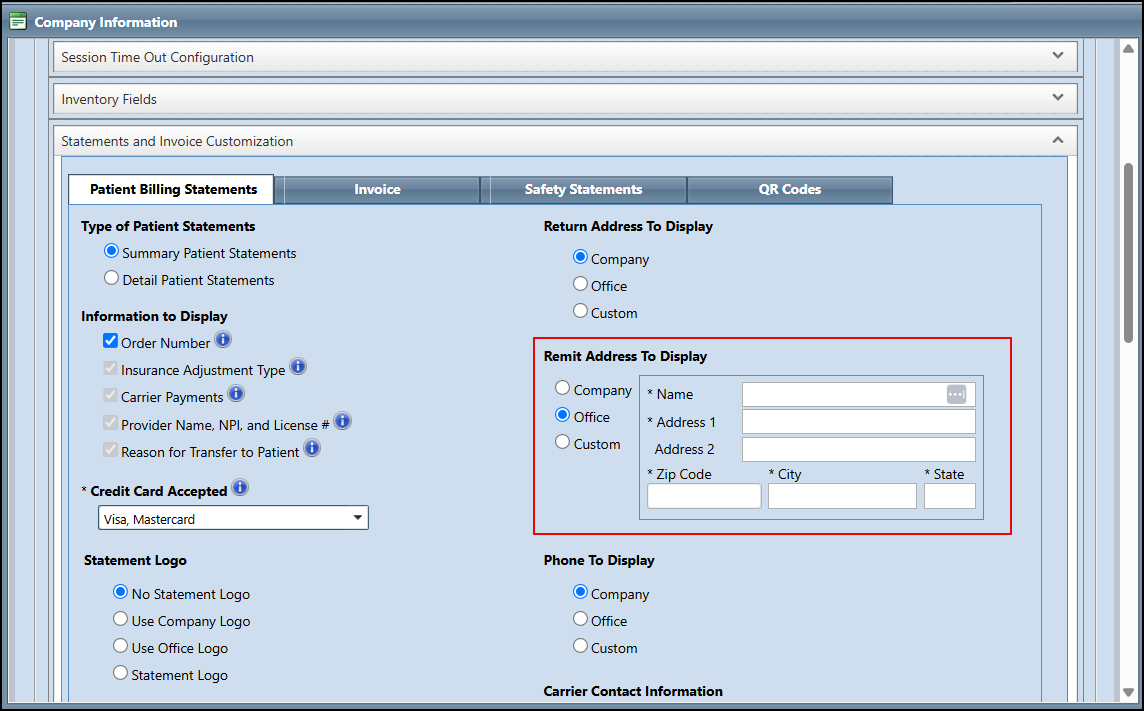
-
Click Save.
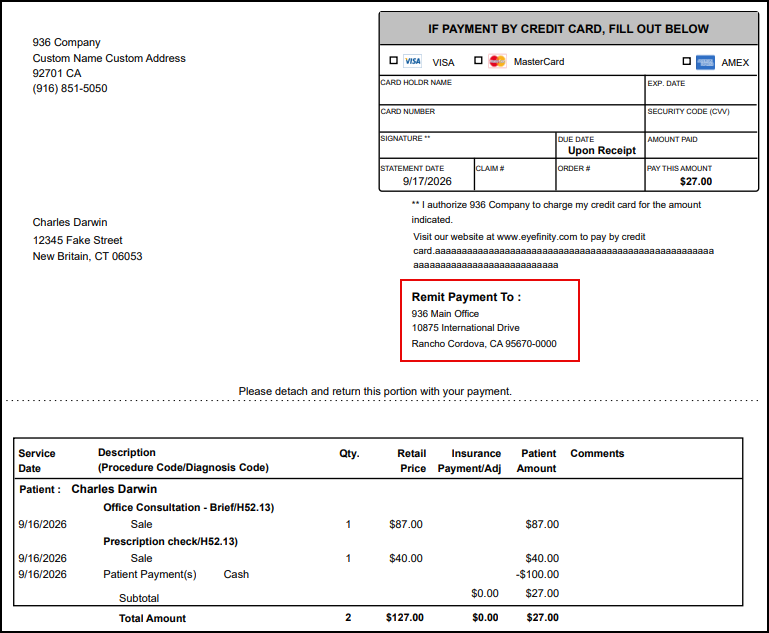
Now when staff print Patient Statements, the office address is shown in the Remit Payment To: section.
Two New Security Roles Provide Task-Specific Permissions; One to Setup Company Taxes and One to Manage Xlink
As an Admin, you now have the option to delegate two tasks to another user:
-
Setting Up Company-Level Taxes: You can now give a user access to setting up company-level taxes, without having to provide them with System Admin access. The new Company-Level-Tax Setup role lets you delegate tax setup with access specific to that task, which provides you with a more secure environment.
-
Managing Xlink: We also created a second task-specific role: Xlink User. With this role, you can delegate the management of Xlink by assigning the role to one or more users.
Billing Enhancements
Billing includes the following enhancements:
Instantly Verify Diagnosis Codes when Reviewing Claims
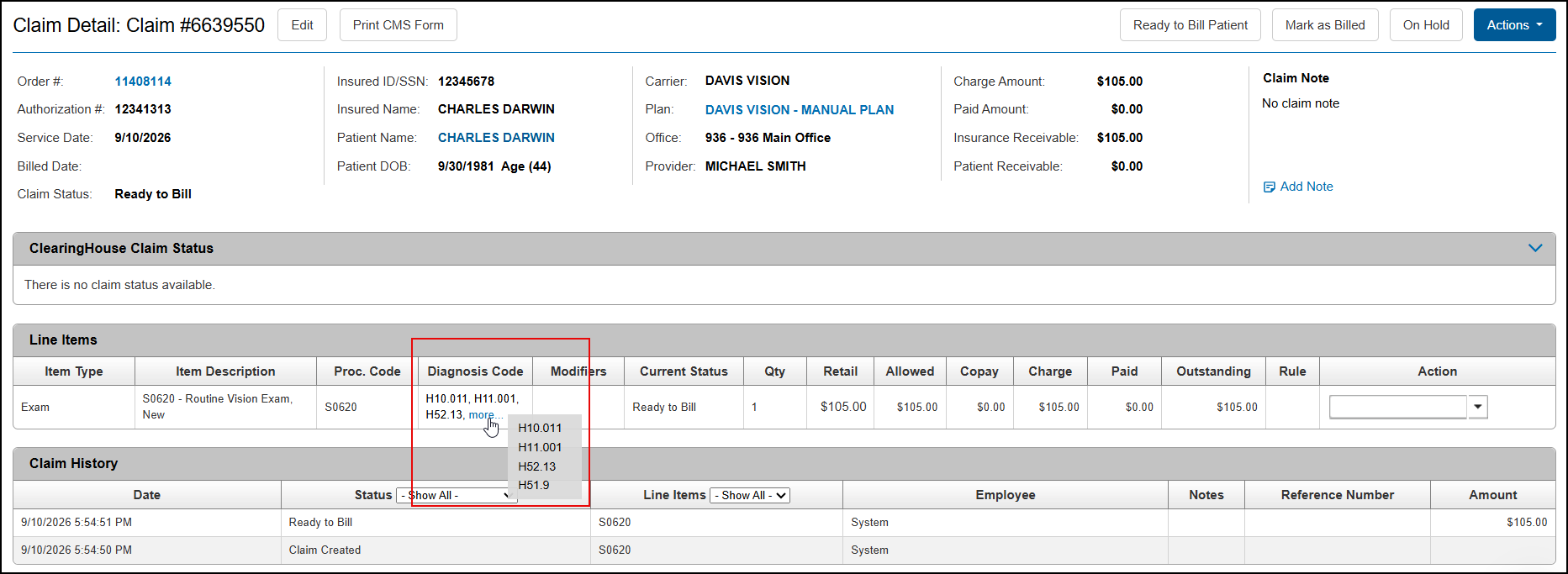
To help you review claims faster and resolve billing issues with fewer clicks, we've added a new Diagnosis Code column to the Line Item table in the Claim Detail screen. This column lists the ICD-10 diagnosis codes associated with each line item, enabling you to quickly see if the codes are documented correctly without having to open another screen.
Line items can have up to 12 diagnosis codes. If an item in the list has more than 3 codes, the more... hyperlink displays. Hover your mouse over the hyperlink to see all the codes.
Changes to Edit Claim and Print CMS Form Actions in Claim Detail
With this release we're restoring quick access to the Edit Claim and Print CMS Form actions by making them buttons at the top of the Claim Detail screen. Previously, they were located on the Actions drop-down menu, and we heard from many of you that their location was slowing down your workflows. This change will minimize clicks and make navigation clearer, enabling faster claim edits and printing.

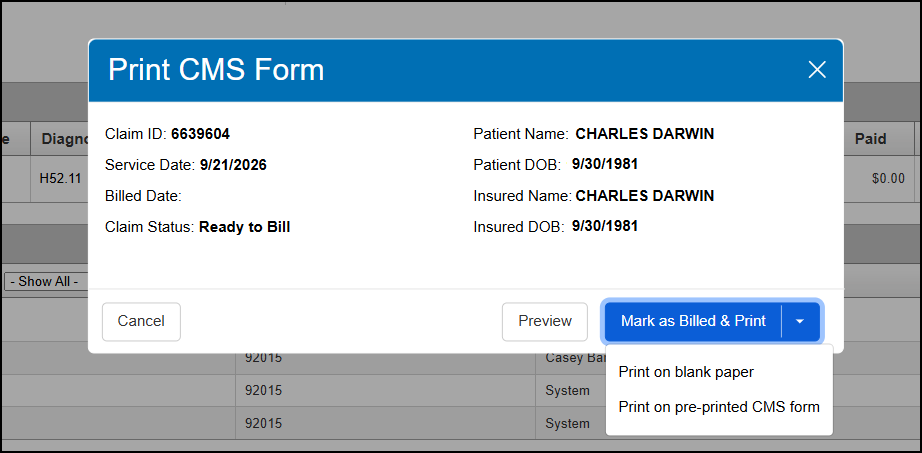
We've also updated the window that opens when you click Print CMS Form to provide more information and make it easier to use.
-
The window title has changed from Generate CMS Form to Print CMS Form.
-
Information displayed now includes the Service Date, Billed Date, Claim Status, Patient Name, Patient DOB, Insured Name, and Insured DOB.
-
The Select if you are using pre-printed form check box has been removed. Instead of using this check box, you'll now click the new Mark as Billed and Print (for claims that haven't been billed) or Print (for reprinting forms for billed claims) drop-down button to select whether to print on blank paper or a pre-printed CMS form.
-
A new Preview button opens the form as a pre-printed PDF.
Select Providers Easily When Billing Claims
We've added a scroll bar to the Provider drop-down list in the Billing Claim: Generate CMS Form and Billing Claim: EDI Transmission screens, making it easier to find the provider you need.

Faster Search When Billing Claims
We've made some changes to the search field and button layout in the Billing Claim: Generate CMS Form, Billing Claims: Statement Forms, and Billing Claims: EDI Transmission screens, to make these screens feel more like other screens in the system and help streamline your workflow. With this release, you'll see the following changes:
-
The search criteria fields have been reorganized to better match the order used elsewhere in Encompass.
-
The Reset button is now labeled Clear, to more accurately describe the action.
-
The placement of the Search and Clear buttons have been switched, to better match the order used elsewhere in Encompass.
We've also made some performance changes to these screens to find search results quicker.

DC Enhancements
DC includes enhancements in the following areas:
Transfer Reason Replaces Shipment Reason, Drop-down List Added
Inventory Transfer Reasons are managed via Master Data Admin. Select Inventory and then Inventory Transfer Reasons. You can create or edit your Transfer Reasons and define the display order of available reasons.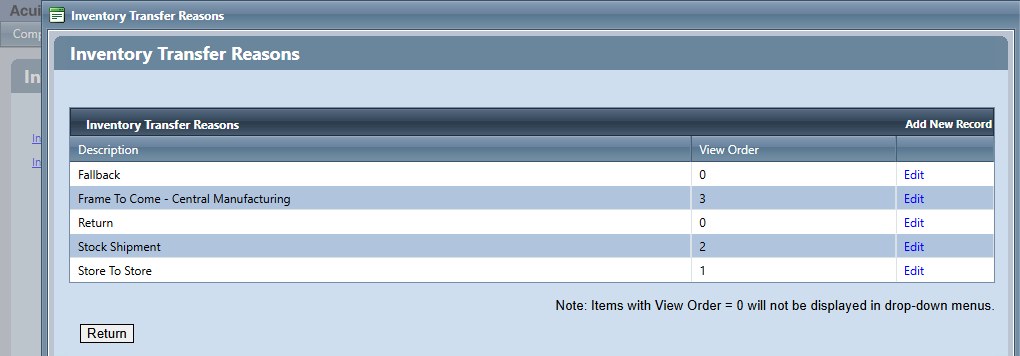
Additionally, the Stock Transfer screen now includes the Transfer Reason column.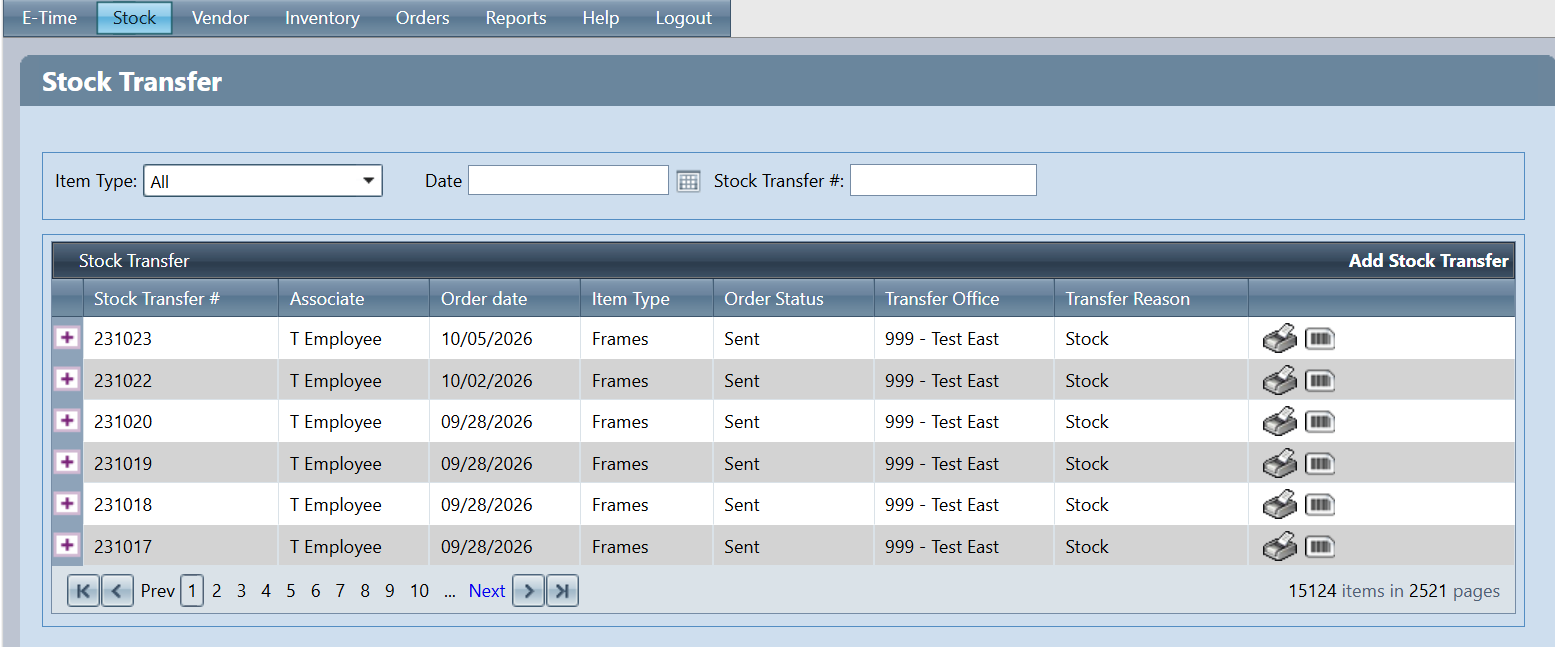
Fixed Issues
AcuityLogic 8.41 fixes issues in the following areas:
Admin
-
When mapping your sales tax accounts to individual offices, the list displays the office name and number so you can ensure you are mapping the accounts correctly. Mapping allows you to total taxes per office.
Billing
-
VSP billing rule procedure code settings for contact lens orders are now consistently applied during benefit calculations.
-
The changes made in AcuityLogic 8.34 to reformat and expand the information shown at the top of the Claim Detail screen are now visible to all users.
-
We fixed an issue where the Close button in the Multiple Payments Found window that displays from the Electronic Remittance Payment screen did not respond, requiring you to click outside the window to dismiss it. We also added some clearer explanatory text to the window.
-
When posting insurance payments on a claim in the Electronic Remittance Payment screen, the Remittance Record window now displays the correct information under Claim Information and Service Information. Previously, these sections were sometimes blank.
-
Summary Patient Statements now only print the office name instead of the office number and office name.
POS
-
When you create an order that qualifies as a package, the qualifying package is immediately available for selection in the Packaging Options drop-down. Previously, you had to save the order and then price and select the package.
-
When searching for a patient, deleted or merged patients no longer show in the search results. Previously, the patient would be included in the results but when you selected the patient, the error “The selected patient does not exist. Please try your search again.” displayed.
Xlink
-
When using the Worldpay Pending Auth Reversals integration, the integration runs without error. Previously, the error "A task was canceled" displayed when there were too many payments to reverse.