
Installing EncompassScribe (iPhone)
EncompassScribe is not a separate app that you need to install—it's an AI model that runs entirely within your existing Encompass app. The first time you log into the Encompass app after EncompassScribe has been enabled for your user account, you are prompted to download the latest model. You may continue to use the app while the model loads.
- Log into the Encompass iPhone app.
- Tap the Settings tab.
The Settings screen opens.
- Locate the EncompassScribe section and tap Download to install the latest EncompassScribe model.
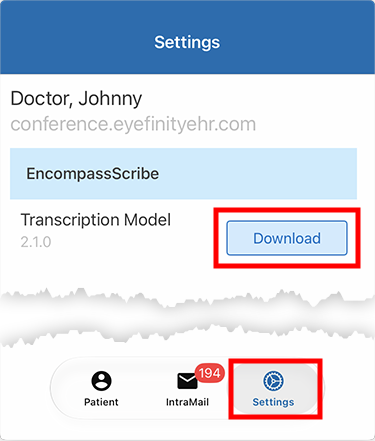
The model takes about ten minutes to download and process. You may continue to use the app while the model loads. When the loading message disappears, and the Delete button appears, the model is loaded and ready to use.
If you need to remove the EncompassScribe model from your Encompass app for any reason, follow these steps:
- Log into the Encompass iPhone app.
- Tap the Settings icon.
The Settings screen opens.
- Locate the EncompassScribe section and tap Delete to remove the EncompassScribe model and tap Delete again to confirm.
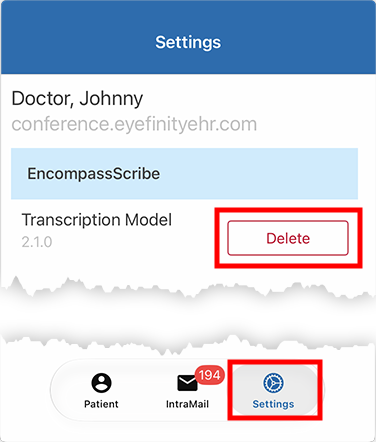
The model is removed from your device. EncompassScribe will not be available on the device until you download the model again.
If you wish to discontinue EncompassScribe completely, contact Eyefinity to cancel your subscription.