
Using the TriZetto Claim Status Inquiry Integration
This information applies only to practices using the TriZetto Claim Status Inquiry integration. For information on TriZetto and to request a demo, see the TriZetto certified partner page on eyefinity.com.
This section explains how to set up and use the TriZetto Claim Status Inquiry integration. If your company uses TriZetto as your clearinghouse, this integration displays EDI claim status updates in the Claim Search and Claim Detail screens and adds a Claim Status Dashboard to Claim Management. Using the integration gives you real-time answers to EDI claim status questions and streamlines the review process for these claims.
This topic includes:
-
Setting Up the TriZetto Claim Status Inquiry Integration in Administration
-
Using the TriZetto Claim Status Inquiry Integration in Claim Management
Setting Up the TriZetto Claim Status Inquiry Integration in Administration
Before you can use the TriZetto Claim Status Inquiry integration in Claim Management, you need to set it up by selecting how often you want the system to check for claim status updates.
If you want to use the claim status integration for every insurance carrier at every office in your company and avoid setting it up for individual offices and carriers, you can set it up just for the company. All offices and carriers will default to the setting you select for the company. If you opt to select different settings for individual offices and carriers, those settings will override the company setting.
What do you want to do?
- On the Encompass home screen, click Administration.
The Company: Setup screen opens.
-
On the top menu bar in Administration, click Billing & MVC and select Insurance Integrations.
-
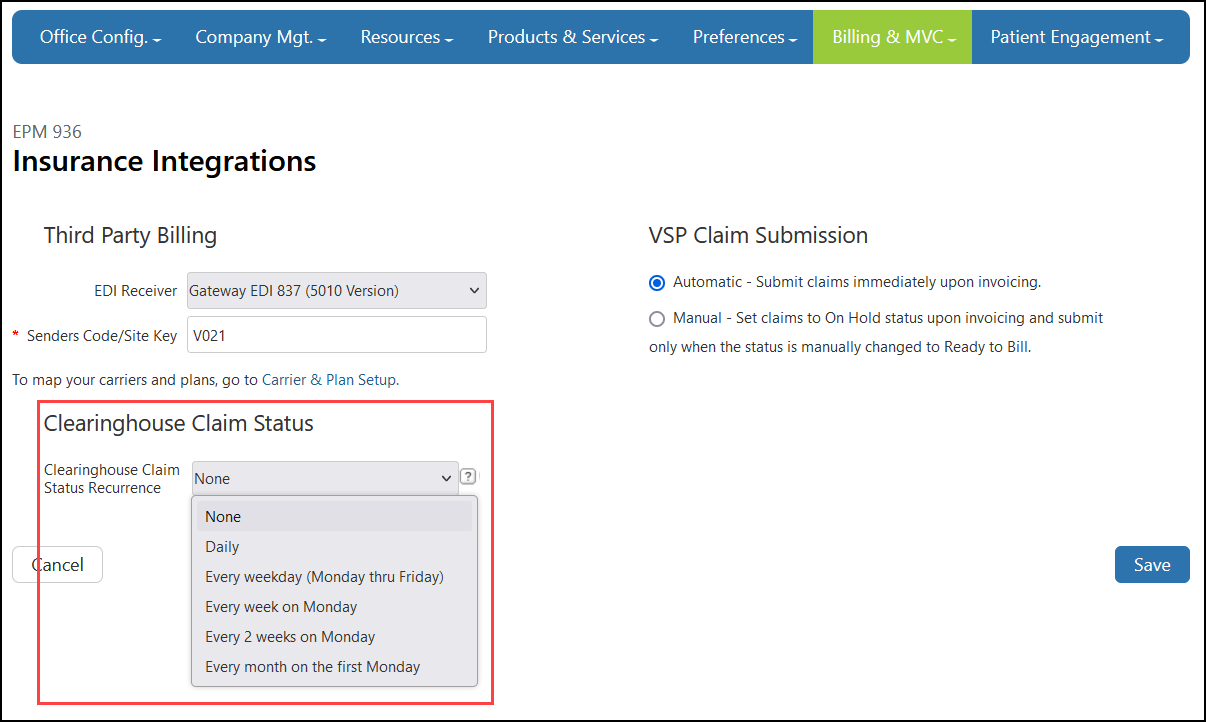
Under Clearinghouse Claim Status, make a selection from the Clearinghouse Claim Status Recurrence drop-down list. This selection sets how often you want the system to check for claim status updates for your company.
-
Click Save.
You can set up the Clearinghouse Claim Status Recurrence settings for individual offices. This setting will apply to all carriers assigned to the office, unless you add different settings for individual carriers. The settings you select for offices override the setting for the company.
- On the Encompass home screen, click Administration.
The Company: Setup screen opens.
-
On the top menu bar in Administration, click Office Config. and select the office.
-
Click Integrations.
The Integrations screen opens.
- Click Edit.
- In the Warning message window that opens, click I Understand the Risk.
-
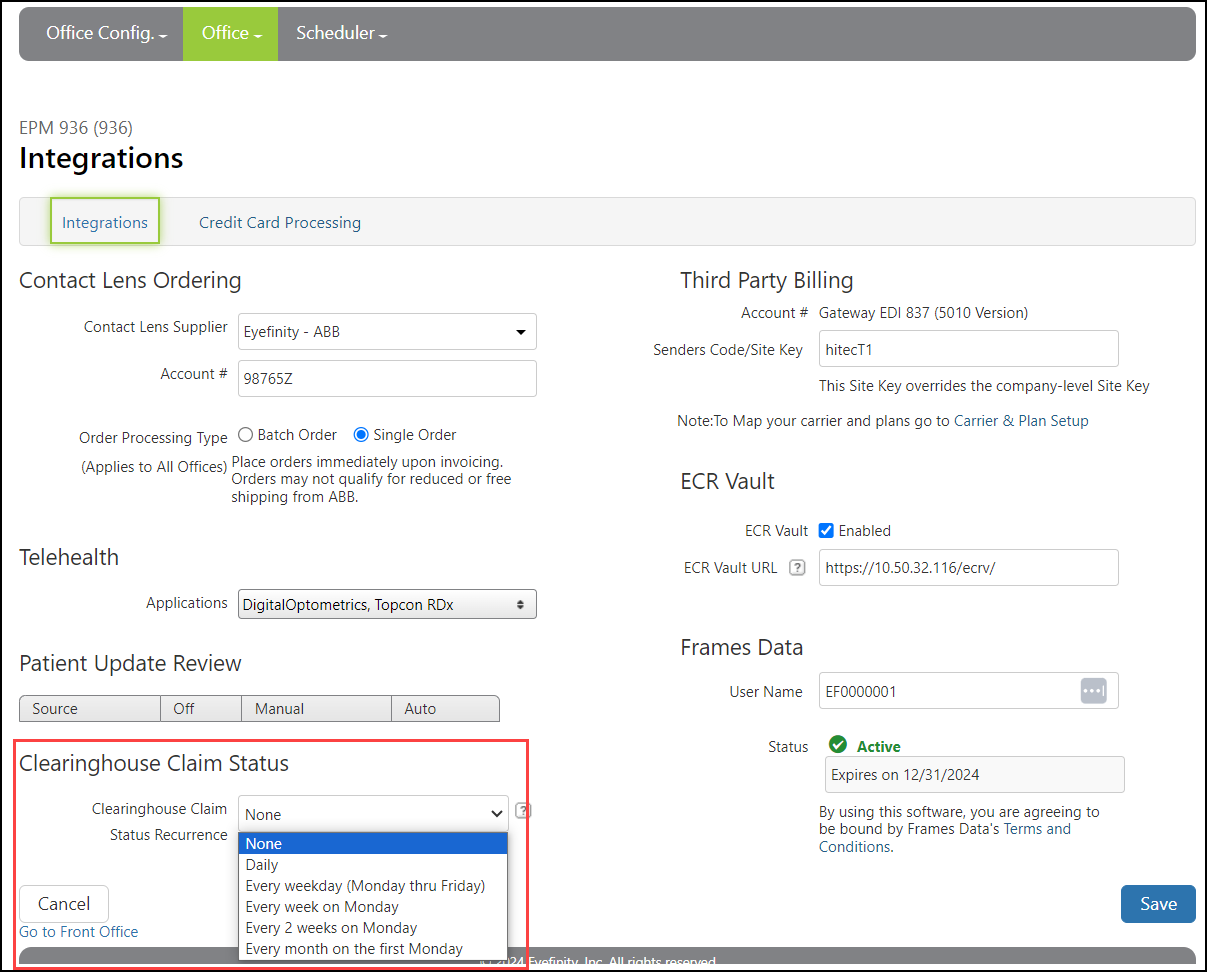
Under Clearinghouse Claim Status, make a selection from the Clearinghouse Claim Status Recurrence drop-down list. This selection sets how often you want the system to check for claim status updates for this office.
-
Click Save.
Repeat this process for any other offices you want to set up.
You can set up the Clearinghouse Claim Status Recurrence setting and NPI National Provider Identifier number. A unique 10-digit identification number required for all healthcare providers in the United States. to use for individual carriers and plans. The settings you select for carriers override the company and office settings.
- On the Encompass home screen, click Administration.
The Company: Setup screen opens.
-
On the top menu bar in Administration, click Billing & MVC and select Carrier & Plan Setup.
-
Enter the Carrier/Plan you want to set up.
-
Click Search.
-
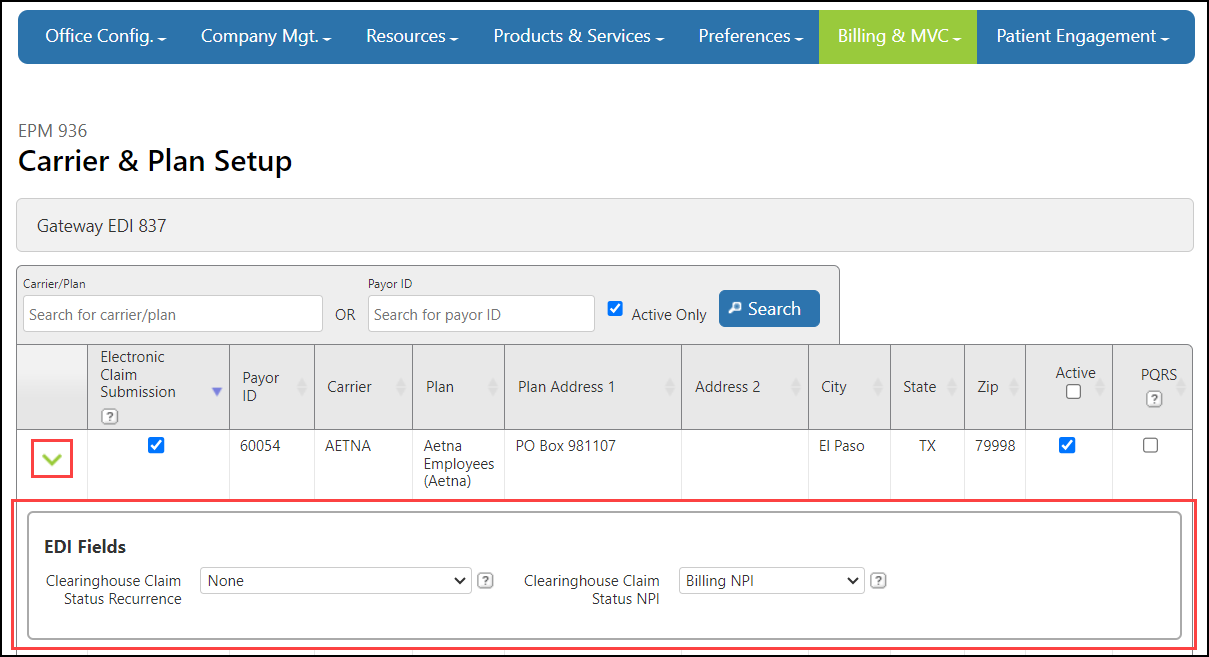
Locate the plan you want to set up and click the green arrow.
The EDI Fields panel opens.
-
Make a selection from the Clearinghouse Claim Status Recurrence drop-down list. This selection sets how often you want the system to check for claim status updates for this plan.
-
Select whether to use the Billing NPI or the Rendering Provider NPI from the Clearinghouse Claim Status NPI drop-down list.
-
Repeat steps 2-6 for any other plans you want to set up. When you're finished, click Save.
Using the TriZetto Claim Status Inquiry Integration in Claim Management
When the TriZetto Claim Status Inquiry integration is set up, claim statuses received from TriZetto display in the following locations in Claim Management:
Statuses are available 7 days after claims are submitted. The system updates status information based on the recurrence setting selected for the company, office, or carrier, as described in Setting Up the TriZetto Claim Status Inquiry Integration in Administration.
Using the Clearinghouse Claim Status Dashboard
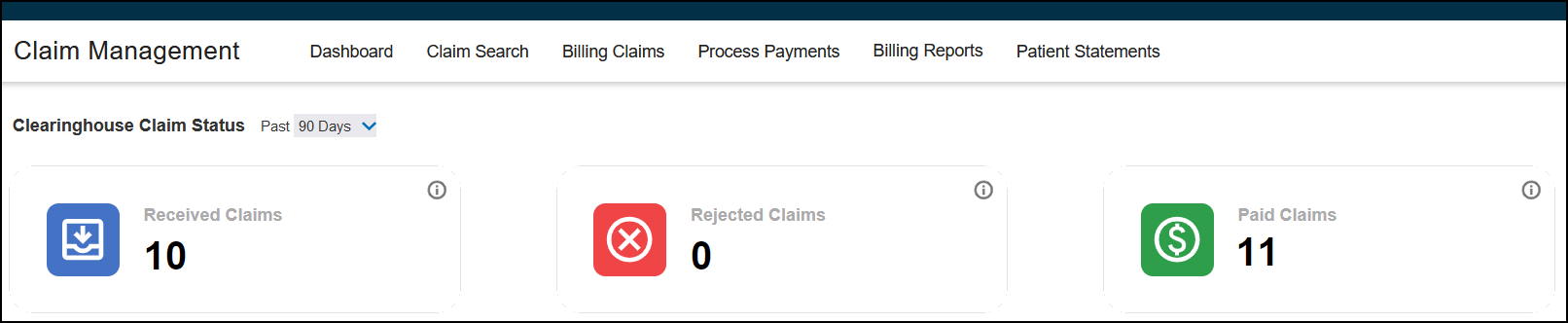
The Clearinghouse Claim Status Dashboard displays how many EDI claims fall into the following status categories:
Received Claims – Claims with a Received Status, such as DR02 - Acknowledgement/Acceptance into the data reporting/processing system
Rejected Claims – Claims with a Rejected status, such as A6-Rejected for missing information
Paid Claims – Claims with a Paid status, such as F1 - Finalized/Payment
If the integration is unable to retrieve a claim's status, it will continue to retry for up to 60 days. After 60 days has passed, the claim will be moved to Rejected Claim status.
- On the top menu bar in Encompass, click Claim Management and select Claim Management.
-
On the top menu bar in Claim Management, click Dashboard.
The Clearinghouse Claim Status Dashboard opens.
-
Click the drop-down to choose a time period to view. You can select to see information for the Past 30, 60, or 90 days.
-
Click one of the claim status panels—Received Claims, Rejected Claims, or Paid Claims—to open the Claim Search screen and see a list of all the claims with that status.
Clearinghouse Status in Claim Search
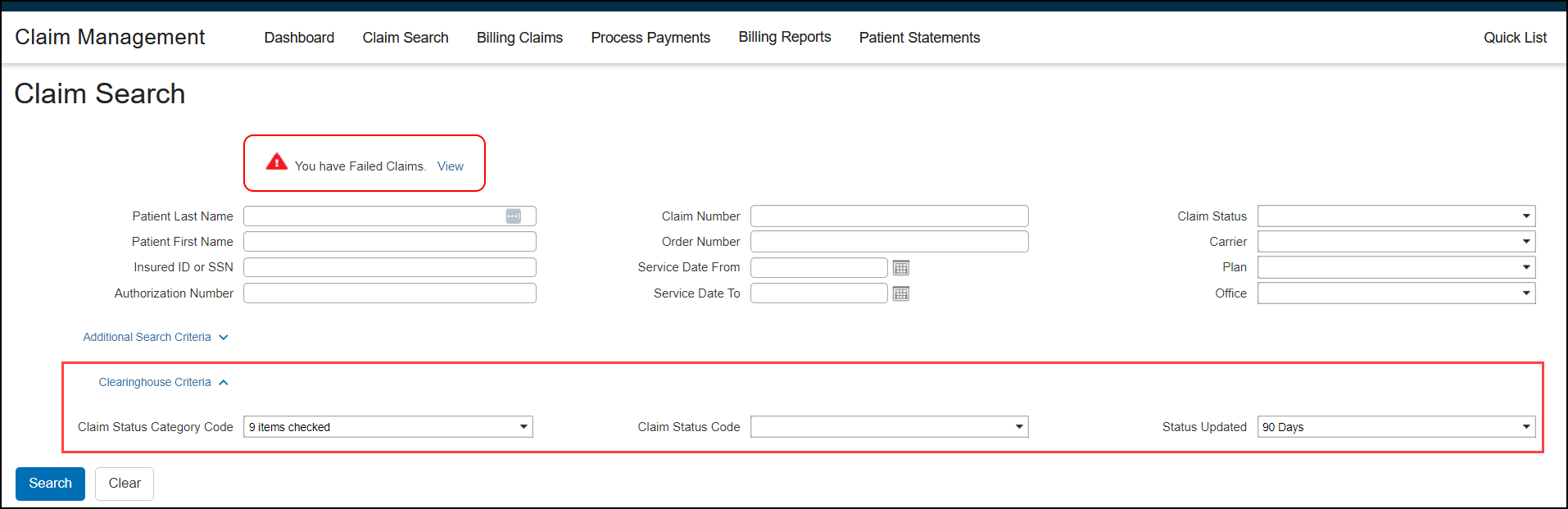
When the the TriZetto Claim Status Inquiry integration is set up, the Claim Search screen includes the following additional Clearinghouse Criteria search fields:
Claim Status Category Code - Select one or more TriZetto claim status category codes to search
Claim Status Code - Select one of more TriZetto claim status codes to search
Status Updated - Select the time period to search (Past 30, 60, or 90 Days)
Use these search fields to easily search for Rejected claims, so you can process them.
Clearinghouse Status in Claim Detail
When the the TriZetto Claim Status Inquiry integration is set up, the Claim Detail screen includes a ClearingHouse Claim Status section that lists the Date, Claim Status Category Codes, and Claim Status Code received from TriZetto.
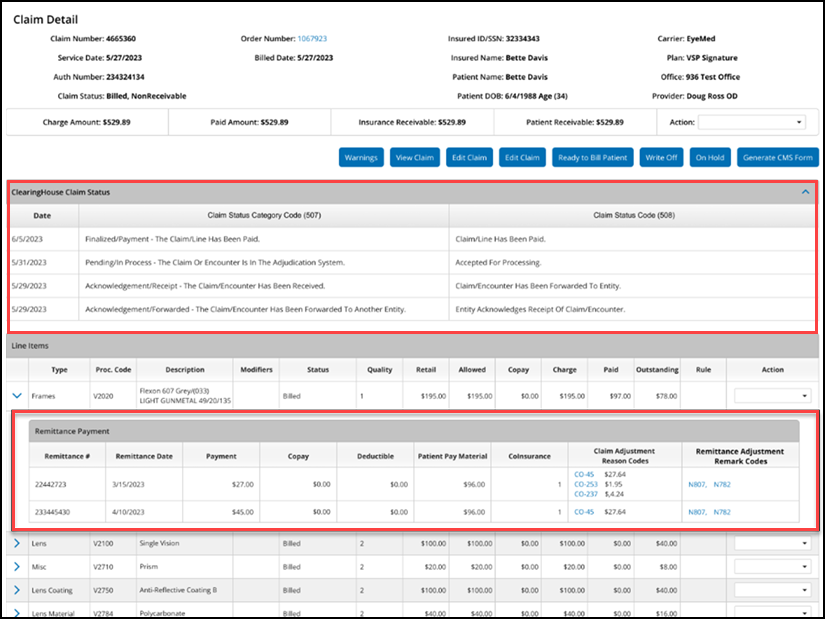
To see details on the remittance payment, click the blue down arrow next to a line item. The Remittance Payment panel displays the remittance number, remittance date, Remittance Adjustment Remark Codes, and other information.
Claim Status Category Codes
The following tables list the claim status category codes, along with the dashboard status for each.
| Code | Code Description | Status |
|---|---|---|
| A0 |
Acknowledgement/Forwarded—The claim/encounter has been forwarded to another entity. |
Received |
| A1 | Acknowledgement/Receipt—The claim/encounter has been received. This does not mean that the claim has been accepted for adjudication. | Received |
| A2 | Acknowledgement/Acceptance into adjudication system—The claim/encounter has been accepted into the adjudication system. | Received |
| A3 | Acknowledgement/Returned as unprocessable claim—The claim/encounter has been rejected and has not been entered into the adjudication system. | Rejected |
| A4 | Acknowledgement/Not Found—The claim/encounter cannot be found in the adjudication system. | Rejected |
| A5 | Acknowledgement/Split Claim—The claim/encounter has been split upon acceptance into the adjudication system. | Received |
| A6 | Acknowledgement/Rejected for Missing Information—The claim/encounter is missing the information specified in the Status details and has been rejected. | Rejected |
| A7 | Acknowledgement/Rejected for Invalid Information—The claim/encounter has invalid information as specified in the Status details and has been rejected. | Rejected |
| A8 | Acknowledgement/Rejected for relational field in error. | Rejected |
| Code | Code Description | Status |
|---|---|---|
| DR01 | Acknowledgement/Receipt—The claim/encounter has been received. This does not mean the claim has been accepted into the data reporting/processing system. Usage: Can only be used in the Data Reporting Acknowledgement Transaction. |
Received |
| DR02 | Acknowledgement/Acceptance into the data reporting/processing system—The claim/encounter has been accepted into the data reporting/processing system. Usage: Can only be used in the Data Reporting Acknowledgment Transaction. |
Received |
| DR03 | Acknowledgement/Returned as unprocessable claim - The claim/encounter has been rejected and has not been entered into the data reporting/processing system. Usage: Can only be used in the Data Reporting Acknowledgment Transaction. |
Rejected |
| DR04 | Acknowledgement/Not Found—The claim/encounter cannot be found in the data reporting/processing system. Usage: Can only be used in the Data Reporting Acknowledgment Transaction. |
Rejected |
| DR05 | Acknowledgement/Rejected for Missing Information—The claim/encounter is missing the information specified in the Status details and has been rejected. Usage: Can only be used in the Data Reporting Acknowledgment Transaction. |
Rejected |
| DR06 | Acknowledgment/Rejected for invalid information—The claim/encounter has invalid information as specified in the Status details and has been rejected. Usage: Can only be used in the Data Reporting Acknowledgment Transaction. |
Rejected |
| DR07 | Acknowledgement/Rejected for relational field in error. Usage: Can only be used in the Data Reporting Acknowledgment Transaction. |
Rejected |
| DR08 | Acknowledgement/Warning—The claim/encounter has been accepted into the data reporting/processing system but has received a warning as specified in the Status details. Usage: Can only be used in the Data Reporting Acknowledgment Transaction. |
Received |
| Code | Code Description | Status |
|---|---|---|
| P0 | Pending: Adjudication/Details—This is a generic message about a pended claim. A pended claim is one for which no remittance advice has been issued, or only part of the claim has been paid. | Received |
| P1 | Pending/In Process—The claim or encounter is in the adjudication system. | Received |
| P2 | Pending/Payer Review—The claim/encounter is suspended and is pending review (e.g. medical review, repricing, Third-Party Administrator processing). | Received |
| P3 | Pending/Provider Requested Information—The claim or encounter is waiting for information that has already been requested from the provider. Usage: A Claim Status Code identifying the type of information requested, must be reported. |
Rejected |
| P4 | Pending/Patient Requested Information—The claim or encounter is waiting for information that has already been requested from the patient. Usage: A status code identifying the type of information requested must be sent. |
Rejected |
| P5 | Pending/Payer Administrative/System hold. | Rejected |
| Code | Code Description | Status |
|---|---|---|
| F0 | Finalized—The claim/encounter has completed the adjudication cycle and no more action will be taken. | Paid |
| F1 | Finalized/Payment—The claim/line has been paid. | Paid |
| F2 | Finalized/Denial—The claim/line has been denied. | Rejected |
| F3 | Finalized/Revised—Adjudication information has been changed. | Paid |
| F3F | Finalized/Forwarded—The claim/encounter processing has been completed. Any applicable payment has been made and the claim/encounter has been forwarded to a subsequent entity as identified on the original claim or in this payer's records. | Paid |
| F3N | Finalized/Not Forwarded—The claim/encounter processing has been completed. Any applicable payment has been made. The claim/encounter has NOT been forwarded to any subsequent entity identified on the original claim. | Paid |
| F4 | Finalized/Adjudication Complete—No payment forthcoming. The claim/encounter has been adjudicated and no further payment is forthcoming. | Paid |
| Code | Code Description | Status |
|---|---|---|
| R0 | Requests for additional Information/General Requests—Requests that don't fall into other R-type categories. | Rejected |
| R1 | Requests for additional Information/Entity Requests—Requests for information about specific entities (subscribers, patients, various providers). | Rejected |
| R3 | Requests for additional Information/Claim/Line—Requests for information that could normally be submitted on a claim. | Rejected |
| R4 | Requests for additional Information/Documentation—Requests for additional supporting documentation. Examples: certification, x-ray, notes. | Rejected |
| R5 | Request for additional information/more specific detail—Additional information as a follow up to a previous request is needed. The original information was received but is inadequate. More specific/detailed information is requested. | Rejected |
| R6 | Requests for additional information—Regulatory requirements. | Rejected |
| R7 | Requests for additional information—Confirm care is consistent with Health Plan policy coverage. | Rejected |
| R8 | Requests for additional information—Confirm care is consistent with health plan coverage exceptions. | Rejected |
| R9 | Requests for additional information—Determination of medical necessity. | Rejected |
| R10 | Requests for additional information—Support a filed grievance or appeal. | Rejected |
| R11 | Requests for additional information—Pre-payment review of claims. | Rejected |
| R12 | Requests for additional information—Clarification or justification of use for specified procedure code. | Rejected |
| R13 | Requests for additional information—Original documents submitted are not readable. Used only for subsequent request(s). | Rejected |
| R14 | Requests for additional information—Original documents received are not what was requested. Used only for subsequent request(s). | Rejected |
| R15 | Requests for additional information—Workers Compensation coverage determination. | Rejected |
| R16 | Requests for additional information—Eligibility determination. | Rejected |
| Code | Code Description | Status |
|---|---|---|
| E0 | Response not possible—Error on submitted request data. | Rejected |
| E1 | Response not possible—System status. | Rejected |
| E2 | Information Holder is not responding; resubmit at a later time. | Rejected |
| E3 | Correction required—Relational fields in error. | Rejected |
| E4 | Trading partner agreement specific requirement not met: Data correction required. Usage: A status code identifying the type of information requested must be sent. |
Rejected |
| Code | Code Description | Status |
|---|---|---|
| D0 | Data Search Unsuccessful—The payer is unable to return status on the requested claim(s) based on the submitted search criteria. | Rejected |