
Understanding SaferPayments
This feature is an add-on solution and requires setup by Eyefinity and may include additional cost. For information on how to get started, see our website.
SaferPayments is an online portal that:
-
Guides you through completing an IT security assessment specific to your business
-
Translates your answers into the correct version of the SaferPayments Self-Assessment Questionnaire (SAQ) form, and finally,
-
Runs an IT vulnerability scan from the portal.
You can use SaferPayments to run network scans where cards are processed (office wifi or LAN) and submit the SAQ form quarterly, which allows you to meet the PCI security obligations and avoid fees for non-compliance.
With SaferPayments you:
-
Save Time -- the self-guided initial assessment takes 30-60 minutes and then only 5-10 minutes per quarter after.
-
Easily Comply with Security Requirement -- the SAQ forms can be hard to understand if you don't have a background in PCI security standards. SaferPayments walks you through what you need - no background needed.
-
Save Money -- SaferPayments makes it easy to run the scans and submit your SAQ form quarterly and ensure your network remains safe. Doing so, prevents PCI Non-Validation fees.
SaferPayments helps you meet PCI security obligations and is an optional feature of EncompassPay at a cost of $25 for SaferPayments Basic per month per location.
If you do not submit your SAQ form quarterly, the PCI Non-Validation Fee is $50 per month per location.
Ready to Get Started?
To access SaferPayments, go to this URL:
https://saferpayments.yoursecurejourney.com/safemaker/login/portal
and enter the MID/Username and Password provided to you.
Click Login.
One of the first steps to getting set up with SaferPayments is to complete your Business Profile. The app helps guide you through the process.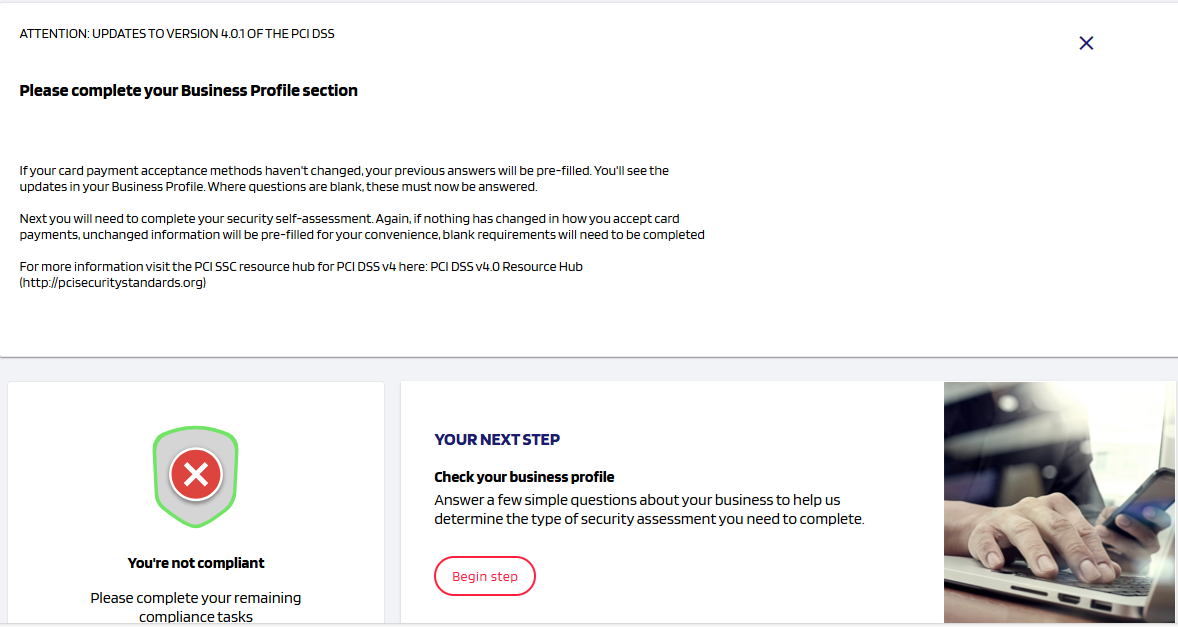
-
Click Begin step.
Note: If you have previously entered profile information, scroll down to the Your business profile section and click Manage.
The What's next? screen displays. -
Read the three steps and then, click Continue. The Your Business Profile screen displays explaining the next steps.
-
Read the explanation and click Next. The Choose an assessment method screen displays.
-
We recommend choosing Guide Me for your assessment method. As we document this process, we are selecting the typical responses; however, your organization may have different responses. Please respond according to your organization's needs and be aware, this may require you to answer additional questions.
Select Guide Me and then click Next. -
The How do you accept payment cards? screen displays. Check the box for the ways you accept payment cards.
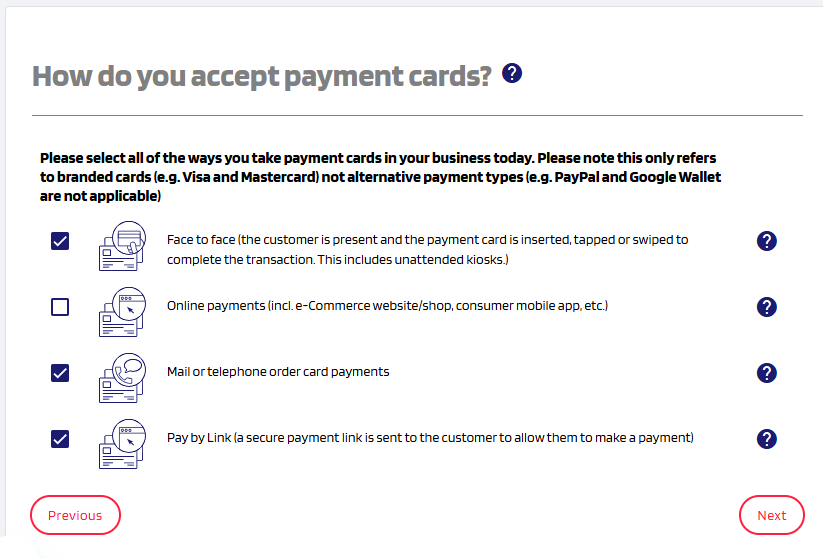
Typically you will select Face to face, Mail or telephone and Pay by Link. EncompassPay is not an e-Commerce site so that box we are leaving blank. -
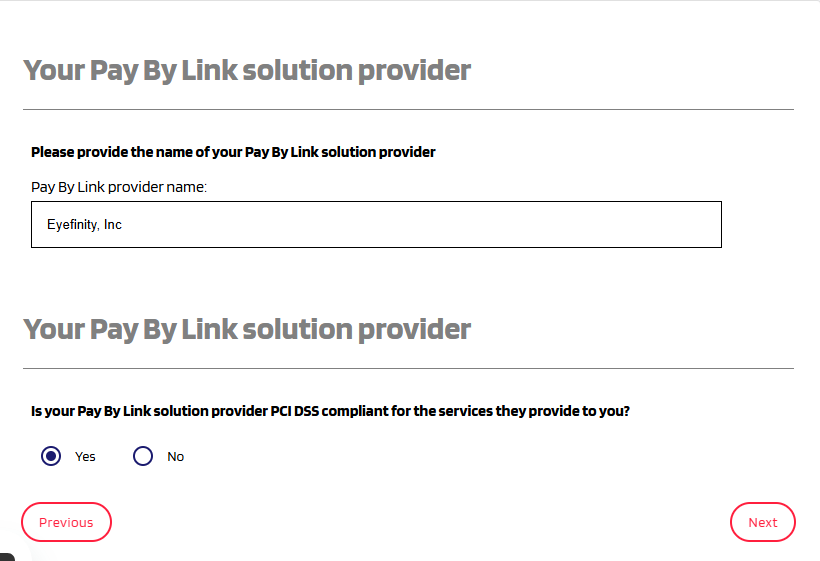
Click Next. The Your Pay By Link solution provider screen displays.
-
Enter "Eyefinity, Inc" for the Pay by Link provider name.
-
Select Yes to indicate your provider, Eyefinity, is PCI DSS compliant.
-
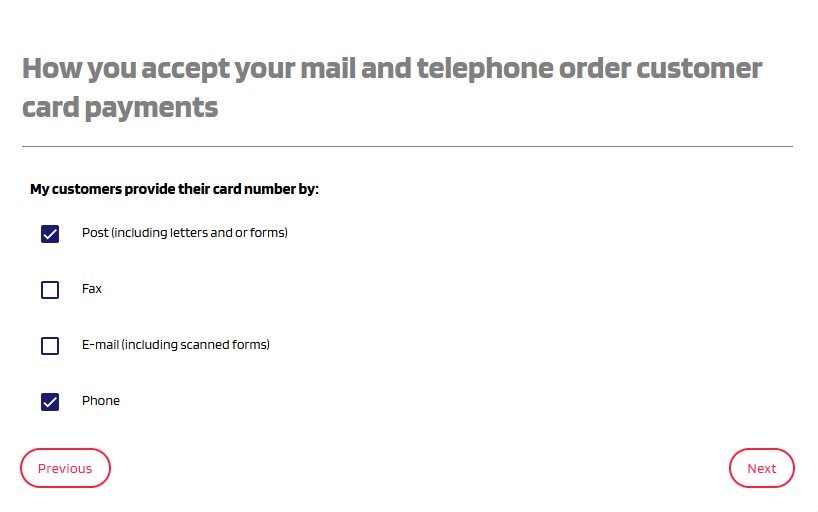
Click Next. The How you accept your mail and telephone order customer card payments screen displays.
-
Select the items that apply for your office; typically, this is Post (including letters and or forms) and Phone. For awareness, the PCI considers accepting payment by email as higher risk; only select if used.
-
Click Next. The How you accept card payments via mail and telephone order screen displays.
-
Select No to indicate you do not outsource your telephone or mail ordering including payment capture.
-
Click Next. The How you store scanned images and documents screen displays.
-
Answer No as any payment images and documents are maintained within Eyefinity's Encompass Practice Management features/EncompassPay.
-
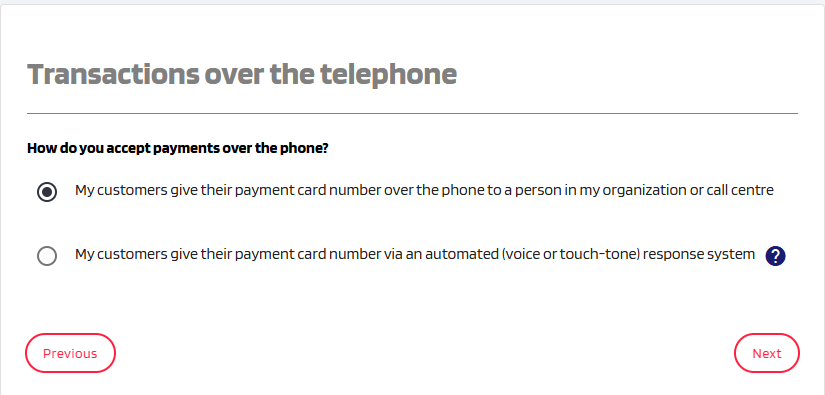
Click Next. The Transactions over the telephone screen displays.
-
Indicate how you accept payments over the phone. Typically, your customers will give their payment information to a person.
Note: If you use an automated system, additional information is required. -
Click Next. The Your telephone system call handling screen displays.
-
Generally, this answer is No, you do not record calls in and from your practice. If you select yes, additional information is required.
-
Click Next. The Storage of Electronic Cardholder Data screen displays.
-
Select No, EncompassPay uses an integrated terminal device with a secure processing system that does not store full card numbers.
-
Click Next. The Your employees access to data screen displays.
-
Select No, EncompassPay does not store cardholder data and employees do not have access to card data.
-
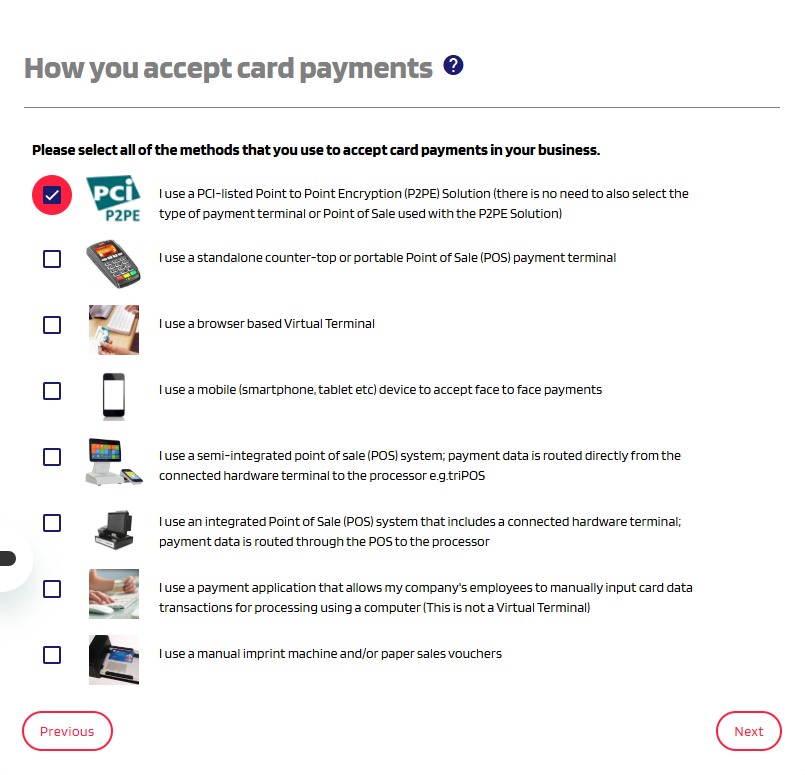
Click Next. The How you accept card payments screen displays.
-
Select I use a PCI-listed Point to Point Encryption (P2PE) Solution (there is no need to also select the type of payment terminal or Point of Sale used with the P2PE Solution).
-
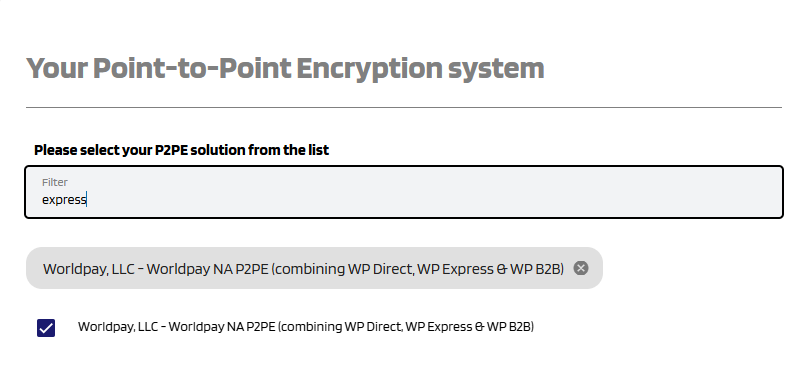
Click Next. The Your Point-to-Point Encryption system screen displays.
-
Type "express" into the filter field and then select Worldpay, LLC - Worldpay NA P2PE (combining WP Direct, WP Express & WP B2B.
-
Click Next. The Your Worldpay NA P2PE (combining WP Direct, WP Express & WP B2B) PTS device screen displays.
Select your device; this is typically the Ingenico, Lane/3600, Desk/1700 (4-30481) 6.x.
Click Next. The Your customer's payment card authentication data screen displays.
-
For the question: Do you receive the security/validation/verification code from your customers to authorize their transactions? This is the three or four digit number located in either the signature panel of your customer's payment card or on the front of the card.
Select No. For some cards the CVV is located on the back of the card. Encompass does not require the CVV. -
Click Next. The printed paper receipts and reports screen displays.
-
Select No, receipts and reports in Encompass and EncompassPay do not include the full card number.
-
Click Next. The Other uses of card numbers screen displays.
-
Select No to indicate no employees in your practice send or receive full card numbers via email or instant message.
-
Select No to indicate your practice does not store, transmit or receive cardholder data electronically for any other purpose.
-
Click Next. The Third Party Managed System Service Providers screen displays.
-
For the question: Do you have relationships with one or more third-party service providers that manage system components included in the scope of this assessment, for example, via network security control services, anti-malware services, security incident and event management (SIEM), contact and call centers, web-hosting services, and IaaS, PaaS, SaaS, and FaaS cloud provider?
-
Select No. Using EncompassPay intentionally reduces your PCI compliance scope by not having this data.
-
Click Next. The Other Third Party Service Providers that may impact cardholder data security screen displays.
-
Select No, to indicate you do not have relationships with one or more third-party service providers that could impact the security of your company's cardholder data environment (CDE). For example, vendors providing support via remote access, and/or bespoke software developers.
-
Click Next. The Do you use an Internal Security Assessor for your PCI DSS? screen displays.
-
Select No to indicate you do not have an ISA.
-
Click Next. The Support from a PCI Qualified Security Assessor screen displays.
-
Select No to indicate you do not have a QSA.
-
Click Next. The Your company policy for information security screen displays.
-
For the question: To handle payment cards you are required by the Payment Card Industry Data Security Standard (PCI DSS) to have an Information Security Policy in place for your organization. This must cover all relevant areas of the standard. If you do not currently have one, we can provide you with a policy template below.
We recommend you select I do not have an Information Security Policy in place at the moment, I will implement a security policy using the template provided and download the information security policy offered. -
Click Next. The A Summary of how and where you handle card payments screen displays.
-
Fill out each section.
-
In the first section, describe your practice and locations that are included in the PCI DSS assessment.
-
In the second section, indicate your practice processes and transmits cardholder data using a POS device directly integrated with our SaaS software that does not store payment card data.
-
In the third section, indicate your practice transmits and processes payment card data using a POS device directly integrated with our SaaS Point of Sale software utilizing an approved P2PE device integration and we do not have access to any payment card data.
-
-
Click Next. Your Business Profile is complete and you return to the main screen.
You now need to Complete Your Security Assessment; typically this includes only a couple of questions.