
Using the EncompassMessage Dashboard and Reporting
This feature is an add-on solution that requires setup by Eyefinity and may include additional cost. For information on how to get started, see our website.
The EncompassMessage dashboard displays information regarding the status of your notification attempts. Providing you with total notifications delivered and the number that were successful and the number that failed.
You access the dashboard via Admin - located at https://pn-admin.eyefinity.com/.
If you also have Eyefinity PatientNavigator, you will see additional dashboard options.
What do you want to do?
The Notifications dashboard provides insight into the number of Text/Voice Delivery notifications, Text/Voice Communication and Email Delivery and your potential Cost Avoidance. Using the drop-down just above the graphics, you can choose to have the dashboard reflect the total data for the:
-
Past 30 Days
-
Past 60 Days
-
Past 90 Days
-
Month-to-Date
-
Year-to-Date
Text/Voice Messages
The Text/Voice Messages section breaks out the numbers by message type such as Appt. Reminder (1 Day), Appt. Reminder (2 Days) and show the Total Outboard. You can hover over the bar in the chart to see the type.
Email Messages
Email Messages are also broken out by type and show the Total Outboard.
Patient Notifications History
Finally, at the bottom of the dashboard, you can see the detail of the Patient Notifications History. In this table, you can search for a specific patient and using the drop-down next to the search field, you can filter the list to display only successful or failed notifications. You can also export the detail to a PDF or CSV file; click on the ellipses icon and then from the drop-down select the format.
Investigating the 'Fail' notifications provides insight into why a particular communication may have failed. Follow the instructions below to troubleshoot communication problems you may encounter with your patients.
- From the Admin portal, click the Dashboard icon on the left side of your screen.
- Select Notifications. The Notifications dashboard displays.
- Click the red Fail: XX text in the graphic. You are taken to the Patient Notifications History graphic and the table is auto-filtered to display only failed notifications.
- Use the Activity column to help determine what may have prevented a communication attempt from being successful.
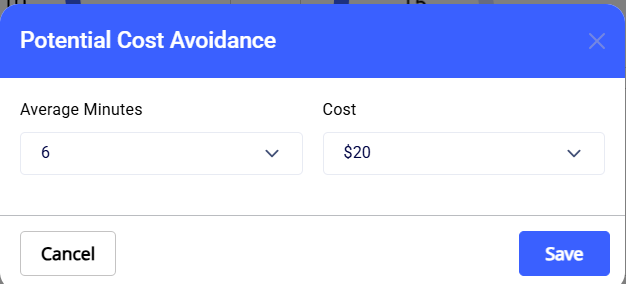
The system also calculates and displays your Cost Avoidance for the past 30 days. This amount is calculated based on the average number of minutes a staff member typically spends assisting the patient and the associated cost. The default is 6 minutes at a cost of $20.
-
To edit the default numbers so the calculation reflects your costs:
-
Click the settings icon in the Cost Avoidance box. The Potential Cost Avoidance screen displays.
-
Select the Average Minutes; you can choose from 2, 4, 6, 8 and 10 minutes.
-
Select the Cost; you can choose from 10, 20, 30, 40 and 50 dollars.
-
Click Save. The calculation now uses these numbers to calculate cost avoidance on the dashboard.