
Using the CLX Interface
The CLX interface is a robust, automated way to submit your soft contact lens orders to be filled by a distributor. There is little outside of the normal operation of OfficeMate required to submit soft contact lens orders through the CLX interface.
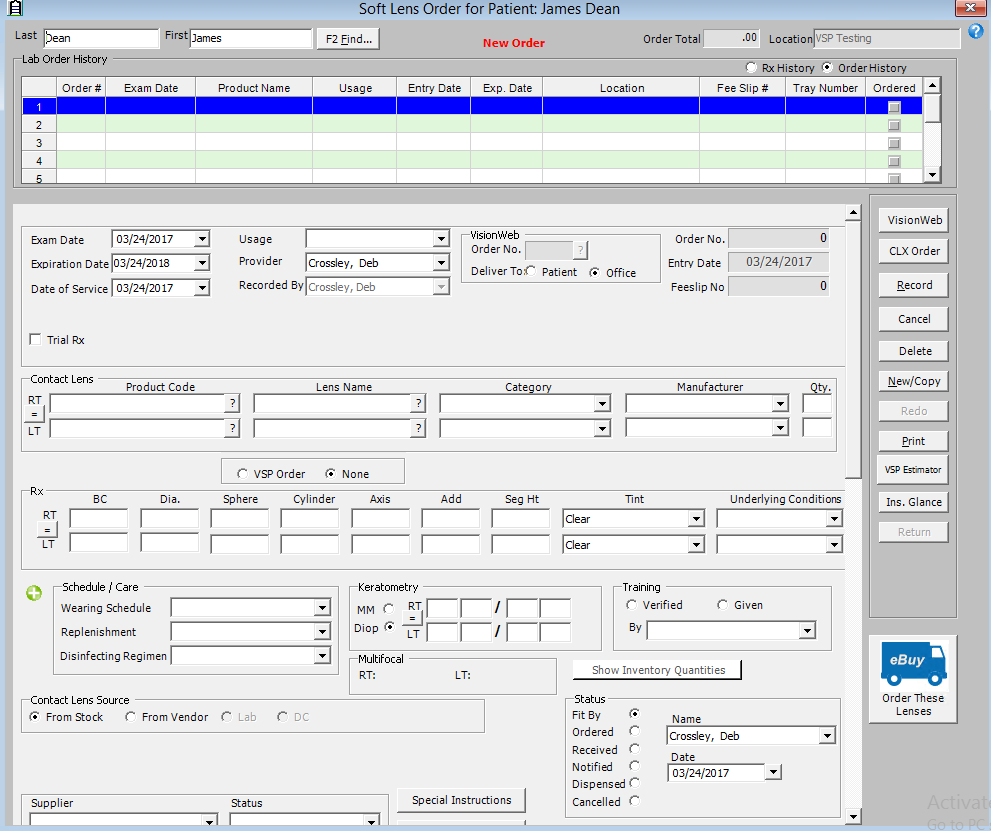
- Record orders for soft contact lenses that you set up with CLX during your onboarding process through the Soft Lens Order window in OfficeMate. For more information, see Ordering and Tracking Prescriptions.
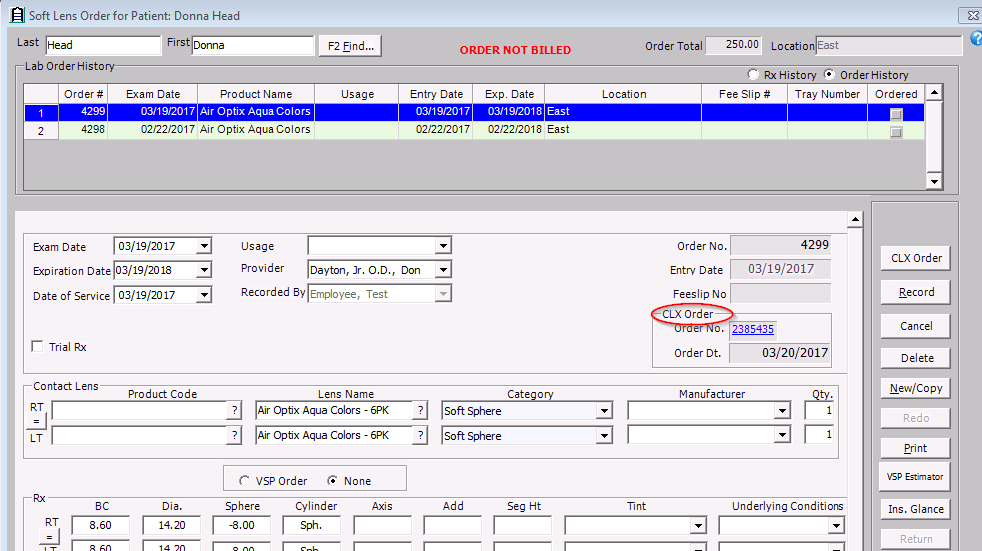
- Click the CLX Order button on the right side of the window.
The soft contact lens orders are submitted to the CLX System.
The CLX order number and date is populated in the soft lens order.
Soft contact lens orders are immediately submitted to distributors. If you want the orders to be queued with a batched status in CLX so that you can review them before submitting them to distributors, contact CLX.
- To view the status of a soft contact lens order, click Tasks on the OfficeMate main window and select CLX System or click the CLX order number link in the Soft Lens Order window and log into the CLX System.
The Dashboard displays orders submitted within the past 30 days and their statuses.
- To search for a patient order, click Order Tracking, record search criteria, and click Search Orders.
- CLX recommends leaving the Order Status search criteria set to Select All, unless you are certain that the order for which you are searching is in a particular status.
- Extend your date range to expand your search results.
- To expand your search results, select Show All from the Office drop-down menu.