
What's New in AcuityLogic 8.37 for On-Premises Multitenant Users
On-Premises Release Date: Please work with your KAM.
Eyefinity announces the newest version of AcuityLogic. This version resolves known issues in previous versions and offers new features and expanded functionality.
Topics include the following:
- Admin Enhancements
- Billing Enhancements
- POS Enhancements
- API Enhancements
- Fixed Issues
- What's New in AcuityLogic 8.37.3
For more information on AcuityLogic features, training, and integrations, contact your account representative, or call Eyefinity at
Admin Enhancements
Admin includes enhancements in the following area:
Change to Remake Types Setup
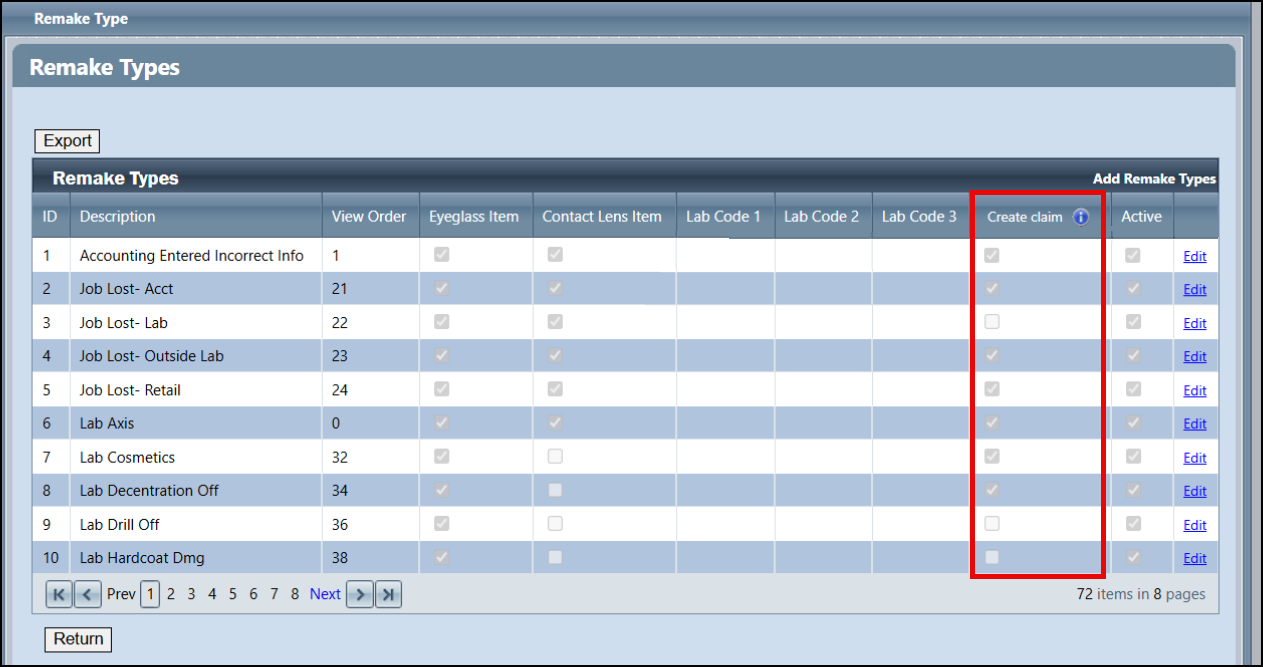
We've replaced the Do not create claim check boxes in the Remake Types setup screen with Create Claim check boxes. Now these check boxes indicate which remake types will generate claims, where previously they indicated which types would not generate claims.
With this release, we have automatically updated the check boxes to maintain your existing functionality — a claim is created when the box is selected and there is a change in the receivable amount. No action is required on your part unless you would like to make changes to how your remake types currently work. See Setting Up Remake Types for more information.
Billing Enhancements
Billing includes enhancements in the following areas:
- Retry Failed Claims Up to 12 Months Old
-
Faster Aged Claims and Monthly Aged Balancing Report Generation
-
Improved Carrier Payment and Patient Payment Editing Windows
Retry Failed Claims Up to 12 Months Old
The Retry Claims feature now works for failed claims that are up to 12 months old. Previously, you could only retry claims that were older than 90 days.
Claim Detail Loads Faster
We've improved the Claim Search screen so that it loads Claim Detail information more quickly, eliminating extended "hangs."
Fewer Failed Claims
We've improved the claim generation process to prevent claims failing due to missing Insured ID or SSN information. Previously, claims would sometimes fail to generate because the system was expecting a SSN instead of the provided Insured ID, or vice versa.
Faster Aged Claims and Monthly Aged Balancing Report Generation
The Aged Claims Report (GB106) and the Monthly Aged Balancing Report (GB119) now generate quicker, saving you time.
Improved Carrier Payment and Patient Payment Editing Windows
We've made the following updates to the carrier payment and patient payment editing windows:
-
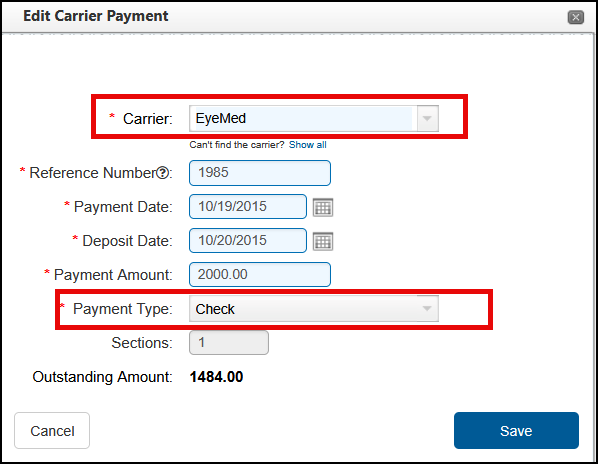
The windows have been renamed Edit Carrier Payment and Edit Patient Payment to correctly reflect that you are editing a payment, not entering a new one.
-
In the Edit Carrier Payment window, if any amounts have been applied to claims, the Carrier and Payment Type fields are no longer editable. This change prevents errors due to incorrect or mismatched information.
POS Enhancements
POS includes enhancements in the following area
Improved Messaging for WorldPay Transaction Errors
When any credit card transaction is processed via WorldPay and WorldPay returns an error message, the system displays an error message to help guide the user. For example: for a stolen card, the following message displays: This card was declined because it's reported as lost or stolen. Please try again with a different card.
Correct a Patient's Social Security Number from the Patient Profile
You can now correct a patient's social security number from the Patient Profile tab. This feature is similar to that on the Insurance tab.
From the Patient Profile, click the Show SSN button that displays next to the SSN field. The field is editable and you can now enter the correct social security number.
If integrated with Eyefinity's EHR, correcting the social from the patient profile ensures the proper information is transferred to EHR.
API Enhancements
API Enhancements include:
Online Scheduler Respects Online Schedule Setting
We have updated the Schedule Manager API to look at the Allow Online Scheduling setting in the Employee screen and if the option is selected, return appointment slots for that provider/staff. If the Allow Online Scheduling box is not checked, no appointment slots for the provider/staff are returned.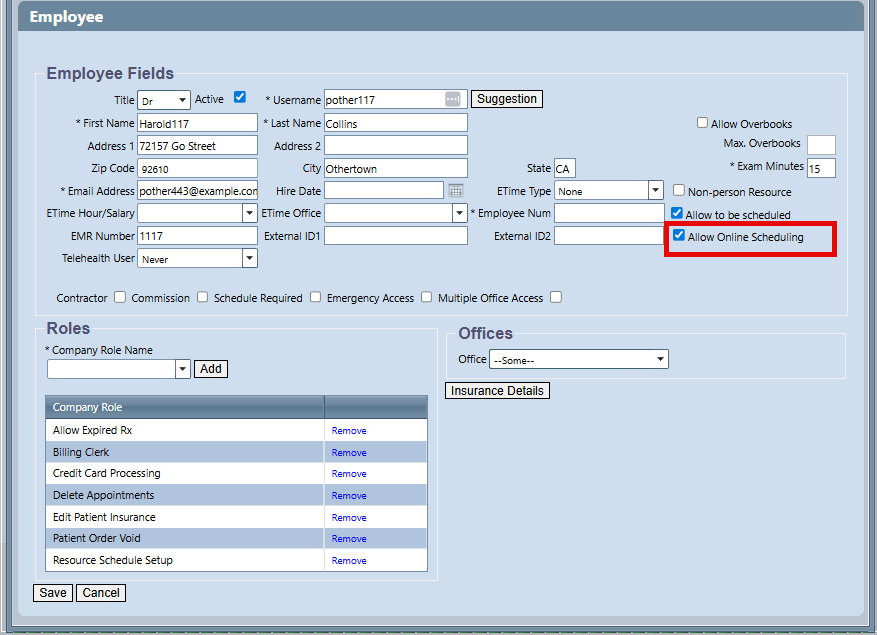
We recommend you review your employees to ensure the individuals you want patients to be able to schedule an appointment with online have the Allow Online Scheduling checkbox selected.
We are simultaneously informing our API partners of this change and have updated our tech specs to avoid disruptions in online scheduling.
Fixed Issues
-
AcuityLogic 8.37 fixes issues in the following areas:
Admin
-
We've updated the Company Carrier window so that the Insert link under Additional Carrier Attributes can no longer be clicked multiple times. Previously, clicking Insert multiple times would cause duplicate company carrier records, potentially causing failed claims.
-
When you run the KPI calculation, it now includes inactive items in the calculation. Previously, the calculation would fail when an item is inactive but attached to a KPI schedule.
-
You can now successfully map all offices to the sales tax account in GL Setup; previously, the system would spin and no offices would be processed.
-
When mapping products, you can now map and price Other items (exam, accessories, fees) and search for an item or select from the drop-down without receiving an error.
-
We corrected an error that displayed while activating diagnostic contact lenses; previously, when you selected the active checkbox, an error would display; however, the lenses would save as active.
BackOffice
-
You can now export the Item Sales Report (MN101) to CSV. Previously, the report wouldn't download.
-
You can successfully run the Back Office Accounting report: Net Receipts (AC148) without encountering an error; previously, an error displayed when the payment amount was set to zero.
Billing
-
Clicking Reset in the EDI Transmission screen no longer incorrectly causes the Create EDI File and Create and Send buttons to display.
-
The EDI Transmission screen now retains the Plan you select.
-
Clicking Reset in the Generate CMS Form screen no longer incorrectly causes the Generate Form button to display.
-
When you print the Billing Transaction Report (GB117) by billing month, all transactions associated with the monthly close are now included on the report. Previously, transactions that occurred before the monthly close date were not included.
DC
-
You can now run the Physical Inventory Valuation Summary (INV102) report for all locations and a date range without encountering an error.
-
When transferring stock from one office to multiple offices, the inventory on-hand count updates correctly; previously, the on-hand count only subtracted the transfer amount for one office.
POS
-
The "Please refresh the page and try again" error no longer occurs when applying payments to orders. Previously, this error would display when applying payment to orders where an adjustment had been made after invoicing.
-
When adding VSP insurance to an eyeglass order, the window prompting you to select a valid VSP lab now lists all valid labs. Previously, the drop-down list would be empty.
-
Patients with credit balances now only print on the Patient Credit Balances Report for the office(s) where they have transactions. Previously, they would print on the report for every office in the company. The correct credit balances are now shown, including when Family Checkout was used.
-
The Work in Progress Report now generates without error.
-
We fixed an issue that was causing the error "CH6001: The Authorization you have entered is not valid for this date of service" when calculating VSP benefits. The system was incorrectly using the order date as the date of service instead of the current date, causing the error on VSP orders not authorized and priced on the same day the order was created.
-
You can now recheck a hard contact lens prescription and change it to a soft contact lens prescription without encountering an error.
-
When using the WorldPay integration, we have improved processing of reverse pending authorizations, which prevents patients from being double-charged.
-
We corrected an issue causing WorldPay payments to be finalized on orders that have not been invoiced.
-
The Cylinder value now correctly copies from the right eye to the left eye when entering contact lens prescriptions.
-
Incorrect insurance information is no longer added to a patient's record via the VSP integration when there is another (different) patient in the VSP system with the same name and date of birth. The VSP integration now correctly checks the patient's SSN and Zip Code to confirm the match.
-
Packing Slips and Doctor Reports now print correctly. Previously, when attempting to print these two reports the print window would be blank.
-
When applying a payment to an order that was previously invoiced, the Order Date stays the same; previously, the date changed to the date payment was made.
-
When creating an order with items that qualify for packaging, the packaging drop-down displays the qualifying packages; previously, you had to save and then reprice the order for the package to display.
Integrations
-
We enhanced the frame load process to use more case-insensitive logic and allow for more accurate uploads.
-
When loading frames from VisionStar, the ItemGroup is set to Standard Frame. Previously, the item group was not being set.
-
We updated the xlink job to ensure Claims in Ready to Bill are picked up by the integration and processed.
What's New in AcuityLogic 8.37.3
Release Date: March 11, 2026
The following enhancement and fixed items are included in this release:
New Columns on Contract Doctor Pay Report (AC125)
We've added two new columns to the summary export version of the Contract Doctor Pay Report: Date and Store ID. The Date column indicates the date the doctor worked and the Store ID is the location where they worked. No changes were made to the detailed version of this report.
Fixed Issues
This version fixes the following issues:
-
Unknown errors no longer occur when adding insurance to lens-only orders.
-
Replenishment stock orders are now sent to the Distribution Center when Daily Closing in completed. Previously, stock orders would sometimes remain in Open status and not be sent to the Distribution Center.
-
Errors no longer occur when exporting Vendor Orders to CSV.
-
You can now open and update insurance schedules without encountering errors.
What's New in AcuityLogic 8.37.4
Release Date: April 17, 2026
The following enhancement and fixed items are included in this release:
AcuityLogic Supports 30 Characters for First and Last Name Fields
We have expanded the first and last name fields to support 30 characters each. Visible changes are on the following locations:
-
The Current Patient name that displays below the menu, will truncate the first/last name after 12 characters.
-
In the Patient Data section, the Gender and Birth Date fields now display on the second line below the name fields.
In all other locations the name wraps as needed.
Fixed Issues
-
The counts and on-hand totals on the Physical Inventory Variance Detail (INV105) report and the Physical Inventory Variance Summary (INV104) match; previously, the on-hand totals on the INV104 report were doubled.
-
When you are using Eyefinity's Schedule Manager API and you have two templates, one immediately after the other, with different appointment durations, the system pulls the correct appointment duration. Previously, the last appointment slot of the first template was pulling the appointment duration from the next template.
-
When a patient's information is updated using the Patient Engagement API, the patient information is pushed to Encompass EHR and CRM (if in use).
-
The Contact Lens prescription and Eyeglasses prescriptions print with the birth date in the MM/DD/YYYY format. Previously, the Contact Lens prescription printed using the European date format.
-
When the last exam date and exam office exist in the data, the Exam Store displays in the patient search results.
-
When RX Universe indicates a frame is discontinued, the frame status is updated to discontinued in AcuityLogic.
-
Printed lab orders no longer display the same phone number for both Phone #1 and Phone #2.
-
The frame source on the lab order displays the correct frame source as entered on the order. Previously, when DC Provided was first selected, it printed both.