
Integrating with Visionweb Labs
Eyefinity has partnered with Visionweb A quick, accurate, and convenient method for ordering and tracking patient prescriptions and processing insurance transactions. It is also a company (visionweb.com). to support integration with Visionweb labs. This integration enables electronic lab ordering through VisionVeb for non-VSP labs. This topic walks you through setting up the integration an labs.
Setting Up to Use Visionweb Labs
Before you can begin using VisionWeb lab, you need to enable the integration and then, under Office: Setup, enable each the lab you want to use to send orders to VisionWeb.
Enable the Integration
-
From Administration, select Integrations. See Navigating Administration for more information. The Integrations screen displays.
-
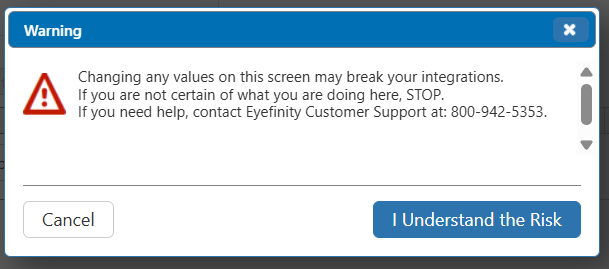
Scroll down to Lab Integrations and click Edit. A warning message displays.
-
Select I Understand the Risk. The section becomes editable.
-
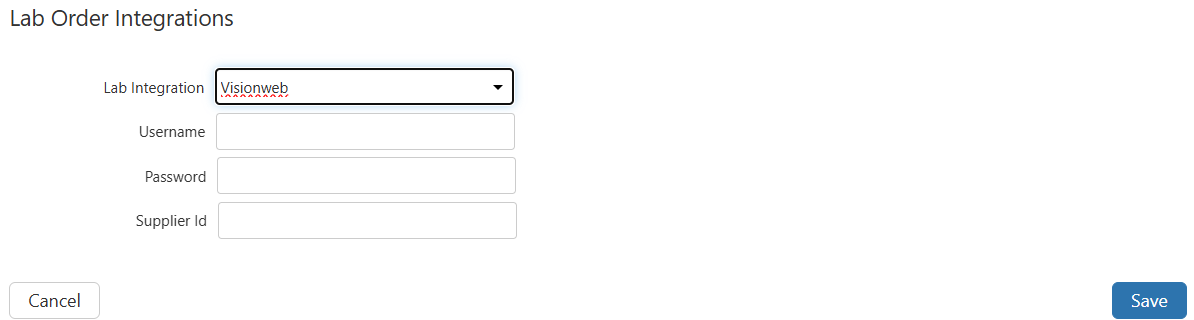
From the drop-down, select Visionweb.

Additional fields display. You should have received a username, password and supplier Id from VisionWeb.
-
Enter your Username.
-
Enter your Password.
-
Enter your Supplier Id as provided by VisionWeb.
-
Select Save. Your VisionWeb lab integration is enabled.
Enabling VisionWeb Labs
You can enable electronic lab ordering through Visionweb for non-VSP labs. Only labs with a valid VisionWeb lab code are available for integration.
- From the Office menu, select Lab Setup. See Navigating Administration for information on how to get to Office: Setup.
- Locate the lab from the list.
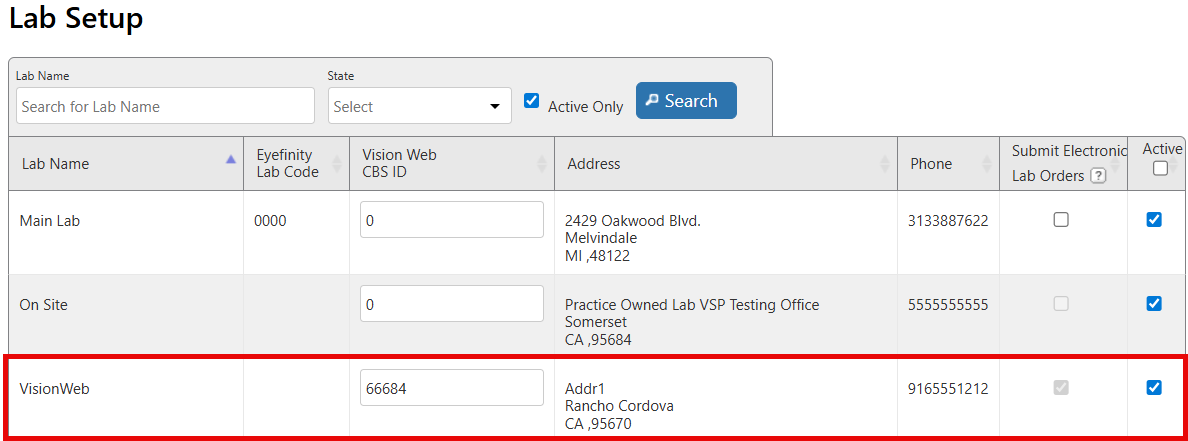
- Enter the VisionWeb CBS ID (this is provided by VisionWeb).
- Select the Submit Electronic Lab Orders check box. When you select the Submit Electronic Lab Orders check box, the Active check box for the lab is automatically selected. The Active check box must be selected to use the lab.
- Click Save.
Repeat these steps for each lab you want to integrate with VisionWeb.