
Preparing Staff for Online Payment Go-Live
This feature is an add-on solution that requires setup by Eyefinity and may include additional cost. For information on how to get started, see our website.
Before Go-Live, your staff needs to prepare to support online payments. This includes:
-
Coming up with a patient communication strategy
-
Ensuring staff knows of the changes coming in Encompass and,
-
Ensuring staff have access to the new Eyefinity PatientNavigator Admin portal.
Before your Go-Live Date, we recommend developing a communication plan to guide patients on the best practices for using Eyefinity PatientNavigator and online payments.
For example:
-
Create a flyer, handout, or email that guides your patients on using Eyefinity PatientNavigator and online payments.
-
Include the single order Paybill URL in the Invoice Caption. See Setting Up Invoice Preferences.
-
Create a scannable QR code (add to the invoice or print on a card or sticker) that you can provide the patient to download their prescription and/or make a payment after their visit.
-
Include a pay online message and QR code (with the Paybill URL) when you send out Patient Statements. Note: You can find apps to create a QR code online, we recommend using due diligence to ensure the app is secure and provides the options you need.
If you are new to Eyefinity PatientNavigator or need a refresher (including guidance on the FTC Contact Lens and Eyeglass Rules), see Introducing Eyefinity PatientNavigator .
Once your communication strategy is in place, you can then review changes in Encompass.
Material Orders
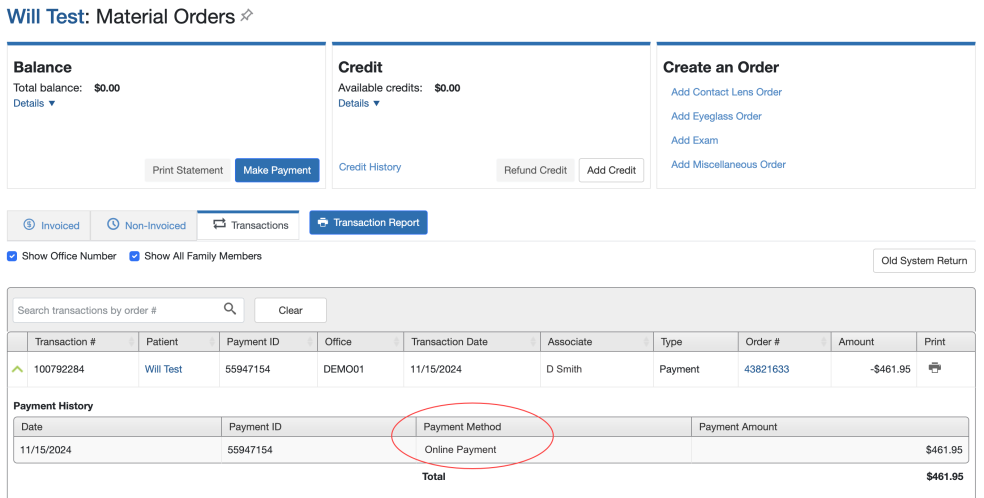
We have added a new payment type called ‘Online Payments’. You can view posted online payments from the patient’s Transaction tab on the Material Orders page and in other places in Encompass where you currently see payments.
Patient Correspondence
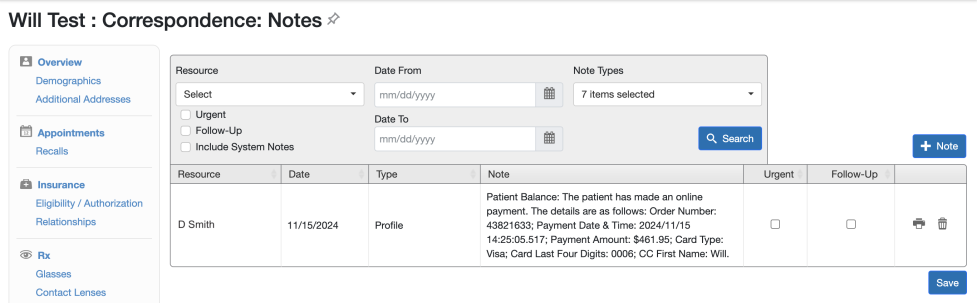
When an online payment is posted to Encompass, the details are automatically added as a patient note. Your front office staff may need to reference and use the online payment details in daily patient communications.
Financial Reconciliation/Reporting
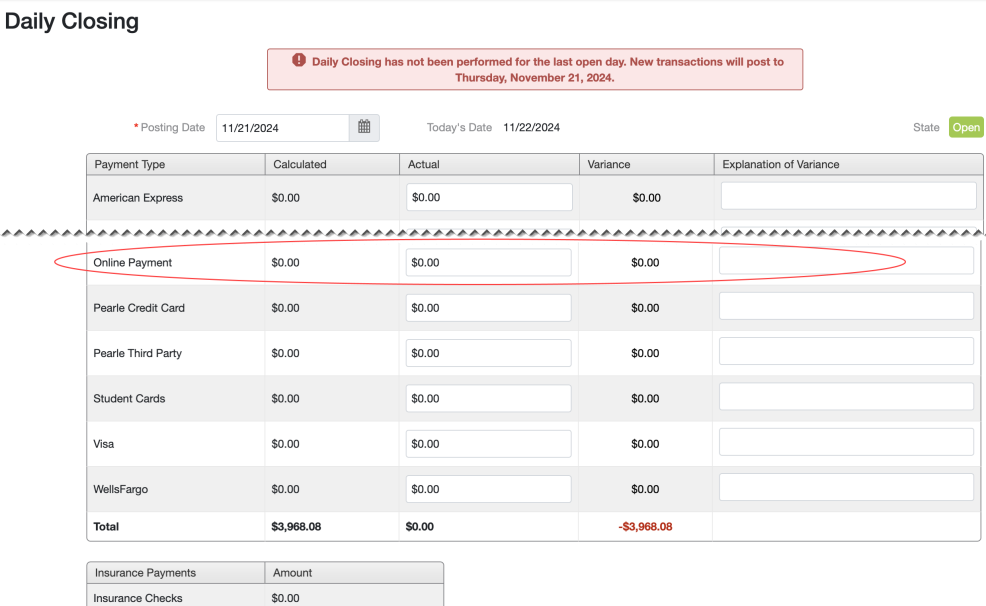
The new payment type "Online Payments" is added to your Company (see Setting Up Payment Types for Material Orders). When performing daily closing, a line for online payments displays. Online Payments are also visible in your payment reporting.
Online Payments are an additional payment type and display on reports in the same way as other additional payment types you can configure in Admin. Within Encompass, the following reports directly include these additional payment types:
-
Daily Closing Report
-
Front Office Patient Order Summary
-
Daily Transaction Payment Report
Other financial reports are updated with online payment data but do not specify these payment types and instead group them into “Other”. For example, the Monthly Production Summary Report includes online payments under Other.
Claims Management Reporting is not impacted.
Additional Reporting Options
Viewing Payment Activity in the Eyefinity PatientNavigator Admin Portal
Along with the ability to make online payments, we are also adding the Eyefinity PatientNavigator Admin portal.
From the portal side navigation, you select Reports and then Online Payment Report.
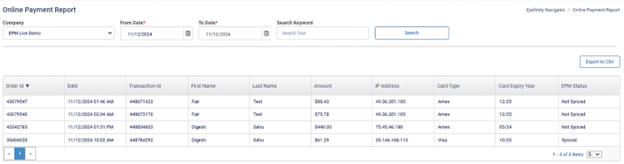
With this report you can review all online payments – those automatically posted to Encompass along with those payments that could not post and require you to act (you will also receive an email notification for these payments).
For the payments with the Encompass status “Not Synched”, you use the data provided to manually post the payment in Encompass.
Before go-live, confirm your staff who require access can login into the portal.
Viewing Payment Activity in Worldpay’s MyiQ
If you use Worldpay’s MyiQ reporting tool, the online payment activity will be available along with the payments processed via your POS terminal.