
Submitting Spectacle Orders
- Complete the instructions in Submitting Frame Orders to submit a frame order.
- Select a laboratory from the Laboratory drop-down menu on the Spectacle Lens Order window.
- Select a job type from the Job Type drop-down menu.
- Select a lens type from the Lens Type drop-down menu.
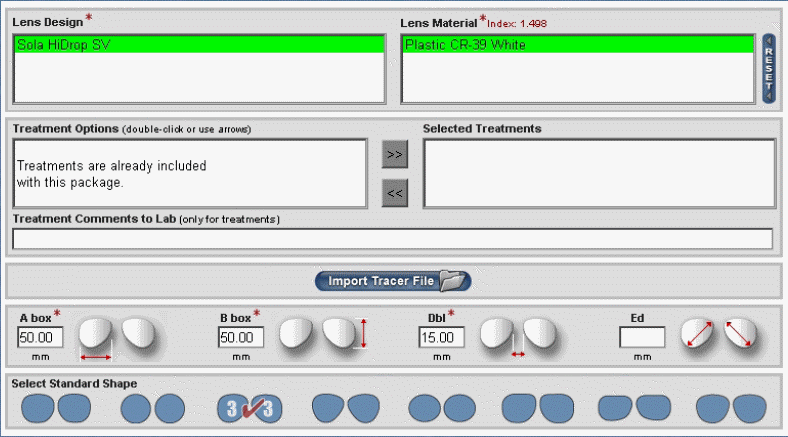
- Select a lens design from the Lens Design box.
- Select a lens material from the Lens Material box.
- Type measurements in the A box, B box, and Dbl text boxes.
- Select a standard shape from the Select Standard Shape options.
- Select a frame type from the Frame Type drop-down menu.
- Select a thickness from the Thickness Typedrop-down menu.
- Type the frame manufacturer’s name in the Frame Manufacturer text box.
- Type the style name in the Style Name text box.
- Type the color in the Color text box.
- Click Save to Pending Orders to save the order or click Send Order Now to send the order to VisionWeb.
An order confirmation window opens and displays a Vision Order #.
The VisionWeb spectacle order number is displayed on the patient’s OfficeMate Eyewear Order window in the VisionWeb Order No. Spectacle box.
To view order details, click the ? next to the VisionWeb spectacle order number on the patient’s OfficeMate Eyewear Order window.