
Pricing Attributes
Attributes are the individual qualities and characteristics that define a product (e.g., color, material, lens type). Attributes are inherent to the product; add-ons are not attributes. For example, an ophthalmic lens may be described by the following attributes: a progressive lens type; plastic, high index material; transition gray in color; with a Crizal coating. Product attributes translate directly to billable codes on the CMS 1500 claim form and patient statement.
- Open the Third Party Setup window. For more information, go to To open the Third Party Setup window.
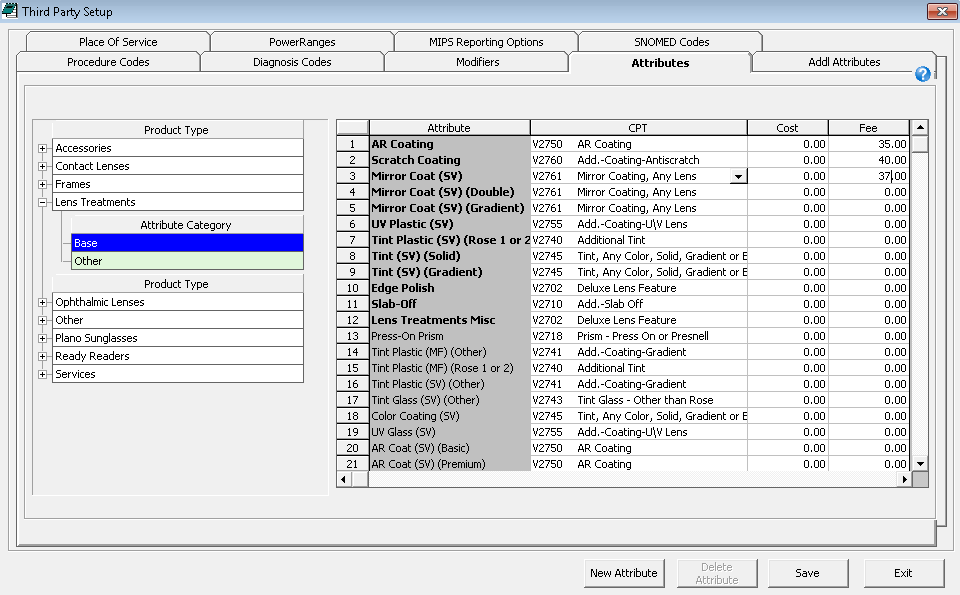
- Click the Attributes tab.
-
Select a Product Type from the list and click the plus (+) sign to expand it.
-
Select an Attribute Category.
- Select an Attribute from the list on the right to price it.
OR
Click New Attribute to create a new attribute.
- Select a procedure code from the CPT drop-down list.
- You do not need to select a CPT code for the ophthalmic Lens Cat./Base attributes. CPT codes are assigned based on the prescription recorded on the Eyewear Order window.
- With services, several possible CPT codes can be associated to a single attribute. Do not select a CPT for these types of services. For example, surgery should not have any CPT association. On each service product, associate the surgery attribute and select the appropriate CPT code at the product level.
- In the Cost and Fee columns, type the additional cost and fee for the attribute.
OR
For ophthalmic material, color, or other attributes, type the additional fees associated with single-vision, bifocal, trifocal, progressive lenses, and near variable focus lenses. If the fees are the same for each of these columns, enter the fee in the All Fee column only.
- The cost and fee associated with the attribute are added to the cost and fee of the product set up in the Products & Services window.
- Ophthalmic lens attributes are priced per lens. Lens treatment attributes are priced per pair.
- If you are updating the cost and fee, the change will only apply to products that are created after the change is saved. For information on updating the attribute cost or fee for individual products, go to To add manufacturer SKUs to OfficeMate product details. For information on updating the attribute cost or fee for multiple products, go to Updating Many Products and Services.
- If many of your costs and fees are the same, select a fee or cost, press Ctrl+C to copy, place your cursor in the next cell, and press Ctrl+V to paste. Once you copy a cost or fee, you can paste it many times.
- The costs and fees significantly effect the general ledger and accounting.
- Click Save when you are finished.
- Repeat steps 4–8 to add or modify additional attributes as needed.
- Click Exit to close the Third Party Setup window.
In addition to the procedure above, watch this video.