
Reviewing and Approving EncompassScribe Visit Documentation (Web)
After you save the visit recording, EncompassScribe converts the spoken words into suggested visit documentation. As the doctor, you must review and approve the suggested documentation before it is saved to the visit. You can review the suggested documentation after each visit or at the end of the day, whichever fits your workflow.
Prior to reviewing and approving EncompassScribe visit documentation, you must record the visit. To learn how, go to one of the following topics:
You have seven days following the visit to review and approve the suggested documentation.
What do you want to do?
- In the iPad app, navigate to the Detailed Visit Overview. To learn how, go to Toggle to the Detailed Visit Overview.
- Click View AI Output.
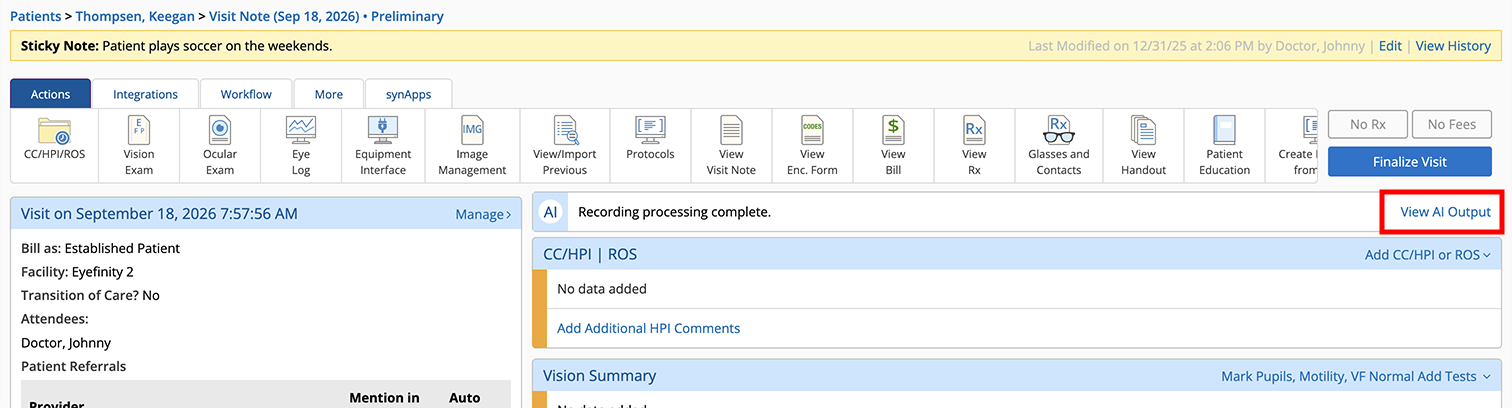
The reconciliation screen opens and displays the suggested visit documentation based on the exam elements spoken during the visit. Continue to Review and accept the suggested visit documentation.
- In the iPad app, navigate to the Patient Chart.
- Locate the visit and click View Reconciliation.
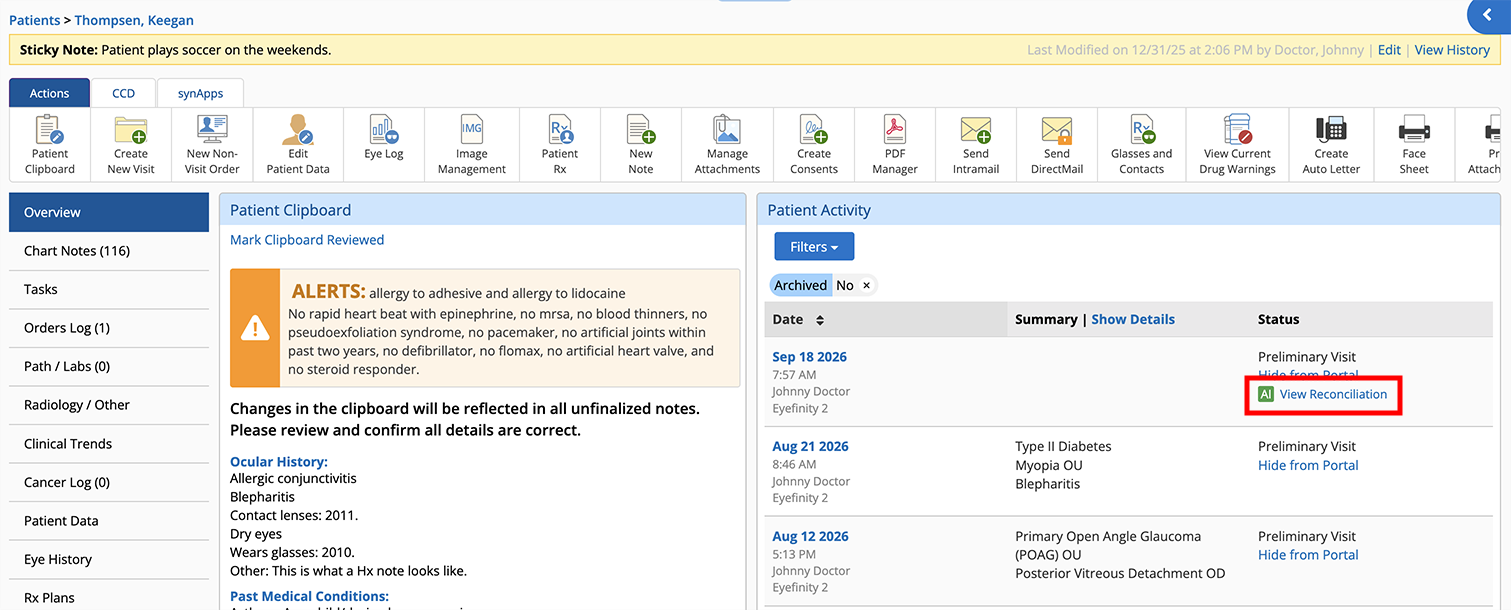
The reconciliation screen opens and displays the suggested visit documentation based on the exam elements spoken during the visit. Continue to Review and accept the suggested visit documentation.
- In the iPad app, navigate to the Home Screen. To learn how, go to Navigating the iPad App Home Screen.
- Locate the patient's visit and click View Reconciliation.
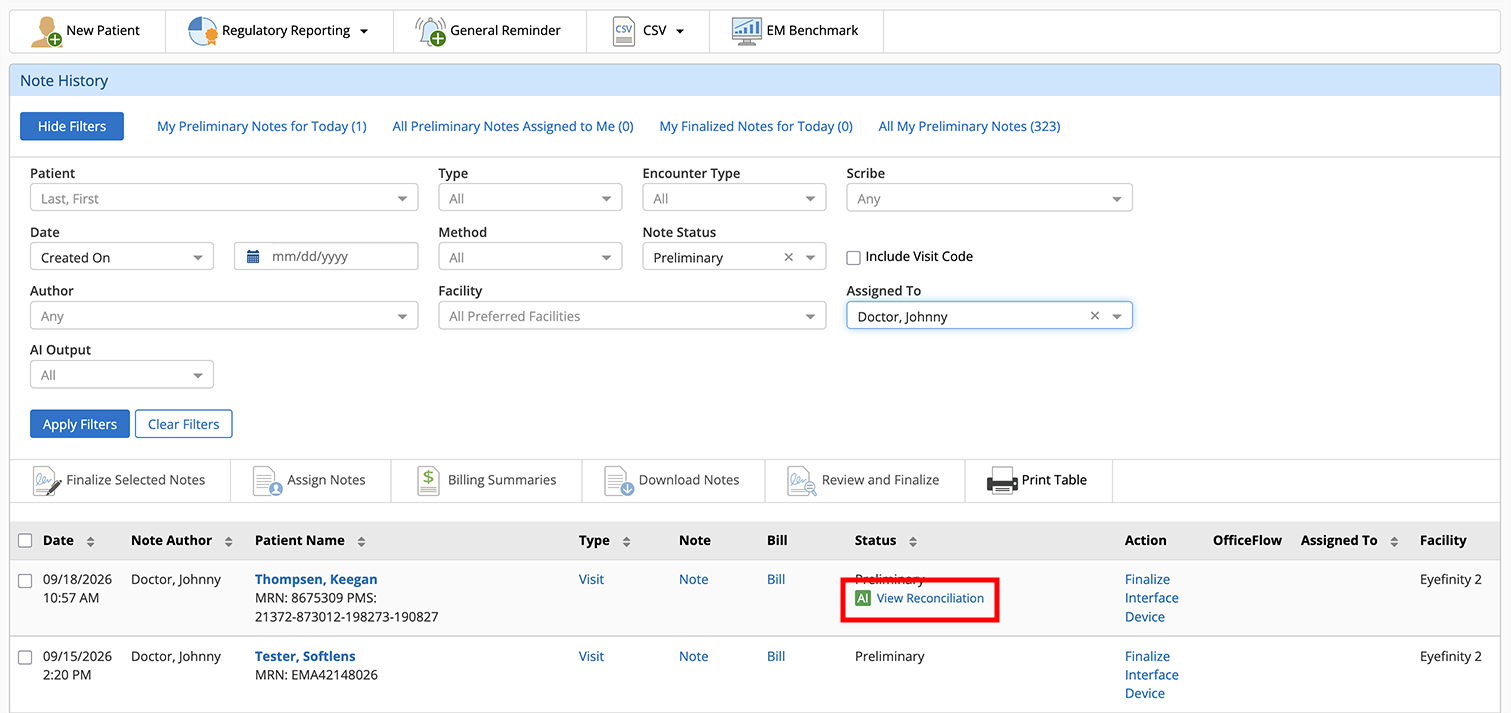
The reconciliation screen opens and displays the suggested visit documentation based on the exam elements spoken during the visit. Continue to Review and accept the suggested visit documentation.
The EncompassScribe Reconciliation screen lists all the exam elements spoken during the visit. The exam elements are categorized into sections that correspond to the sections you're accustomed to seeing in the Detailed Visit Overview (e.g., CC/HPI, Exam, Impressions and Plans). To review the suggested documentation, follow these steps:
- Navigate to the EncompassScribe Reconciliation screen.
- Review each element suggested.
- Click the Accept check box next to any element to select or deselect it or click Deselect All to discard all of the suggested documentation.
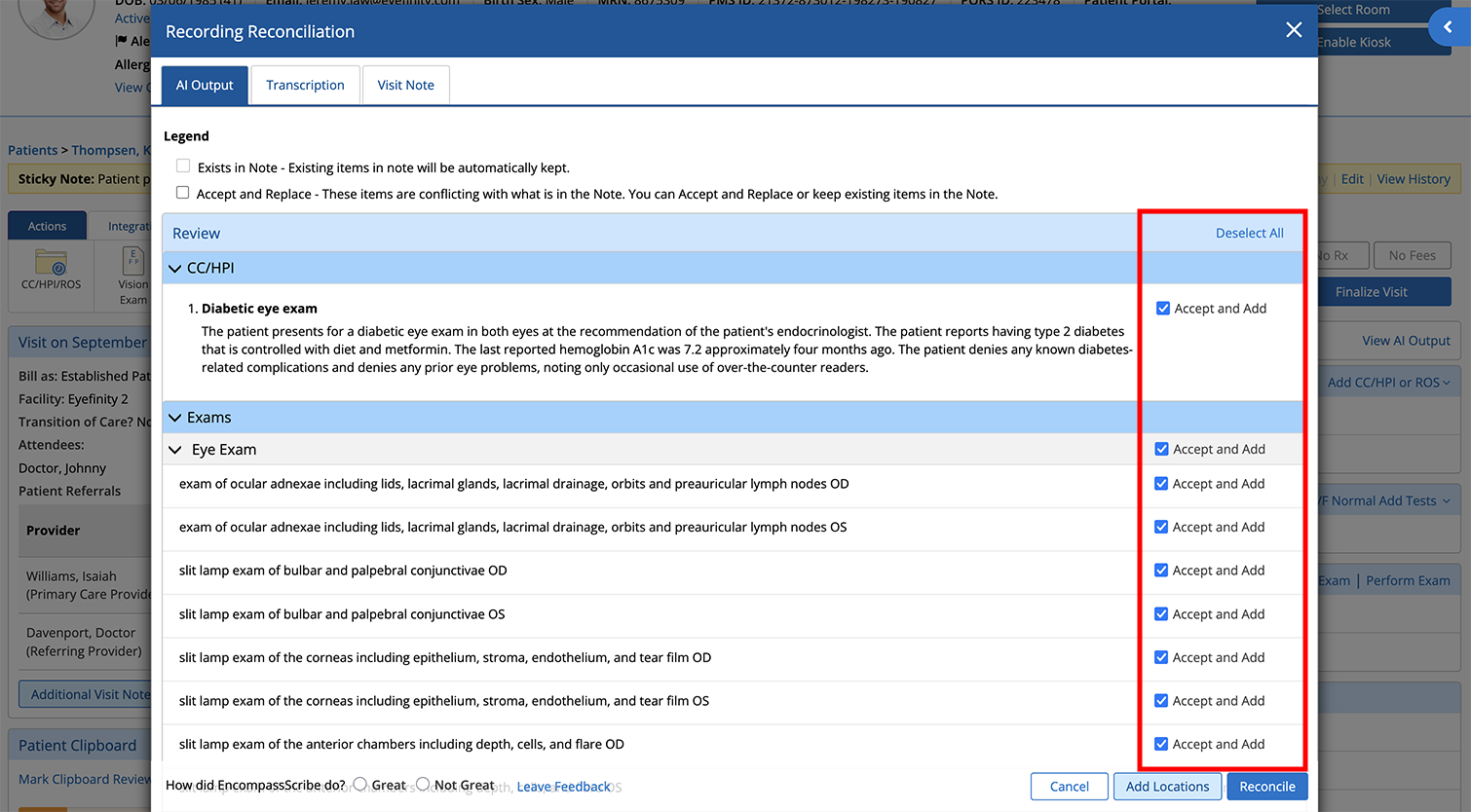
- Click Add Locations, to add specific locations to impressions and plans as needed.
- Click Reconcile to save the suggested documentation to the patient's visit note and click Complete to confirm.
You can reconcile only once per visit.
Encompass returns you to the Detailed Visit Overview and displays the visit populated with the accepted exam elements, including suggested billing codes.
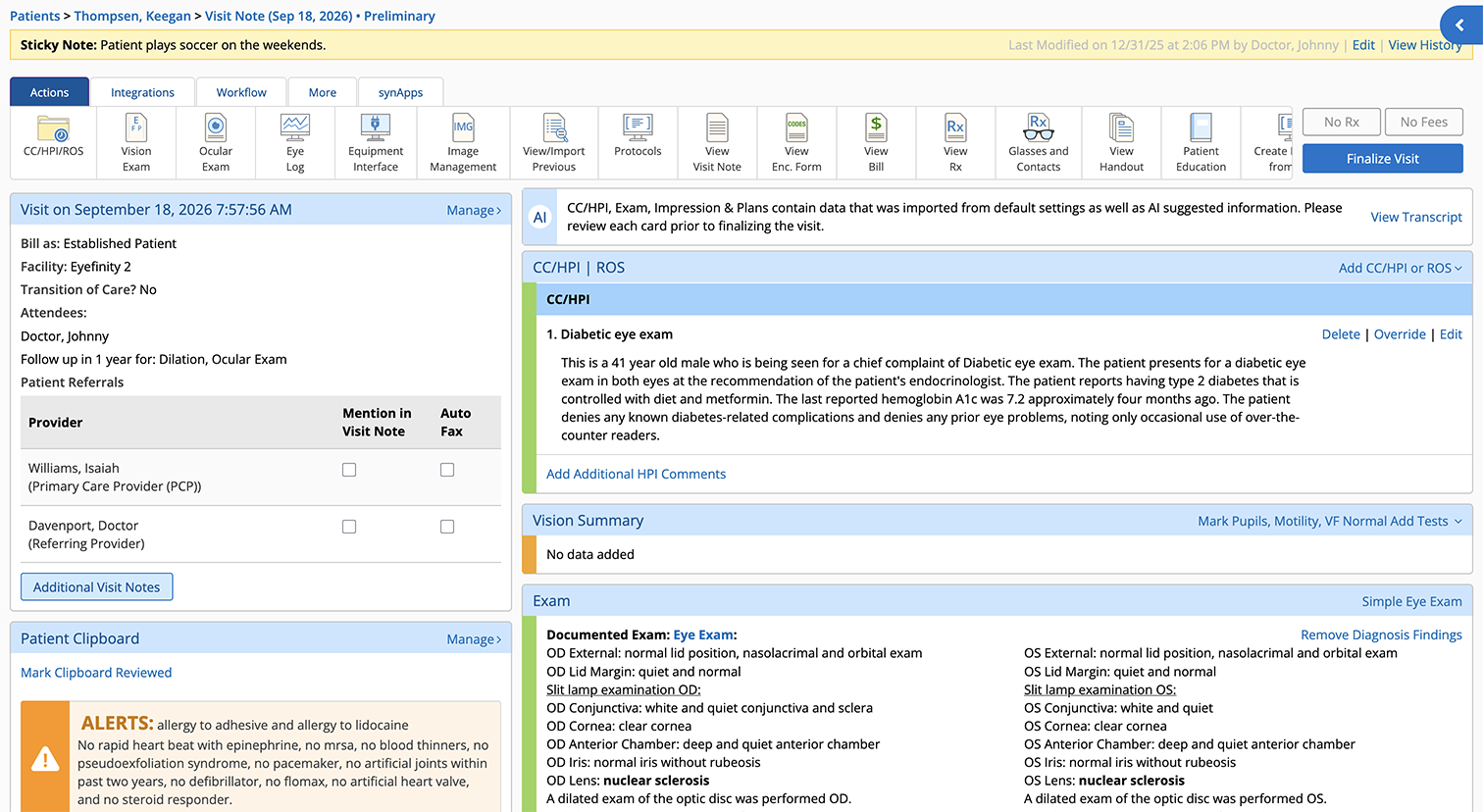
If you need to see what was said during the visit while you're reviewing the suggested visit documentation, you can quickly access the transcript EncompassScribe compiled during the recording.
- Navigate to the EncompassScribe Reconciliation screen.
- Click the Transcription tab.
The transcript opens in a drawer.
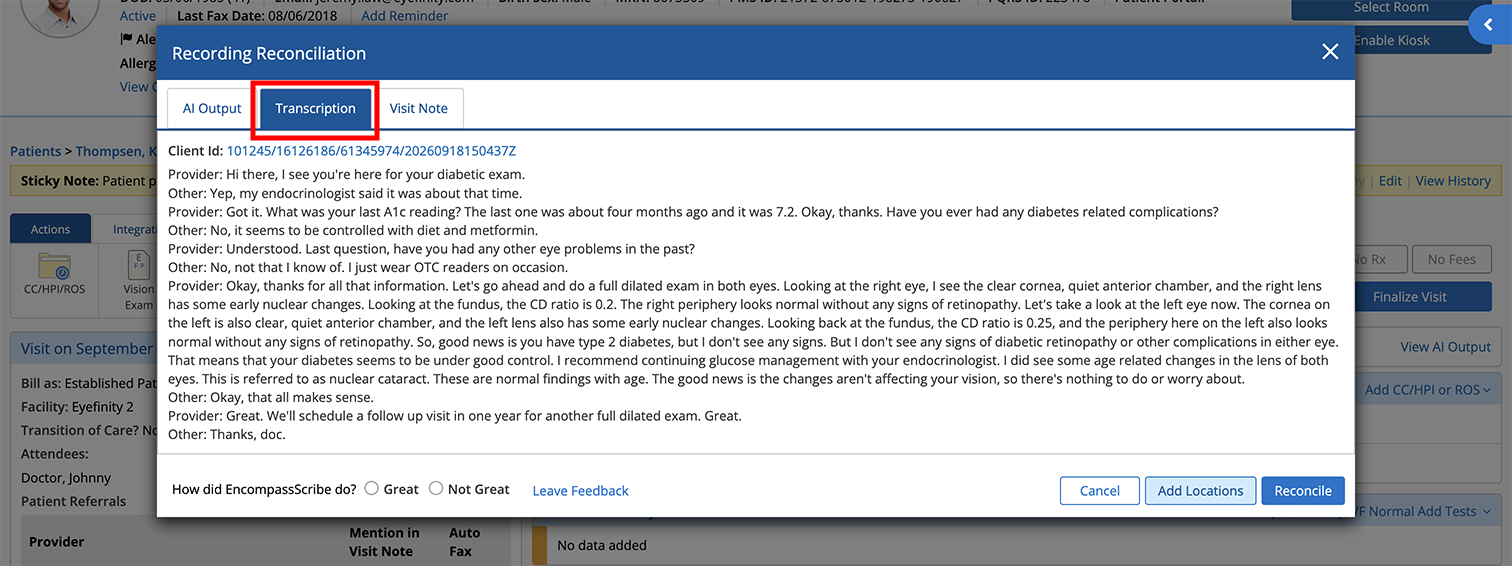
- Click the Transcription tab again to hide the transcript and continue reviewing the suggested documentation.
Transcripts are available for up to seven days or until the visit is finalized.
If EncompassScribe has suggested visit documentation that is incorrect, you have two options:
- Deselect the incorrect element so that it is not saved to the visit when you click Reconcile. Then, document the correct visit element manually in the Detailed Visit Overview as needed.
- Accept the incorrect element if the error is small. The incorrect element is saved to the visit when you click Reconcile. Then, manually edit the element in the Detailed Visit Overview by locating the element and clicking Edit or Resume.
You cannot edit the suggested visit documentation directly in the EncompassScribe Reconciliation screen. You can help improve EncompassScribe by clicking the Leave Feedback link at the bottom of the reconciliation screen.