
Recording Visits with EncompassScribe (iPhone)
EncompassScribe transcribes your verbal conversation with your patients and then converts that transcript into structured data. Structured data not only includes visit documentation, but also billing codes and coding required for MIPS and other reporting.
How you choose to interact with EncompassScribe depends on your personal style. Some doctors prefer to narrate their findings directly (as if they were speaking into an audio recorder so a scribe could document the chart later), while other doctors might prefer to have a natural conversation with their patients. No matter which style works best for you, EncompassScribe can handle it.
You can record visits with the iPhone or iPad apps. EncompassScribe records only when activated, and patient consent is required.
What do you want to do?
EncompassScribe reminds you to obtain consent each time you start a recording. Many jurisdictions require all-party consent prior to audio recording, and taking a moment to explain what the recording is for helps build patient trust. For more detailed guidance on obtaining patient consent, go to Obtaining Consent.
The audio recorder opens full screen.
The timer displays the total length of the audio recording in minutes and seconds. Any time the recording is paused is not included in this time.
The (Record)/ (Stop), (Pause), and (Close) buttons appear at the bottom of the audio recorder.
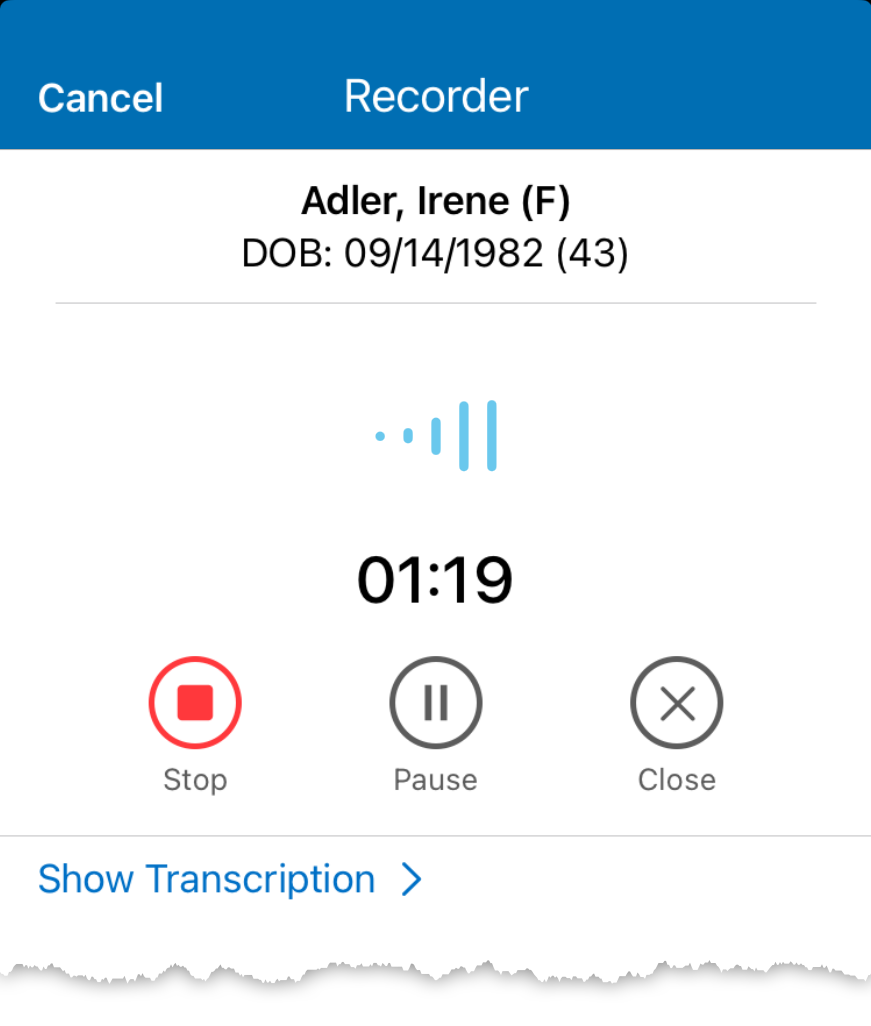
You may not navigate away from the recorder without canceling the recording.
The iPhone app enables you to open the patient's visit and start the recording, but you or your staff must first create the visit in the iPad app or web application. Here's how to open an existing visit and initiate the recording:
- In the iPhone app, navigate to the patient visit. To learn how, go to Opening and Viewing Patient Visits in the iPhone App.
- Tap Actions and select Record Visit.
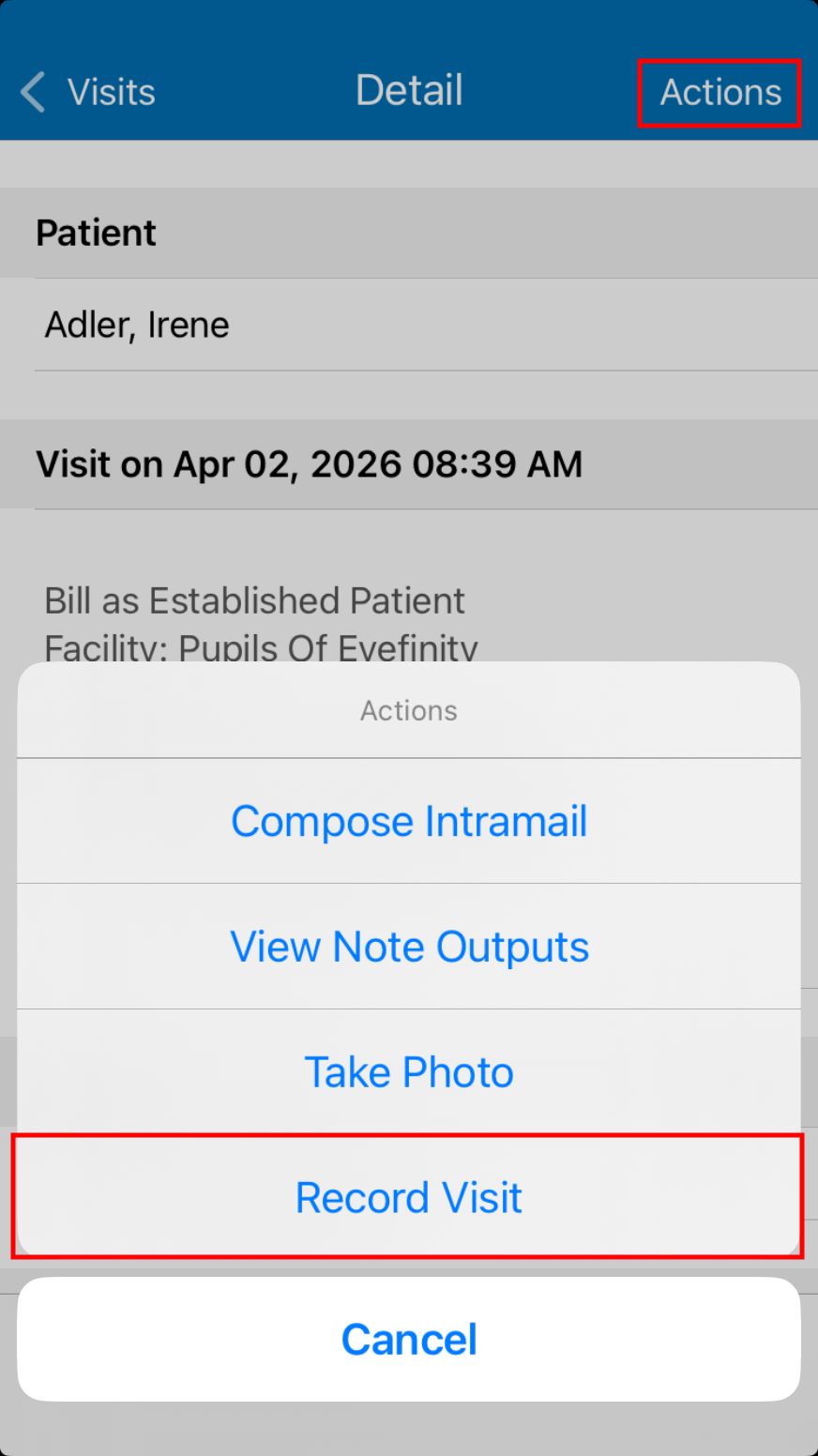
The Consent Agreement alert opens.
- Tap Confirm to consent to the recording. To learn more about patient consent, go to Get patient consent.
- Tap the (Record) button to initiate the recording.
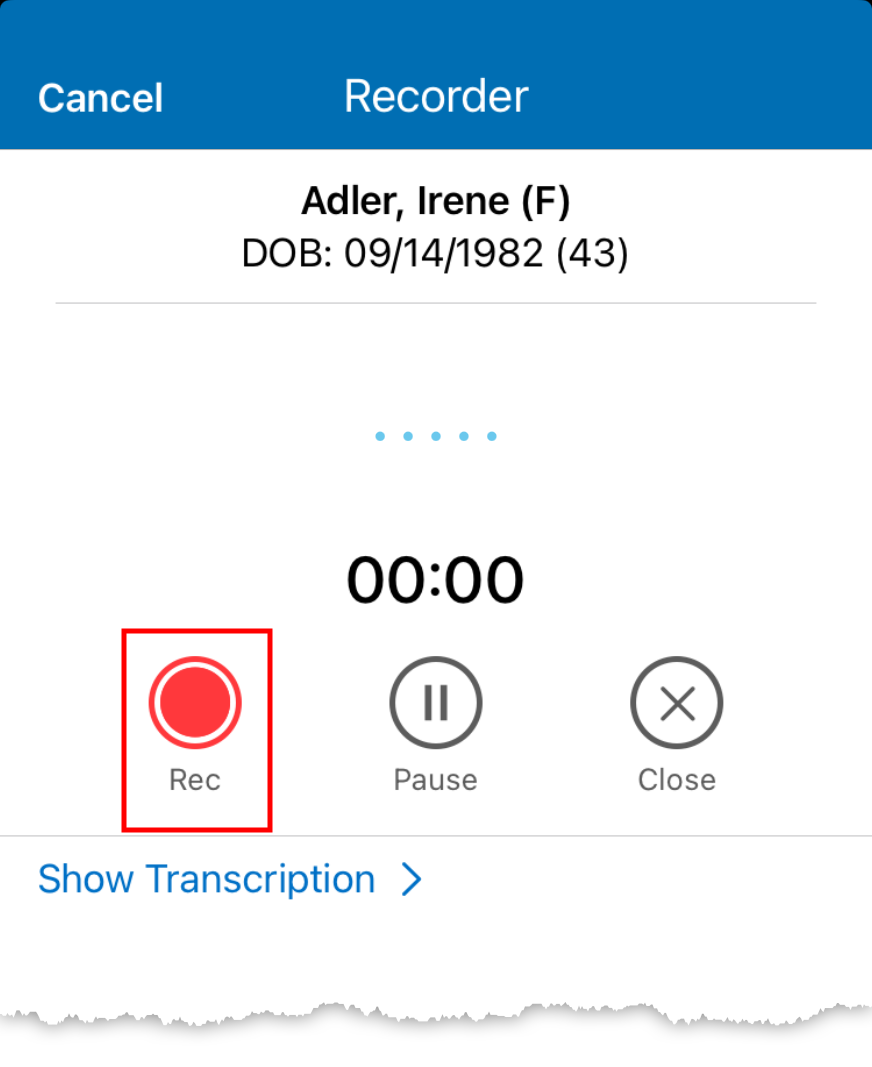
- Speak aloud while examining the patient. To learn more, go to Verbalizing Visit Documentation.
Whether the patient requests that you pause the recording, or you need to pause the recording, you can pause the recording with a single tap.
- Tap the (Pause) button to pause the recording.
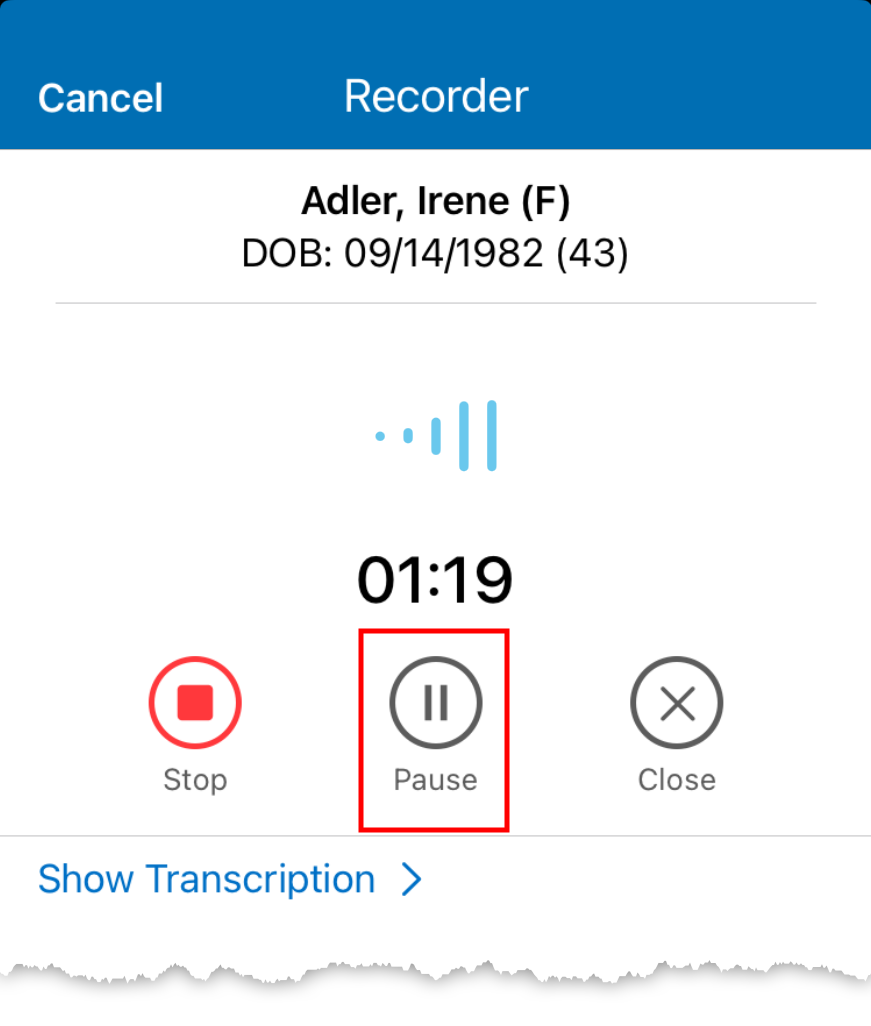
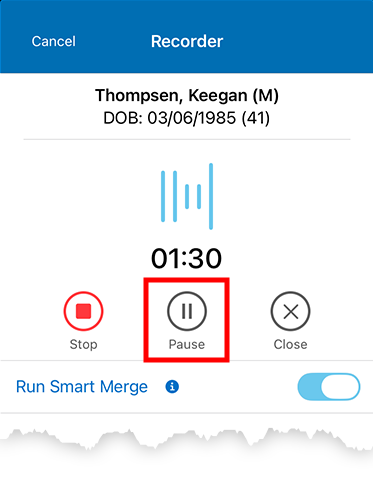
- Tap the (Record) button to resume the recording when you're ready.
Any verbalizations made while the recording is paused will not be captured or added to the exam.
- Tap the (Stop) button to end the recording.
A pop-up asks you to confirm that you want to end the recording or if you want to resume recording.
- Tap Save to end the recording and save the transcript.
If you tapped the Stop button by accident, tap Resume to continue recording the exam.
EncompassScribe will append additional recordings within the same visit to the end of the transcript. So, if you accidentally stop the recording, tap Record Visit again and then tap the (Record) button.
The system will end the recording after 30 minutes. If you forget to stop the recording, the system will stop the recording and save the transcript for you.
If you navigate away from the patient's visit, the system will stop the recording and save the transcript. This is intended to prevent accidentally recording another patient's data into the exam.
After you tap Save to complete the recording, EncompassScribe processes the recording. This is where the transcript is converted into visit documentation suggestions. This process will take a few minutes, depending on the length of the exam and the speed of your device. processed.
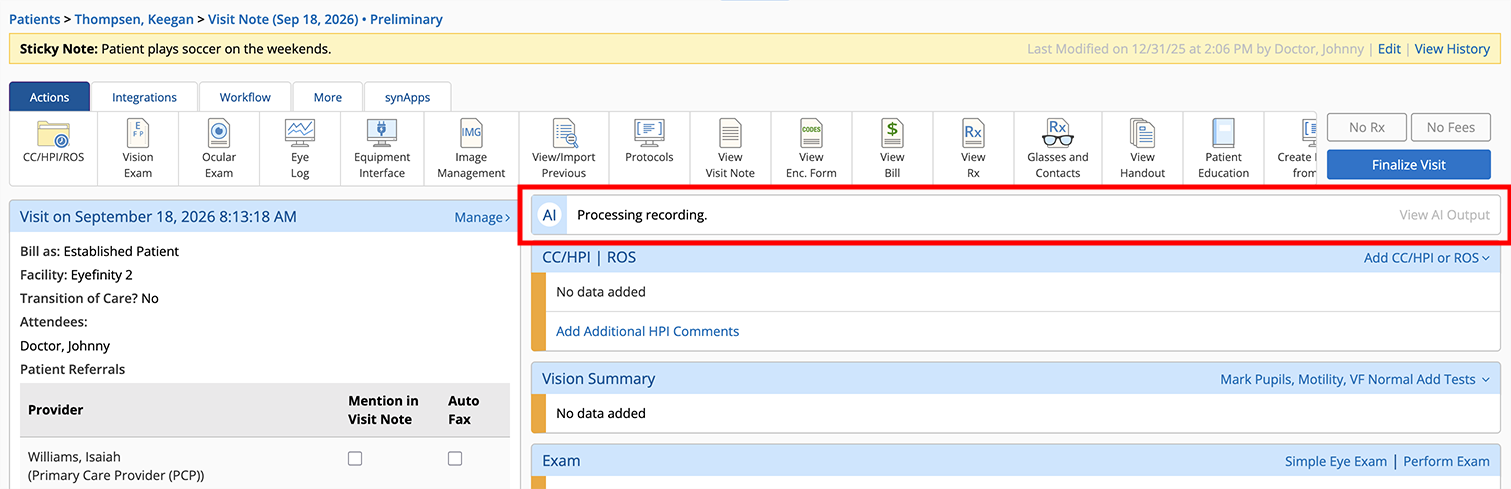
- When you're ready to review the suggested visit documentation, go to Reviewing and Approving EncompassScribe Visit Documentation (iPad)
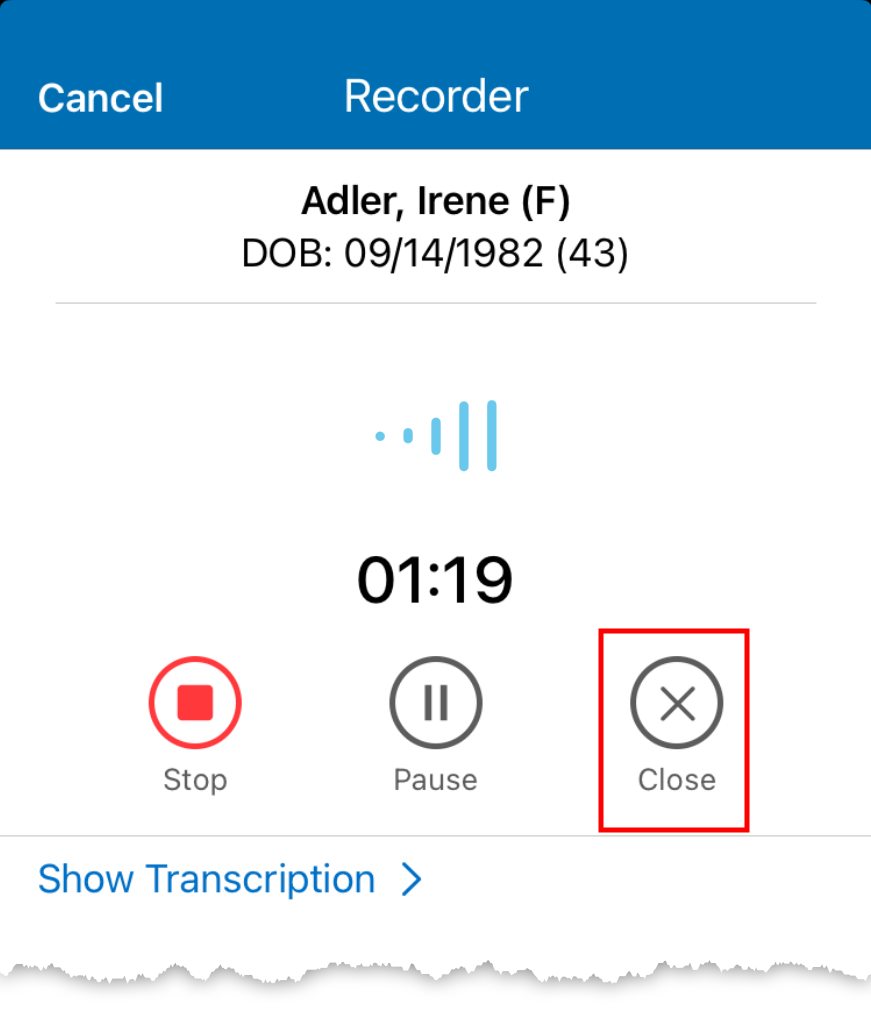
If you or the patient decide that you no longer want to record the visit, you can quickly cancel the recording and delete it:
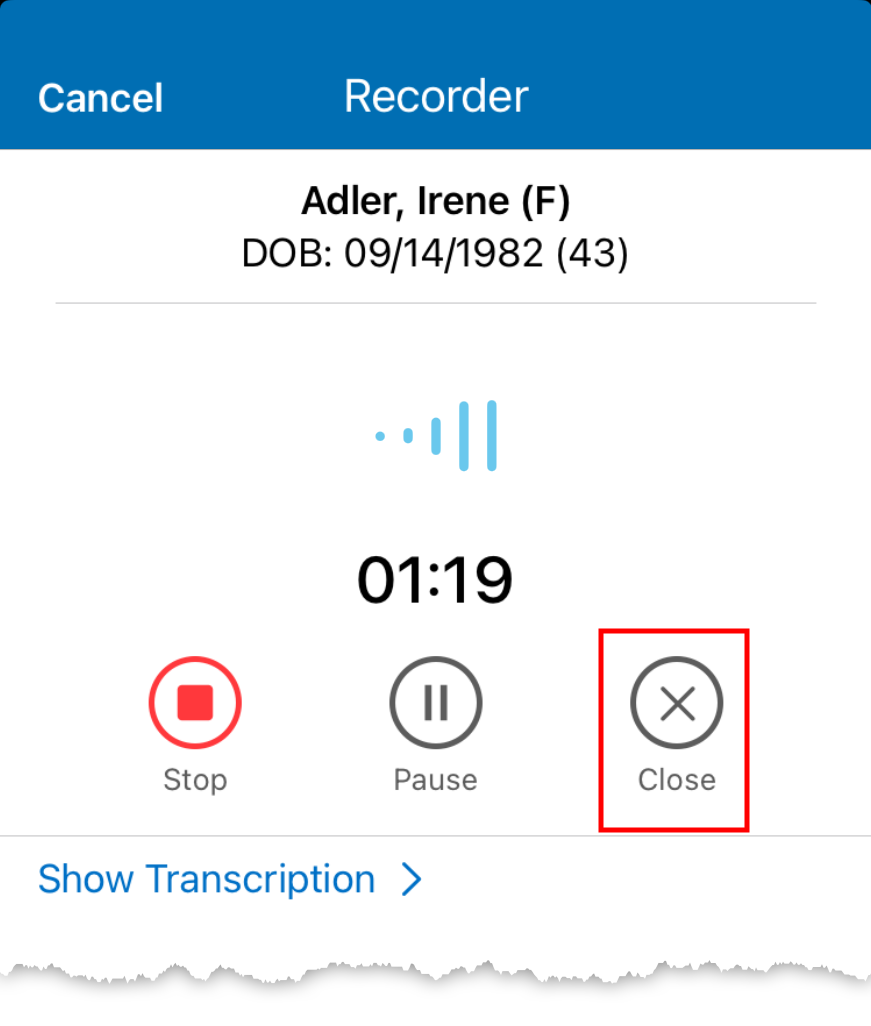
- Tap the (Close) button to cancel the recording and close the recorder.
- Tap Yes to confirm deleting the recording.
Encompass permanently deletes the recording and closes the recorder.
You can record only one patient's visit at a time. When you navigate out of a patient's chart, the recording is stopped. This is a safety measure to prevent one patient's visit documentation from bleeding into another patient's record.
However, you can record as many times as you need within a single visit, and each subsequent recording is appended to the visit transcript.
For example, let's say you begin a visit by gathering the complaint and history, but then you need to dilate the patient. You can stop and save the recording, go see another patient and record that visit and save the transcript for second patient's visit. When you return to the dilated patient ten minutes later, open the dilated patient's visit and start a new recording. The transcript for the second recording will be appended to the transcript of the first recording.
This same principle applies if you have a technician take the patient's history. The technician would start, stop, and save their own recording. When you, as the doctor, see the patient, start the recorder, conduct the exam, stop the recorder, and save. The transcript from your part of the visit is appended to the technician's transcript.