
Eyefinity Practice Management 10.11 Release Notes
Release Date: September 17, 2019
Eyefinity announces the newest version of Eyefinity Practice Management. This updated version improves upon your system's robust attributes and offers new features and expanded functionality.
This section includes:
Front Office Enhancements
Eyefinity Practice Management 10.11 Front Office includes enhancements to the following areas:
New Patient Marketing Dashboard
The new Patient Marketing Dashboard allows you to view and print patient information filtered by many different criteria, including insurance carrier and products purchased, to assist with your practice's targeted marketing campaigns.
- Click Reporting and select Dashboard.
- In the left-side menu, click Patient Marketing.
The Patient Marketing Dashboard opens. The dashboard defaults to displaying all patients. The Total Patient Count appears a the top of the dashboard.
- If your practice has multiple locations, click the All selected drop-down menu to select/deselect locations to include in the dashboard.
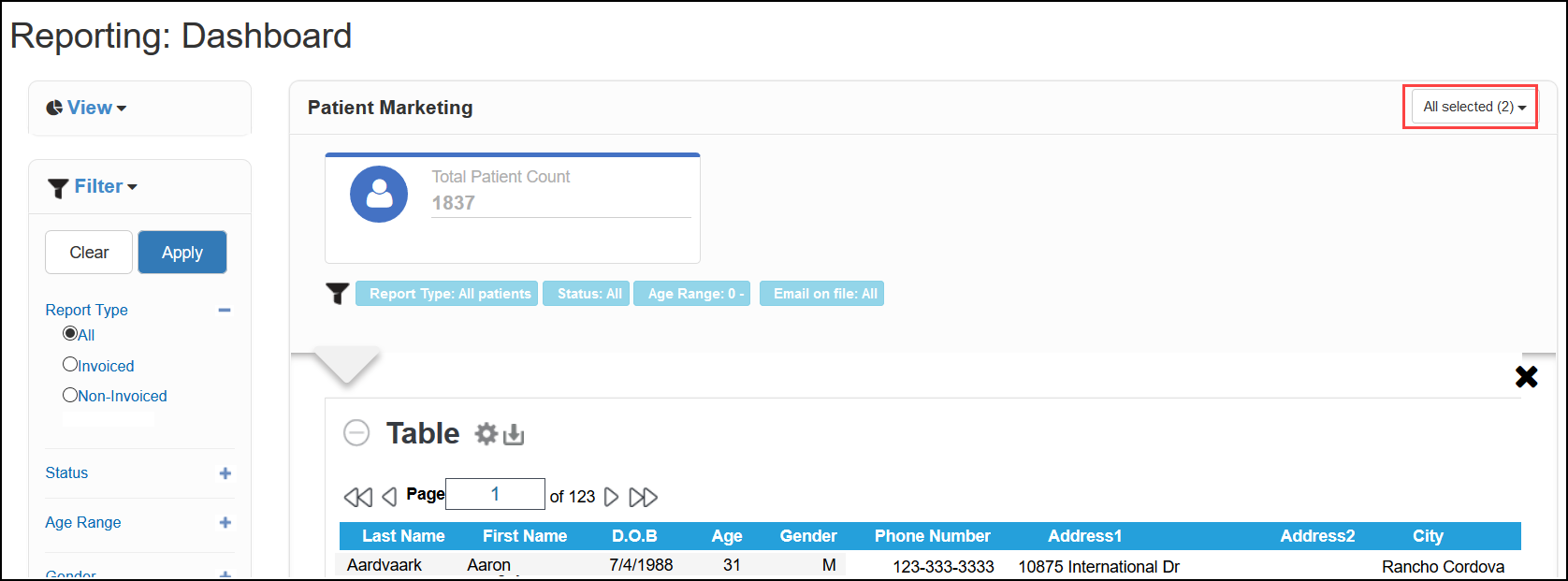
- In the left-side menu, click the + next to each filter you want to use and select the desired criteria. The available filters are:
- Report Type - Select All, Invoiced, or Non-Invoiced.If you select Invoiced patients, additional filters become available. See below.
- Status - Select All, Active, or Inactive.
- Age Range - Type a beginning and ending age.
- Gender - Select Male, Female, and/or Unknown.
- Email on file - Select All (patients with and without email addresses on file), Yes, or No.
- Referred By - Select the referring party from the drop-down menu. Type a term in the search area to locate the referring party in the list. Click Ä to clear your selections.
- Insurance - Select the insurance carrier(s) from the drop-down menu. Type a term in the search area to locate a carrier in the list. Click Ä to clear your selections.
- Last Exam Date - Select or enter a date range and click Apply.
- CPT Code - Select a CPT code from the drop-down menu. Type a term in the search area to locate the CPT code in the list. Click Ä to clear your selections. Only active CPT codes appear in the drop-down menu.
- Diagnosis Code Category - Select a diagnosis code category from the drop-down menu. Type a term in the search area to locate the diagnosis code in the list. Click Ä to clear your selections.
- Frame Collection - Select a frame collection from the drop-down menu to see patients that purchased frames from that collection. Type a term in the search area to locate the frame collection in the list. Click Ä to clear your selections.
- Contact Lens Styles - Select a contact lens style from the drop-down menu to see patients who purchased lenses of that style. Type a term in the search area to locate the contact lens style in the list. Click Ä to clear your selections.
- Eyeglass Sales - Type beginning and ending retail sales amounts, before taxes, for eyeglass purchases (lenses, frames, lens base type, material add on, style add on, color/coat add on, tint, edging, coating, miscellaneous extras).
- Exam Sales - Type beginning and ending retail sales amounts, before taxes, for exam services (exams, medical procedures, contact lens fitting, etc.) Exams billed as part of eyeglass and contact lens orders are included in the results.
- Contact Lens Sales - Type beginning and ending retail sales amounts, before taxes, for contact lens purchases.
- Misc Sales - Type beginning and ending retail sales amounts, before taxes, for miscellaneous purchases (accessories, gift cards, repair charges, shipping fees, miscellaneous fees).
- If you selected Invoiced for the Report Type, select a transaction date range in the upper-right corner of the dashboard and click Apply. The date range defaults to the last calendar year.

- After you have selected all your filtering criteria, click Apply at the top of the left-side menu.
The Table updates to display the patients who meet your selected criteria.
- Click the gear symbol to change the columns that are displayed, the sort order, grouping criteria, and the number of rows displayed per page. You can also calculate totals, averages, and minimum/maximum for various criteria. (For example, you can calculate the average age of the patients listed.)

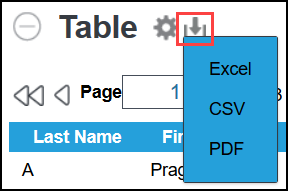
- Click the download symbol to export the data to an Excel, CSV, or PDF file.
- To remove all selections and start over, click Clear in the left-side menu.
The following additional filters are available if you select Invoiced for the Report Type:

VSP Bulk Eligibility and Authorizations
Use VSP Authorizations to pull authorizations for all patients with VSP insurance who have appointments at the office you are logged into on a selected date. You can pull authorizations for appointment dates that are up to seven days in the future from today's date. Pulling authorizations in bulk makes pre-appointing and patient check-in faster and easier. For more information, see Pulling VSP Authorizations for Multiple Patients (Bulk Authorizations).
Administration Enhancement
Eyefinity Practice Management 10.11 Administration includes an enhancement to the following area:
Select Services to Update Last Exam Date
You can now select which services update the patient's last exam date when billed on an exam order. Select the new Update Last Exam Date check box for each service in Service Setup. Once an exam order including the service is invoiced, the patient's record is updated with the new last exam date. This change gives you more control over which patients appear on the Recall by Last Exam Date Report and helps you customize recalls for your practice.

Fixed Issues
Front Office
- The date no longer changes in the Scheduler when you re-size the browser window.
- The Appointments with Missing Eligibility Report no longer incorrectly includes patients with valid medical exam authorizations.
- Orders are no longer transmitted to the lab multiple times when you click Release to Lab in Order Management. Previously, the system allowed the button to be clicked more than once, creating duplicate lab orders.
- VSP authorizations for children are no longer incorrectly authorized using their parent's benefits.
- Patient invoices now accurately reflect balance adjustments.
- Invoices now generate faster.