
Encompass 10.57 Release Notes
Release Date October 21, 2026
Eyefinity announces the newest version of Eyefinity Encompass. This updated version improves your system's robust attributes and offers new features and expanded practice management functionality.
Watch the What's New video below to see highlighted features in action.
Release Highlights
We heard you! Encompass 10.57 includes many high-impact updates requested by Encompass users. This section highlights just a few. Look for even more throughout these release notes.
-
Coming Soon - Simplified Contact Lens Sales with Pack Size Selection and Ordering from Trial Rx
-
Added Link Helps You Easily Navigate to the Responsible Party
-
More Information in the Patient Record Heading Helps Ensure You Have the Right Patient
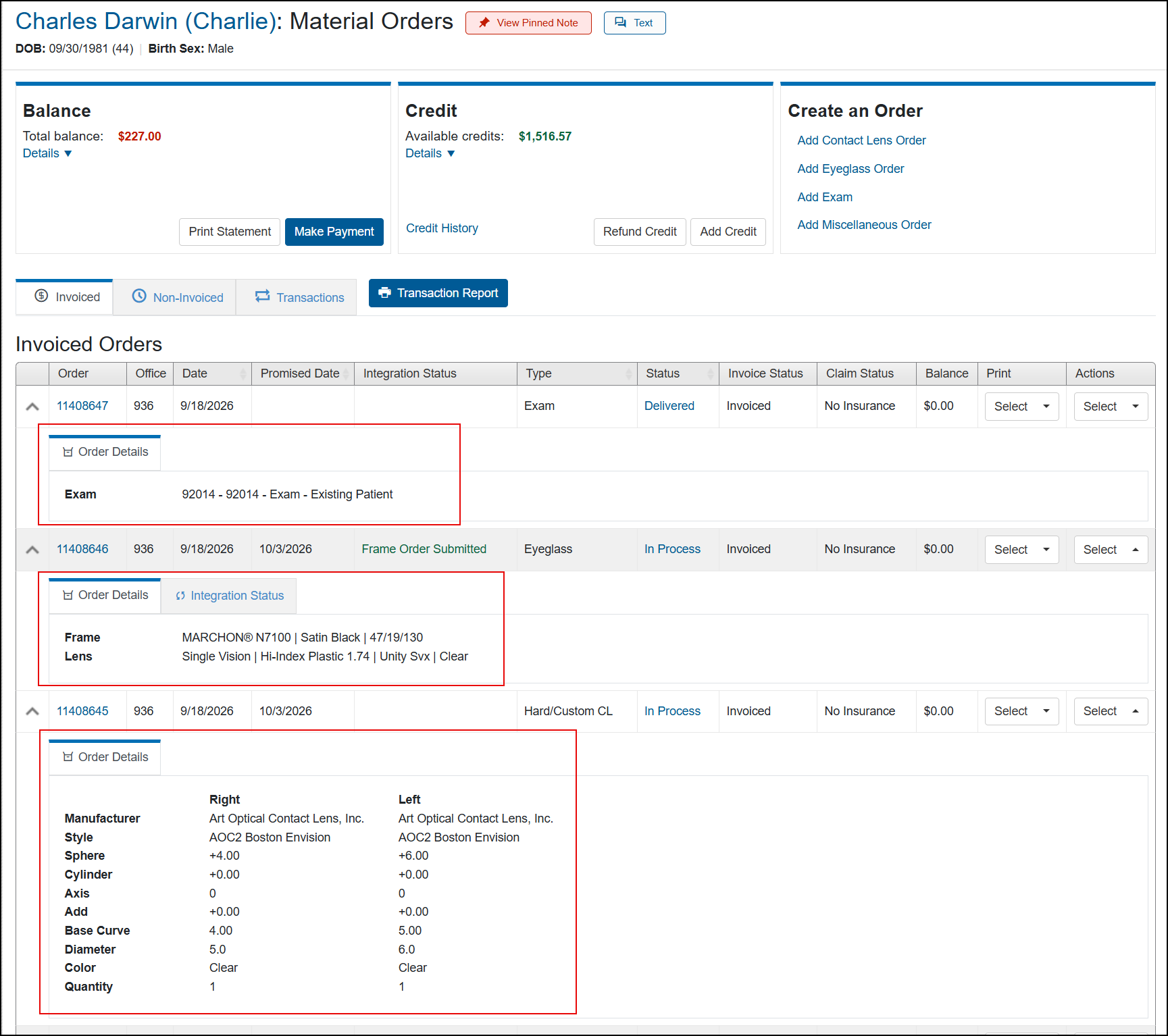
See Order Details Instantly on the Invoiced Orders Tab
You can now click the down arrow next to an invoiced order to see the details of what was ordered, including frame and lens information for eyeglass orders and manufacturer, style, and prescription information for contact lens orders. Key order details are now easier to access, reducing the time spent opening individual orders and helping you review multiple orders more quickly and efficiently.
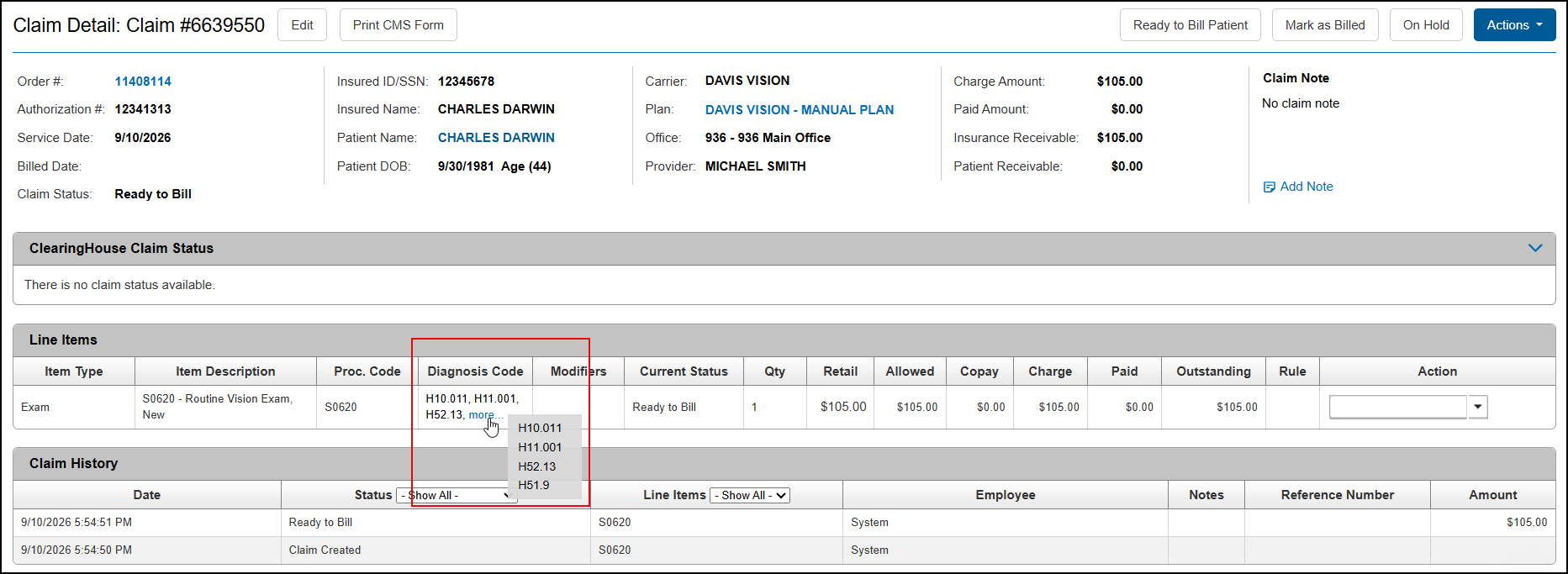
Easily Verify Diagnosis Codes when Reviewing Claims
To help you review claims faster and resolve billing issues with fewer clicks, we've added a new Diagnosis Code column to the Line Item table in the Claim Detail screen. This column lists the ICD-10 diagnosis codes associated with each line item, enabling you to quickly see if the codes are documented correctly without needing to open another screen.
Line items can have up to 12 diagnosis codes. If an item in the list has more than three codes, the more... hyperlink displays. Hover your mouse over the hyperlink to see all the codes.
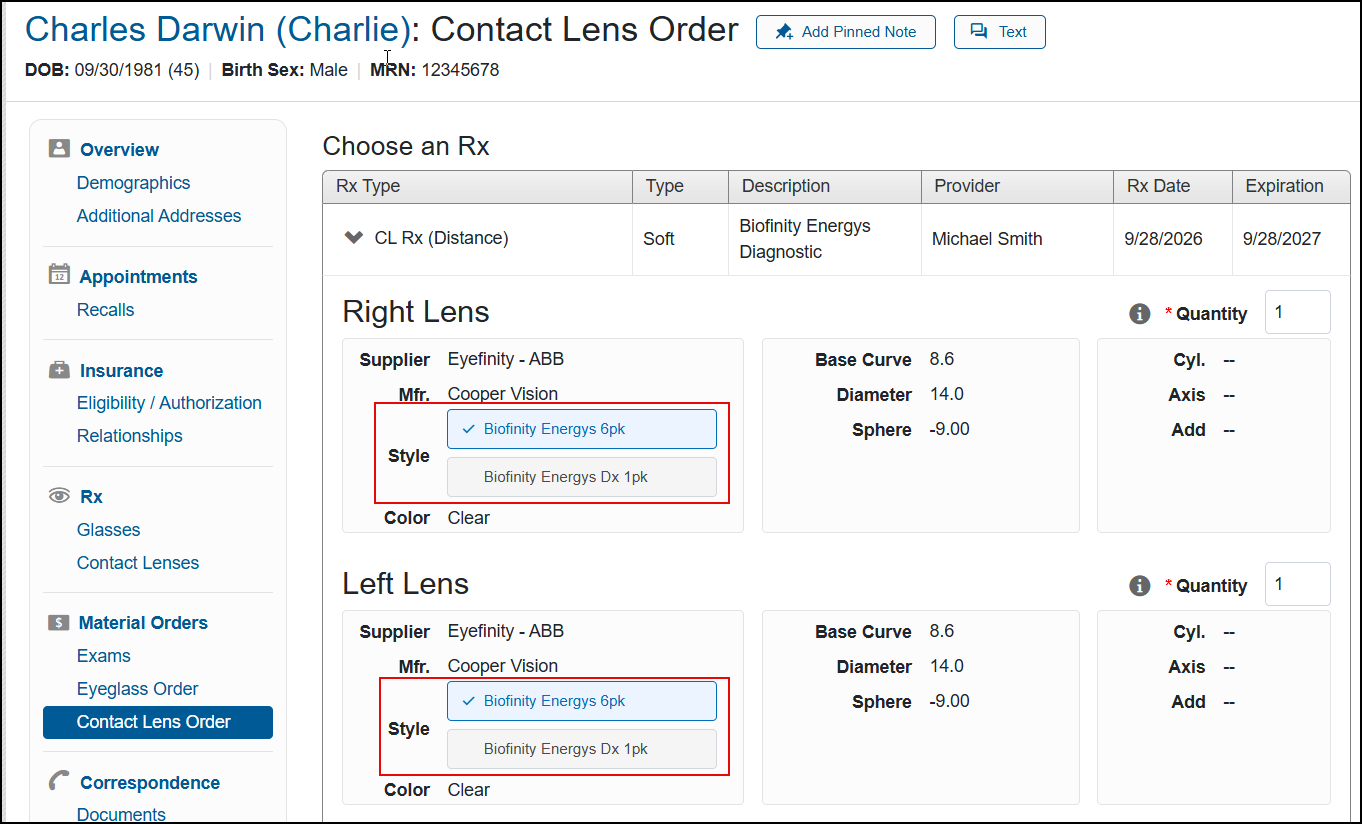
Coming Soon - Simplified Contact Lens Sales with Pack Size Selection and Ordering from Trial Rx
Coming Soon - You can now sell the same contact lens style but in a different pack size than what the doctor prescribed, without requesting a new prescription. When selecting the contact lens style, all available pack size options for that style are available to select.
To ensure accurate settings, we strongly recommend selecting the pack size for the Right Lens first.
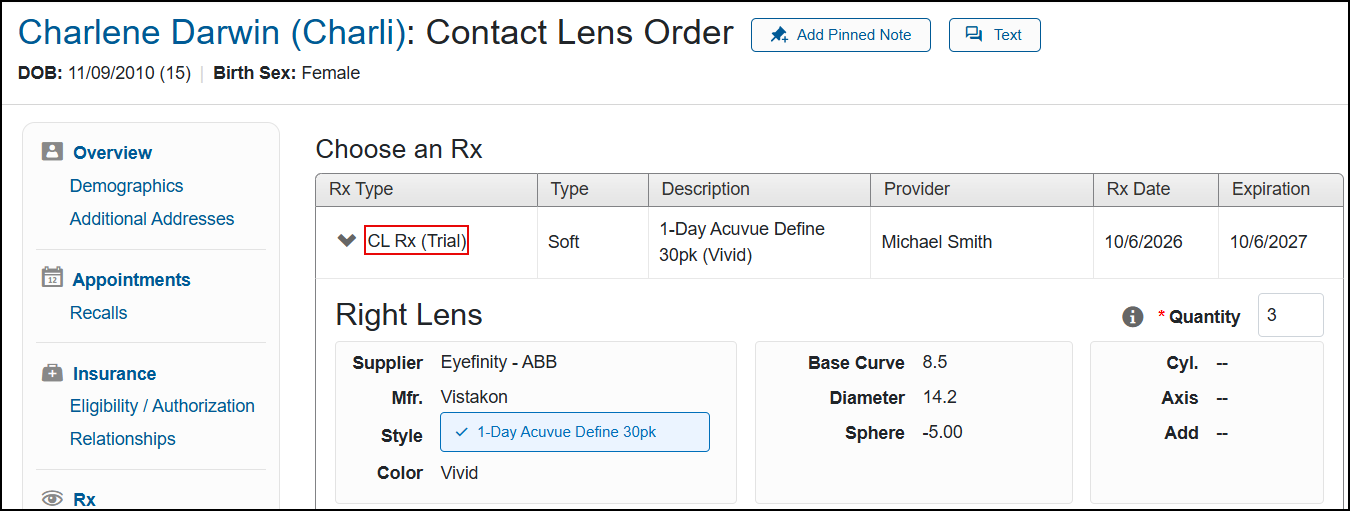
You can also now create contact lens orders using trial prescriptions, if
The ordering from trial prescriptions feature is enabled by default with this release. If your practice does not wish to use it, disable it in
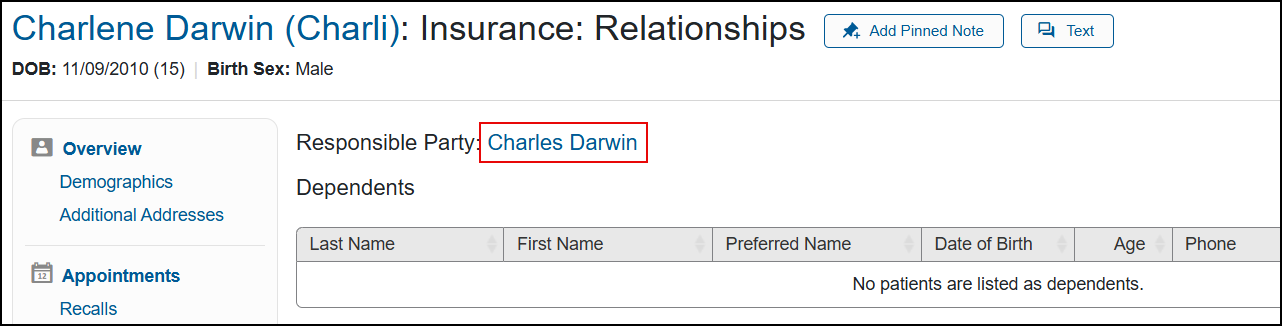
Added Link Helps You Easily Navigate to the Responsible Party
The Responsible Party name in the Insurance: Relationships screen is now a link. When you click on the link, it opens the patient record for the responsible party to the Demographics page for the responsible party.
The new link helps you easily navigate between family members.
More Information in the Patient Record Heading Helps Ensure You Have the Right Patient
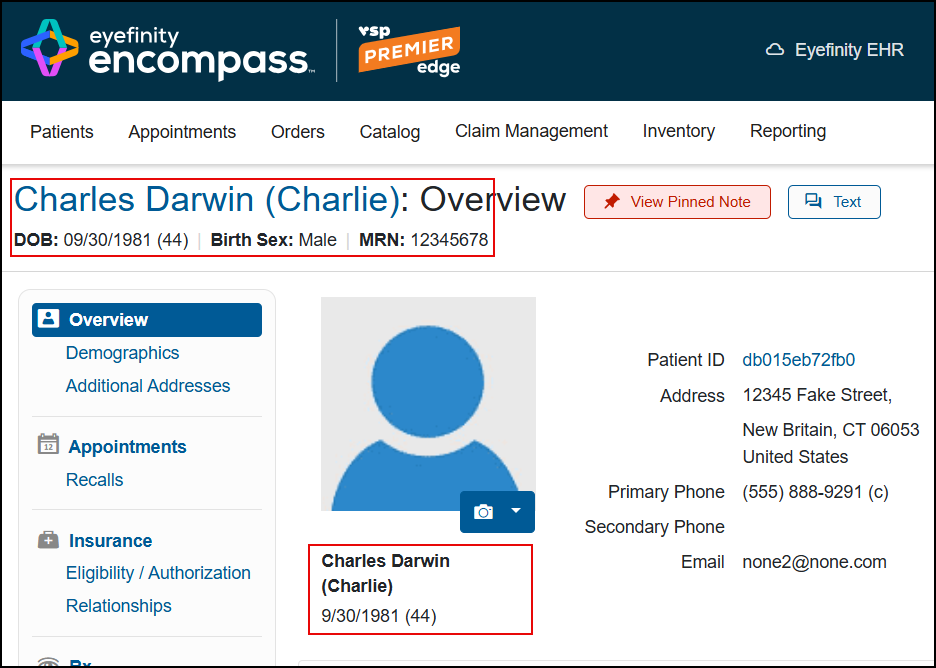
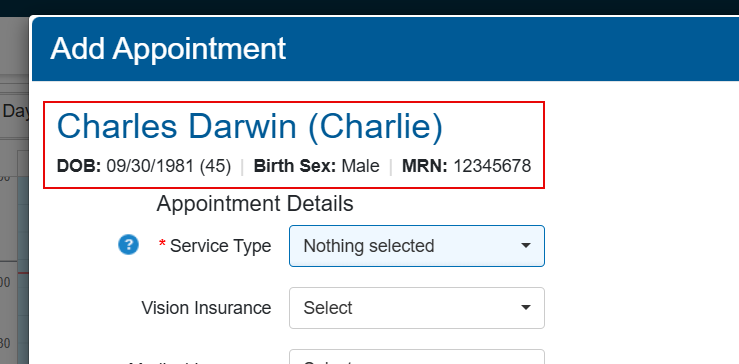
We added more information to the header on the patient screens (Overview, Demographics, Additional Addresses, etc.) and in the Add Appointment window to help you ensure you've selected the correct patient. The updated header includes the first name, middle initial, last name, suffix and preferred name at the end and in parentheses. Below the header, we also display the date of birth and age, birth sex and MRN.
We also changed the display below the profile picture to include first name, middle initial, last name, suffix and preferred name. Below the name, the date of birth and age display.
System Enhancements
This release includes the following system enhancement
Improved Login Performance Gets You Working Quickly
We’ve improved the login experience to make logging in and out faster and more reliable.
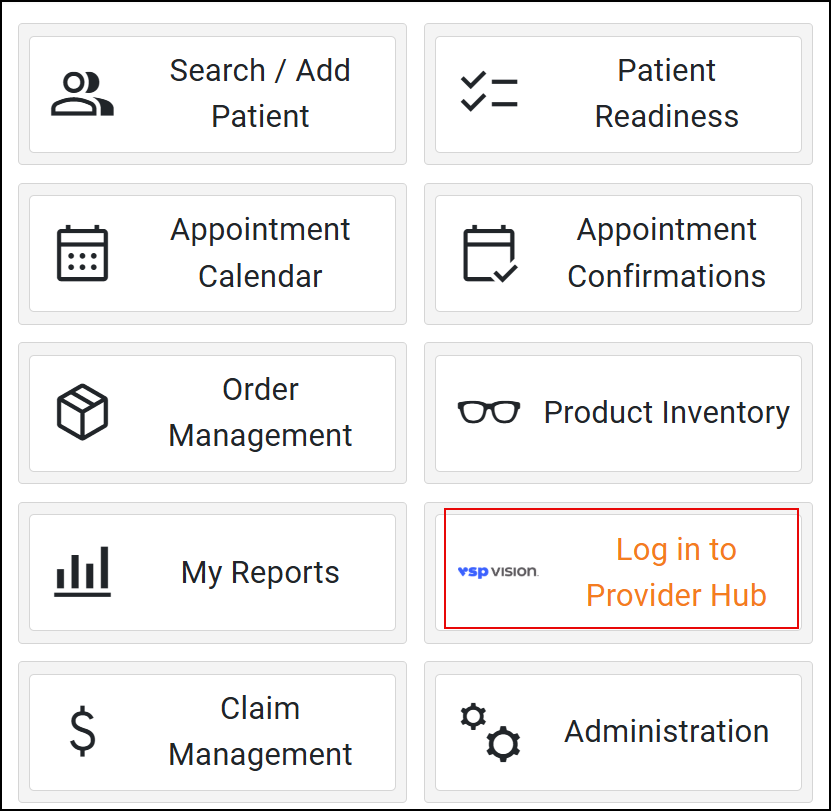
Updated Home Page Link Takes You to Provider Hub
We updated the Home page for Premier practices. We renamed the Premier Dashboard tile to Log in to Provider Hub. When clicked, you are redirected to the Provider Hub where you can login to your dashboard.
Front Office Enhancements
This release includes the following Front Office enhancements:
-
Copy Complete Eyeglass Orders to Quickly Create New Lenses-Only or Frame-Only Orders
-
Record Patient-Specific Insurance Information with Insurance Notes
-
Customized Service Names Now Improve Patient Billing Clarity
-
Add Multiple Frame Modifiers When Ordering to Ensure Accurate Billing
-
Copy Subscriber Insurance Information to Dependents with Greater Accuracy
-
Trial Rx Indicator Helps You Identify Trial Contact Lens Prescriptions at a Glance
Copy Complete Eyeglass Orders to Quickly Create New Lenses-Only or Frame-Only Orders
You can now copy a complete eyeglass order and use it to create a frame-only or lenses-only order. Previously, the system only allowed you to create new complete eyeglass orders through copying. For more information, see Copying Eyeglass Orders.
Handle Missing Insurance Faster with New Alerts
A new "No active insurance found. Add insurance before checking eligibilities." message banner now alerts you when a patient has no active insurance plan on file. The message includes a direct link to the patient's Insurance screen, making it easy to add coverage and continue your work. You'll see this banner in the:
-
patient's Eligibility/Authorization screen;
-
insurance selection screen when creating eyeglass, contact lens, and exam orders; and the
-
Eligibility/Authorization tab in the Patient Details window opened from the Appointment Calendar.
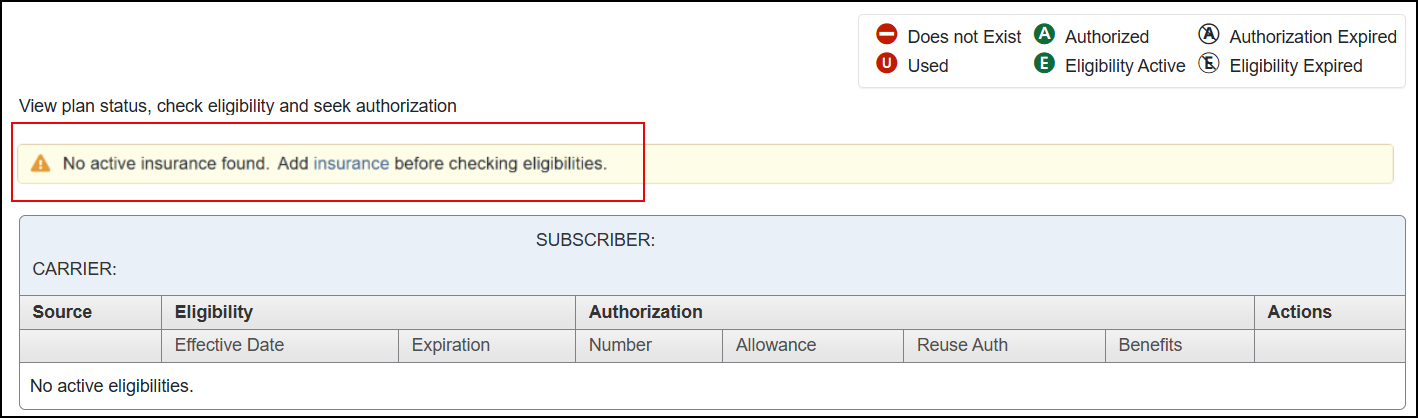
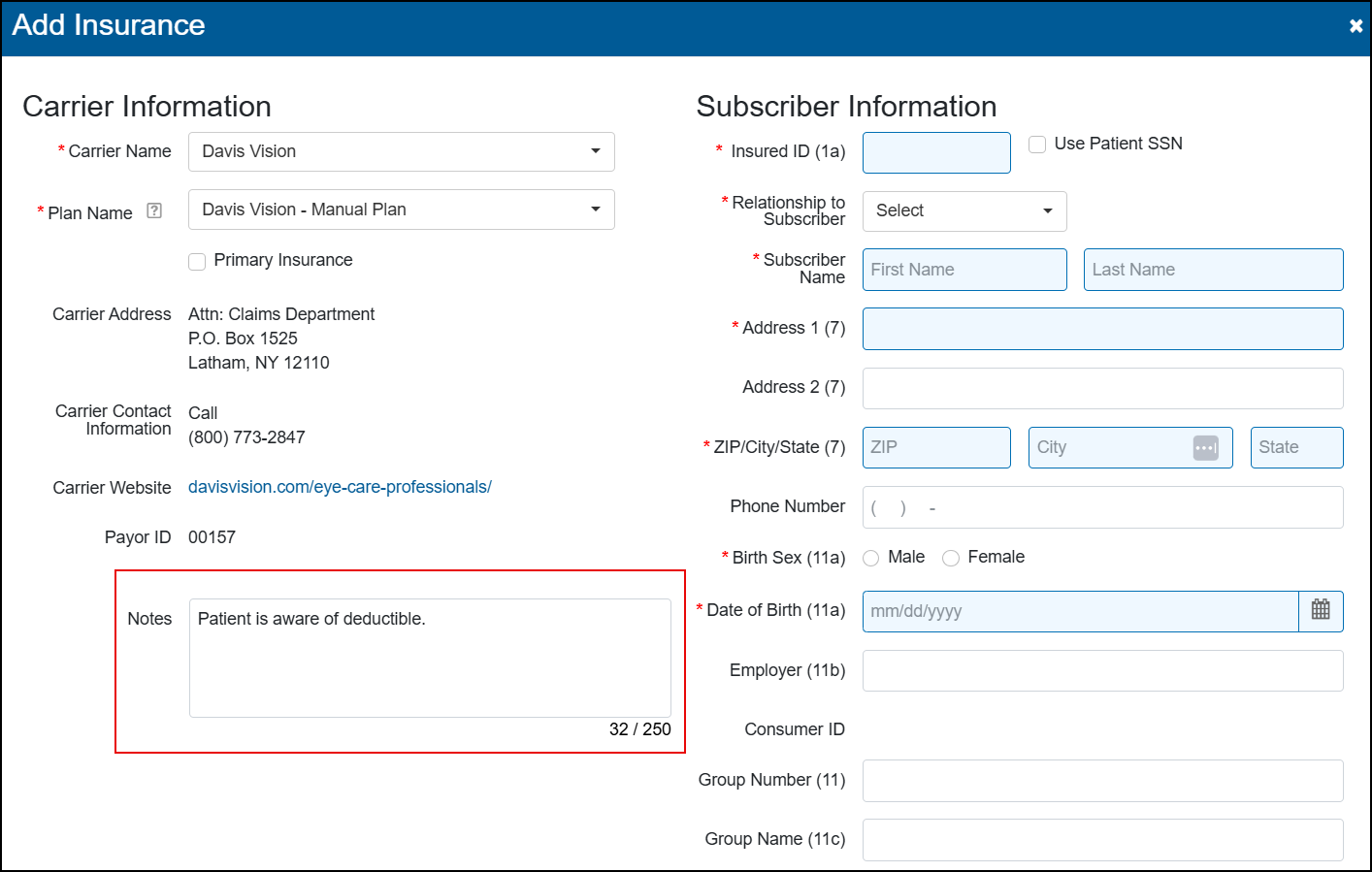
Record Patient-Specific Insurance Information with Insurance Notes
The Add Insurance and Edit Insurance windows now include a Notes field, where you can record information such as the patient's insurance details, benefit information, and coverage considerations, making it easier to maintain this information in one place for easy reference. You can enter up to 250 characters. Notes entered here are not displayed in the Correspondence: Notes screen.
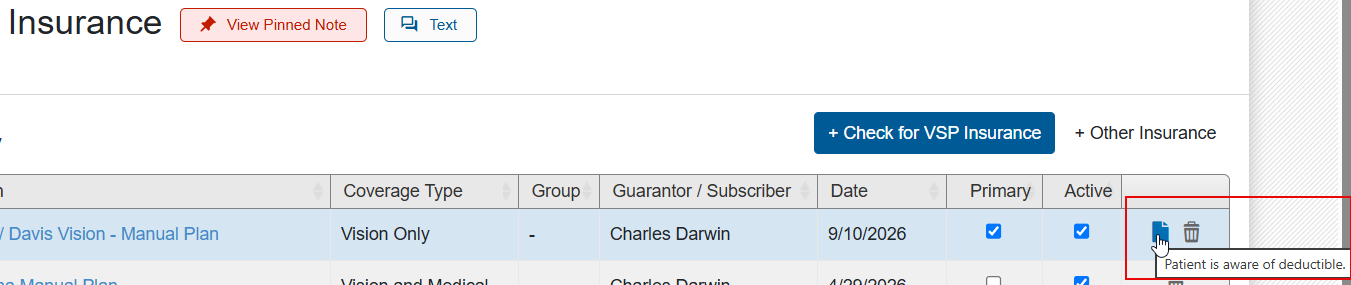
The information is saved to the patient's record and you can access it later by hovering your mouse over the new Notes icon in the patient's Insurance screen. To edit a note, click the icon to open the Edit Insurance window.
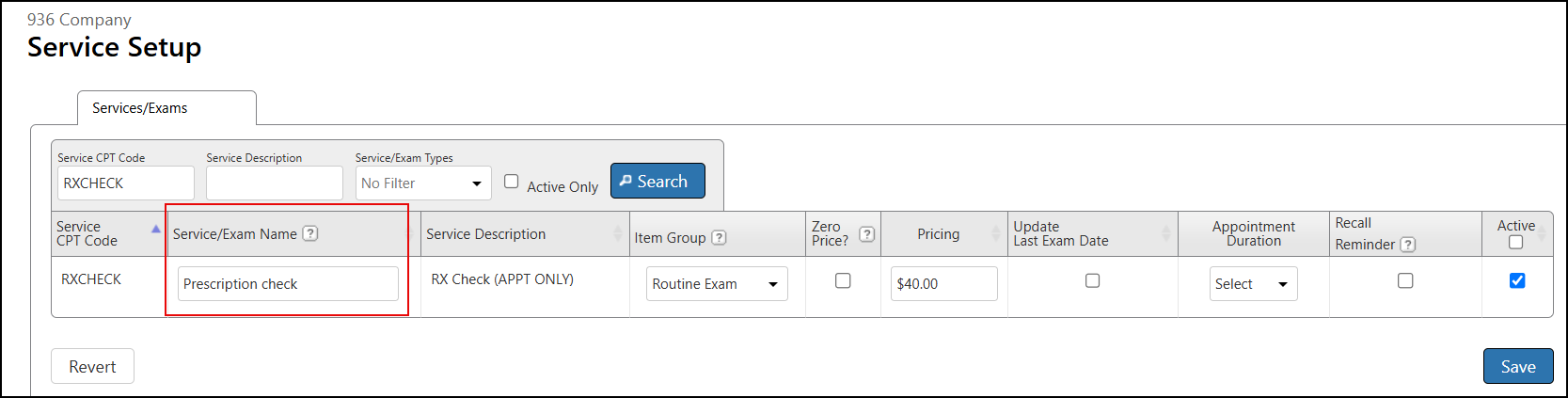
Customized Service Names Now Improve Patient Billing Clarity
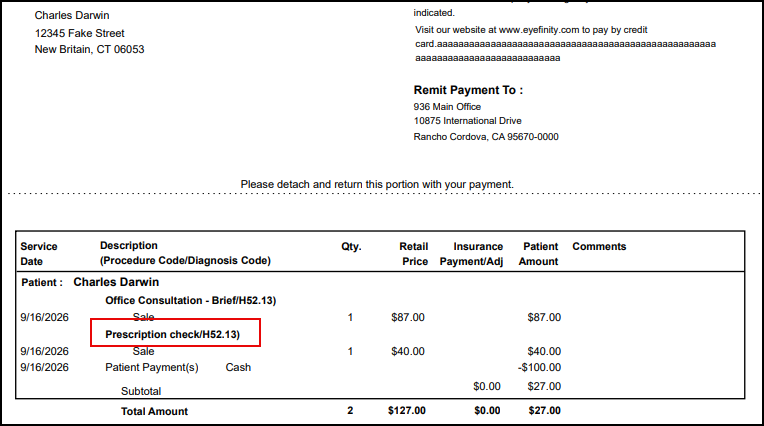
We've updated patient statements and the Material Orders Ledger to now show your customized Service Name for services, accessories, and miscellaneous extras. This update helps ensure your patients have clear information on the services and products provided, reducing billing-related questions.
Add Multiple Frame Modifiers When Ordering to Ensure Accurate Billing
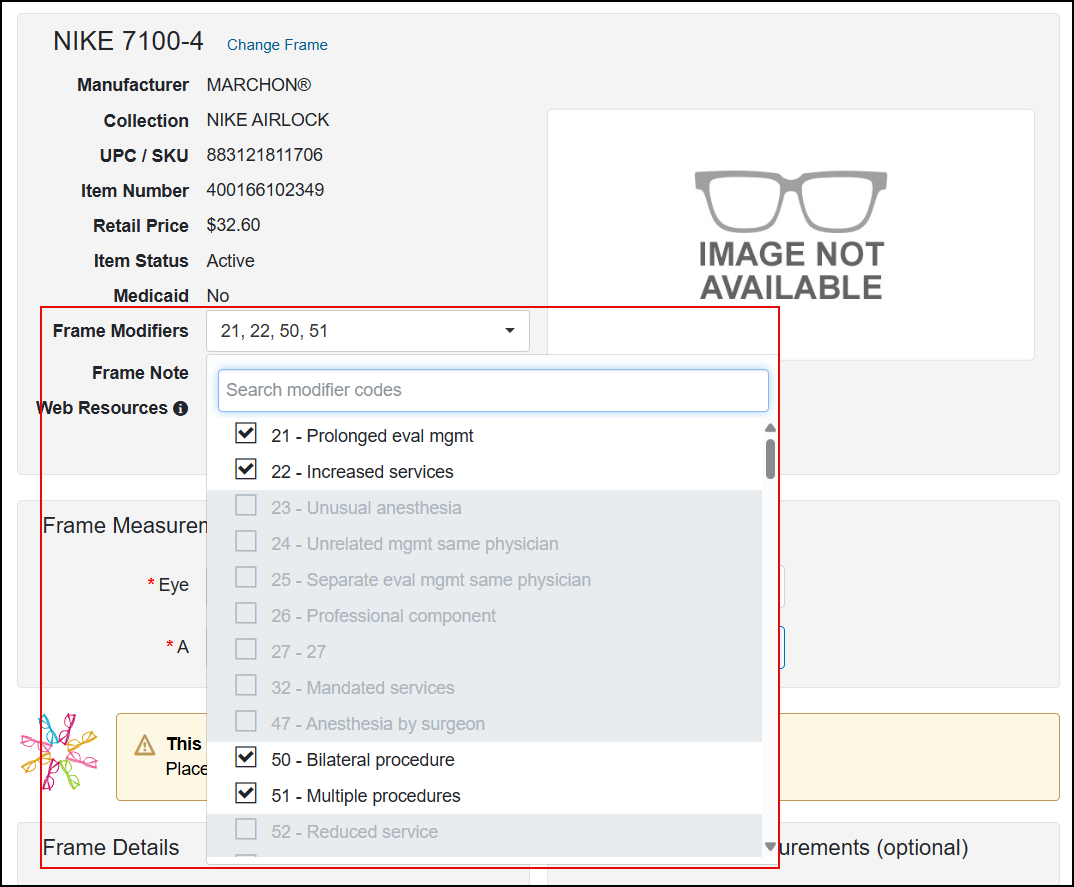
You can now select up to four Frame Modifiers when adding frames to orders. If your admin has this feature enabled, these modifiers are shown on the pricing screen, order summary screen, and printed order summary, and are included in VSP benefit calculations and claims. This change helps accommodate insurance plans that require multiple modifiers to ensure accurate patient out-of-pocket calculations.
Add Pupillary Distance Values to Orders Faster
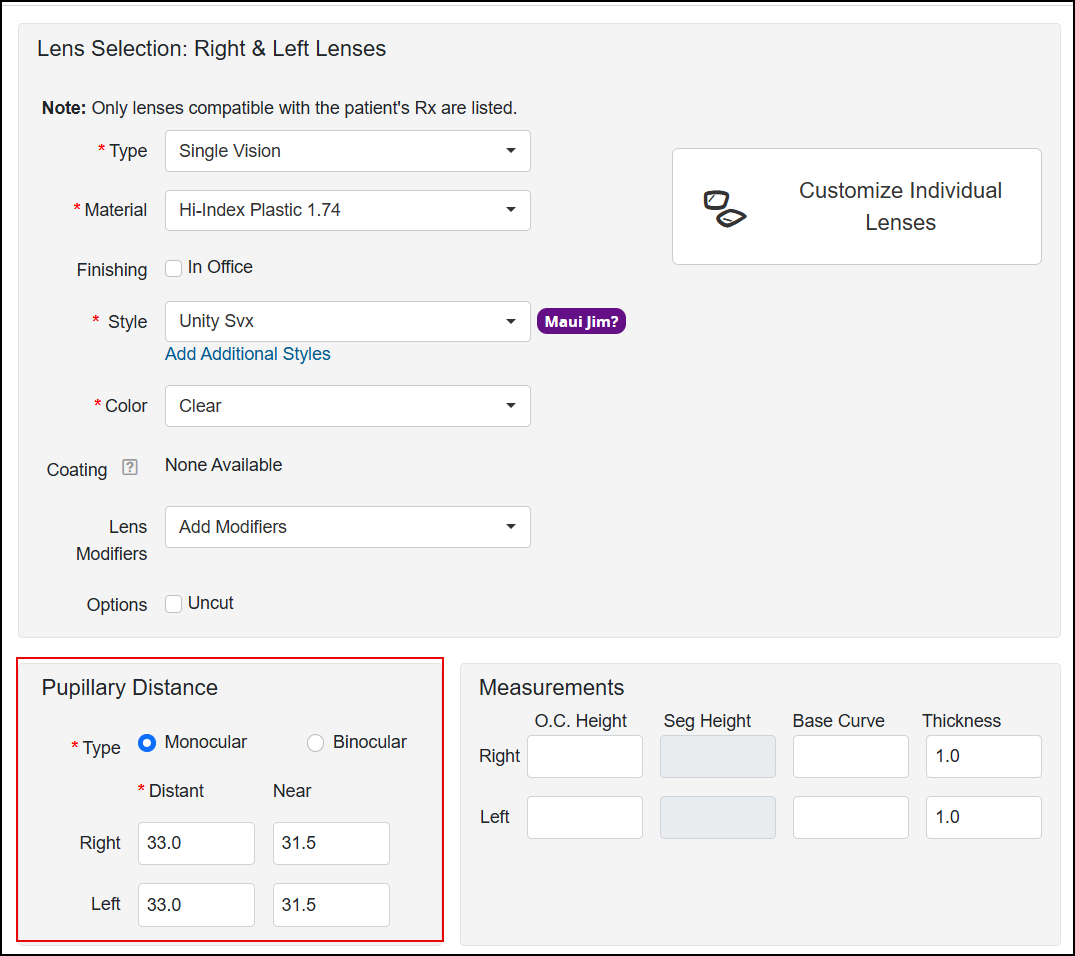
We've improved how pupillary distance (PD) values are handled when adding lenses to orders, to help ensure prescription measurements stay accurate and up to date while reducing manual entries. With this release, you'll see the following changes:
-
If you change either the Left or Right PD value, the other eye is automatically updated.
-
Near PD values are now automatically recalculated when you change the Distant PD.
-
Binocular PD values are updated when you change any of the Monocular PD values.
Copy Subscriber Insurance Information to Dependents with Greater Accuracy
We've made some changes to the way you automatically update dependent records when adding or updating insurance for responsible parties, to prevent incomplete and inaccurate insurance records.
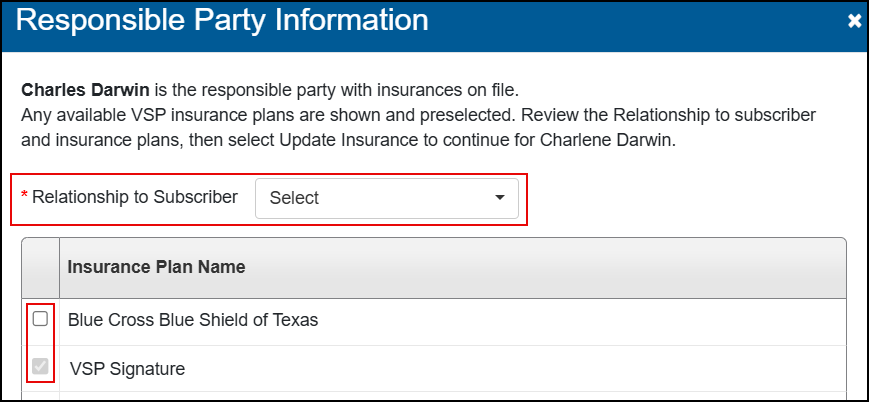
With this release, you'll see a new Relationship to Subscriber drop-down list in the Responsible Party Information window. You'll need to make a selection at this field and select the plans you want to copy before you can update the dependent's insurance record. VSP plans are selected automatically.
You'll also see this field in the Apply Changes to Dependents? window when adding or editing insurances for patients who are responsible parties.
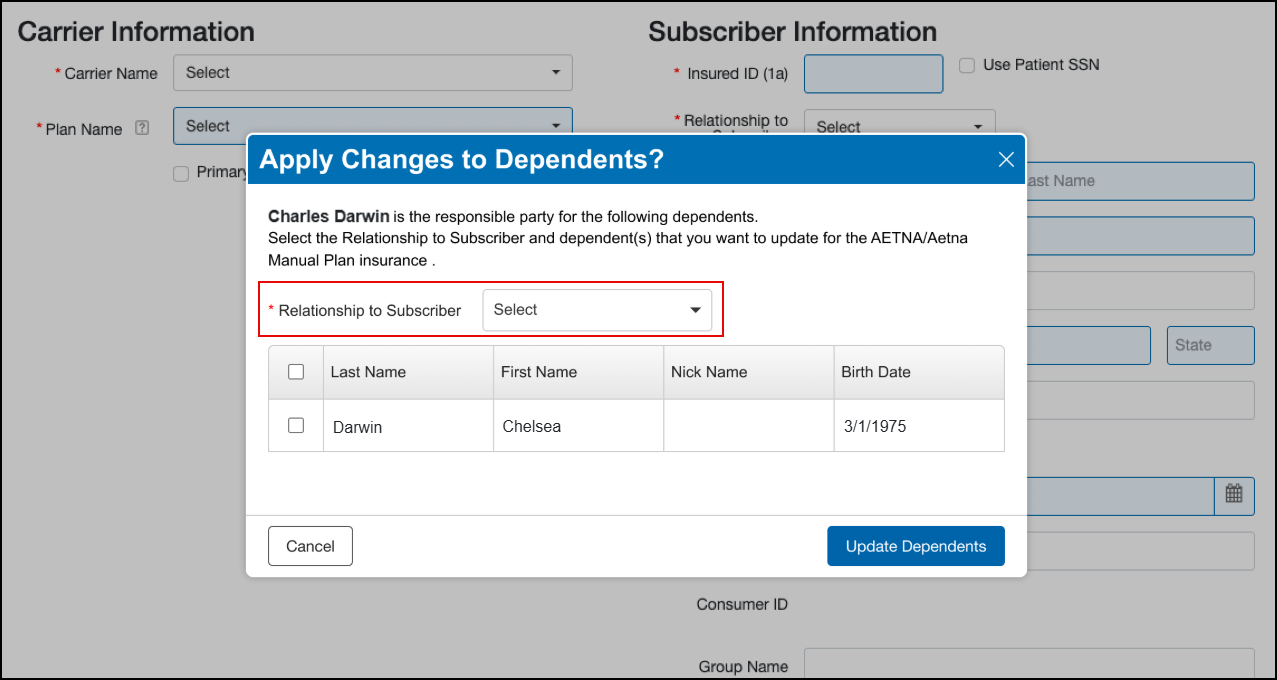
This update also corrects an issue where the Subscriber's Consumer ID for VSP plans was incorrectly being saved to the dependent's record. Now the dependent's Consumer ID is retrieved and saved to their record, preventing their VSP authorizations and claims from being filed under the wrong ID.
Stay Current with Automatic Calendar Updates
To keep your calendar updated and avoid staff not knowing an appointment has been booked, the calendar now automatically refreshes appointment data every minute and auto refreshes all calendar information every five minutes.
Visual Cues Help You Know When a Patient has a Pinned Note
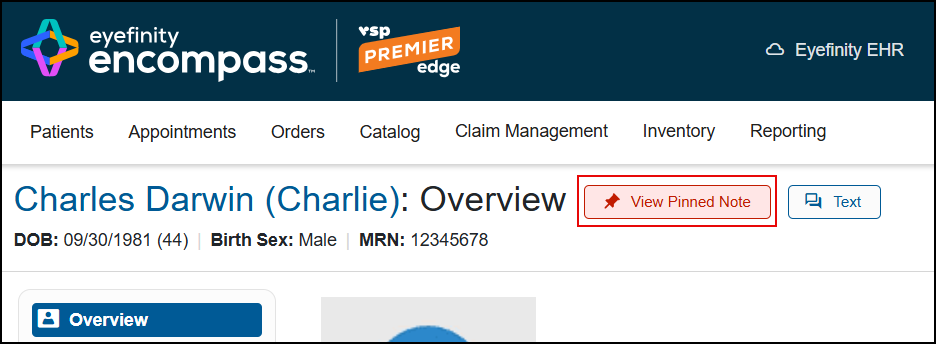
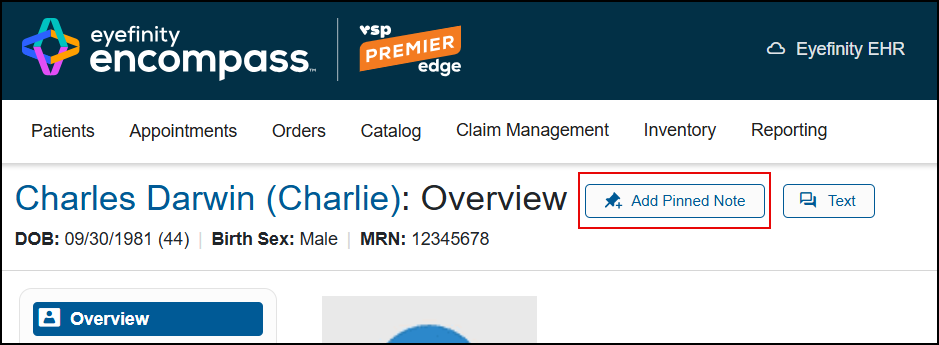
We updated the Pinned Note/Add Note button and icon so you can identify when a pinned note is available with a simple glance.
When the patient has a pinned note, the button is red and is labeled View Pinned Note.
When there is no note, the button is shaded blue and is labeled Add Pinned Note.
Find Orders More Easily with the New by Order Date Filter
We added the ability to filter the Order Management screen by Order Date. Find the right order faster, with less time navigating order records so you can more efficiently support patients.
The Order Management screen now includes a Date Type field, which allows you to select either Promise Date or Order Date. If you select Order Date, the screen lists the orders by Order Date. The default option is Promise Date.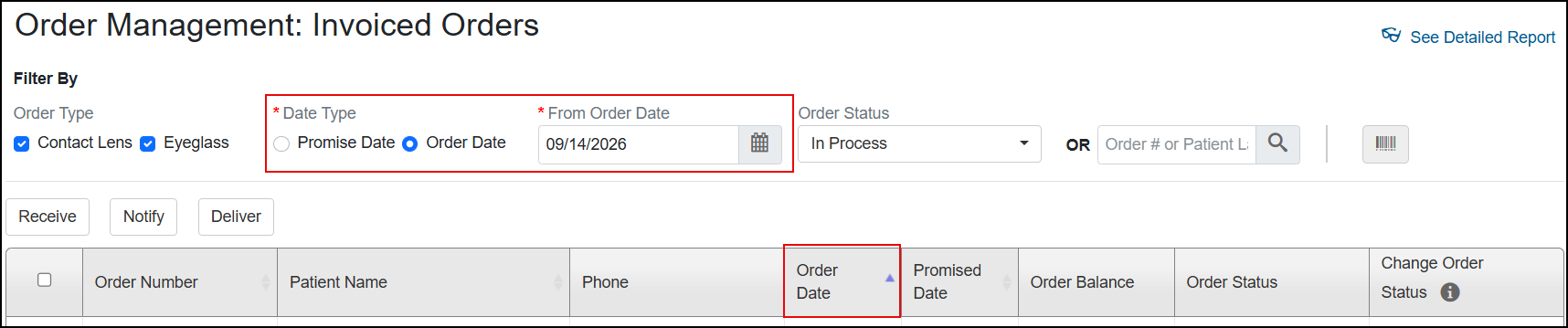
Deselect All Communication Methods with a Single Click
For easier management of patient communication preferences, we added the Deselect All option to the Communication Methods table. 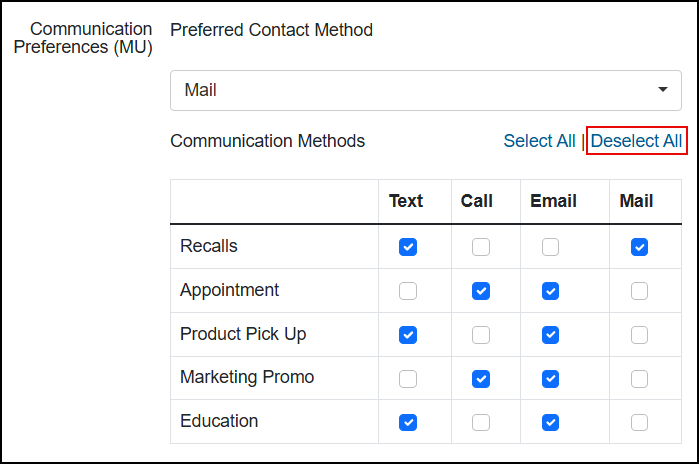
Click Deselect All to clear all options.
Trial Rx Indicator Helps You Identify Trial Contact Lens Prescriptions at a Glance
We added a blue Trial Rx indicator to prescription detail and the Rx History list so you can easily identify trial contact lens prescriptions. The indicator displays when a prescription is entered as a trial prescription in the EHR capabilities of Encompass.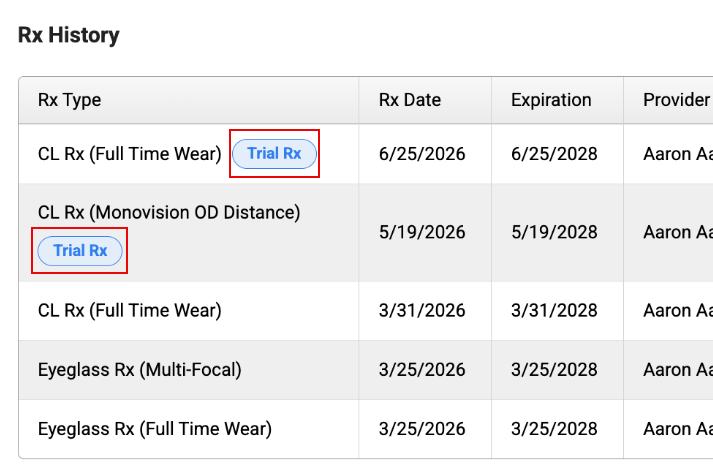
The indicator displays based on the prescription being entered as a trial prescription in EHR.
The change is applied to prescriptions sent from EHR after the time of the release; prescriptions sent prior to the release will not have the trial indicator.
In a future release, the system will also look to the contact configuration and display the indicator for lenses configured as trial.
Claim Management Enhancements
This release includes the following Claim Management enhancements:
Quickly Access Edit Claim and Print CMS Form Actions in Claim Detail
With this release we're restoring quick access to the Edit Claim and Print CMS Form actions by making them buttons at the top of the Claim Detail screen. Previously, they were located on the Actions drop-down menu, and we heard from many of you that their location was slowing down your workflows. This change will minimize clicks and make navigation clearer, enabling faster claim edits and printing.

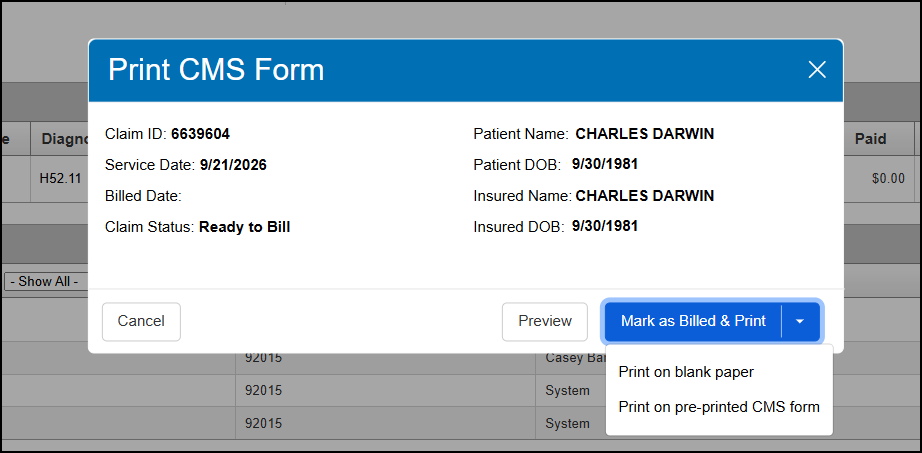
We've also updated the window that opens when you click Print CMS Form to provide more information and make it easier to use.
-
The window title has changed from Generate CMS Form to Print CMS Form.
-
Information displayed now includes the Service Date, Billed Date, Claim Status, Patient Name, Patient DOB, Insured Name, and Insured DOB.
-
The Select if you are using pre-printed form check box has been removed. Instead of using this check box, you'll now click the new Mark as Billed and Print (for claims that haven't been billed) or Print (for reprinting forms for billed claims) drop-down button to select whether to print on blank paper or a pre-printed CMS form.
-
A new Preview button opens the form as a pre-printed PDF.
Select Providers Easily When Billing Claims
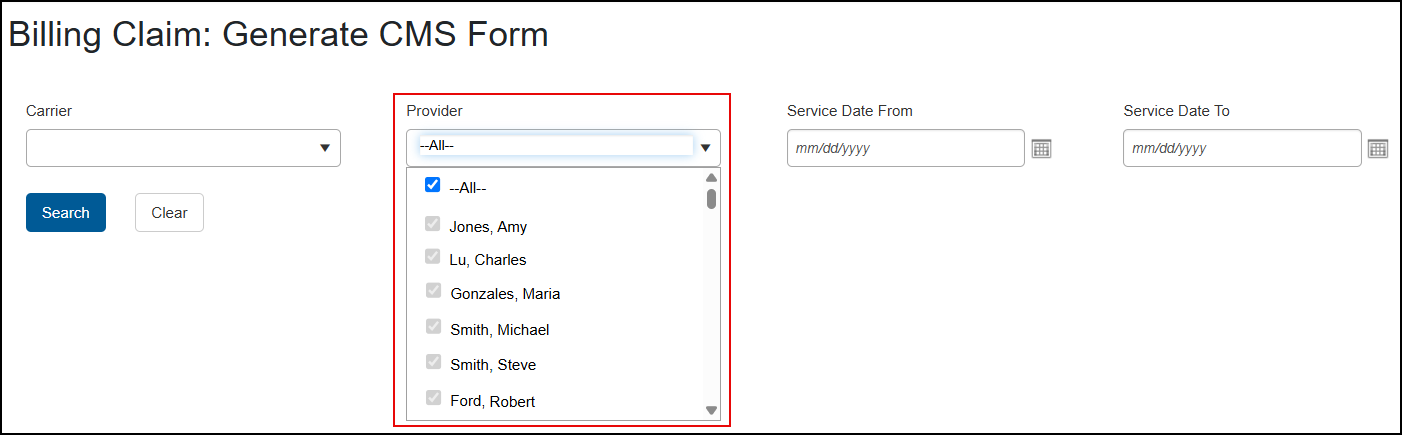
We've added a scroll bar to the Provider drop-down list in the Billing Claim: Generate CMS Form and Billing Claim: EDI Transmission screens, making it easier to find the provider you need.
Download Patient Statements Before They Expire
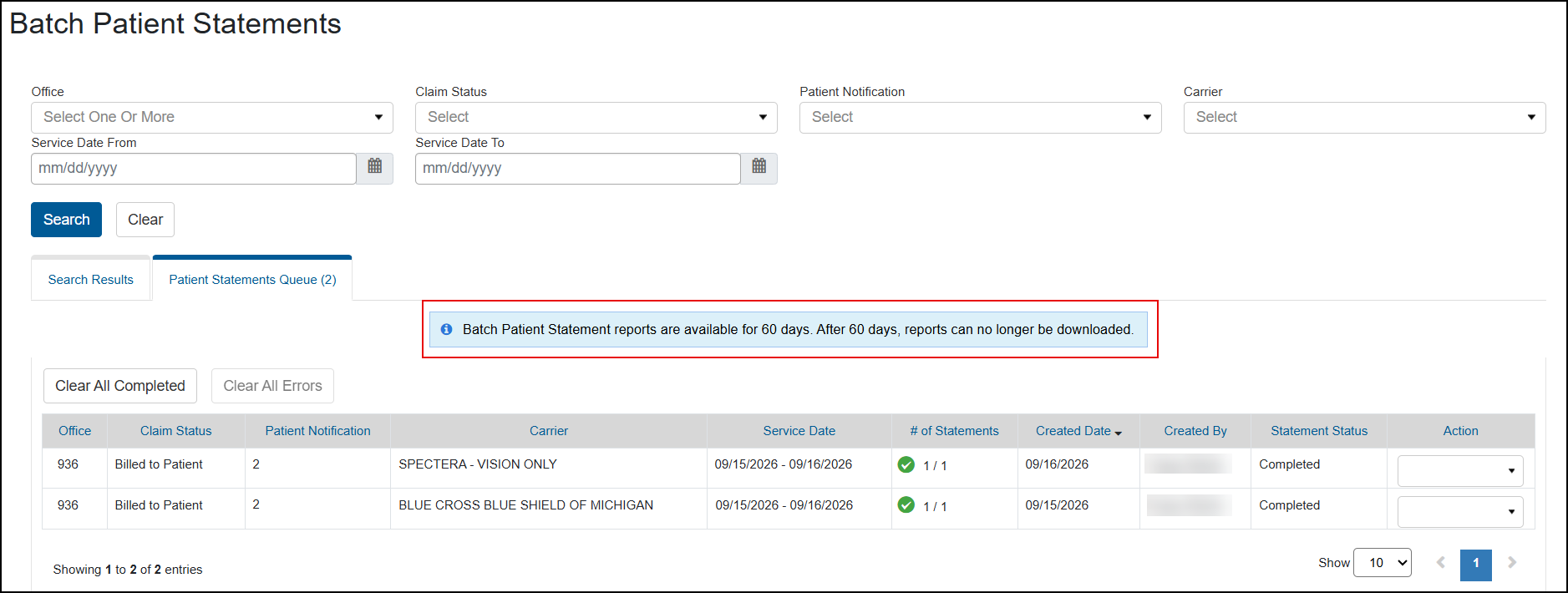
We've added a new message to the Patient Statements Queue tab in Batch Patient Statements to remind you that the statements are available to download for 60 days from the date they are first generated. After 60 days, they are removed from the Queue list. This new message helps you remember to download any statements you need before the 60-day retention period expires.
Faster Search When Billing Claims
We've made some changes to the search field and button layout in the Billing Claims: Generate CMS Form and Billing Claims: EDI Transmission screens, to make these screens feel more like other screens in the system and help streamline your workflow. With this release, you'll see the following changes:
-
The search criteria fields have been reorganized to better match the order used elsewhere in Encompass.
-
The Reset button is now labeled Clear, to more accurately describe the action.
-
The placement of the Search and Clear buttons has been switched, to better match the order used elsewhere in Encompass.
We've also made some performance changes to find search results quicker.

Administration Enhancements
This release includes the following Administration enhancements:
-
Handle Patient Payments More Efficiently Using Office Addresses for Remittances
-
New Option Lets Front Office Sell Contact Lenses from a Trial Prescription
Handle Patient Payments More Efficiently Using Office Addresses for Remittances
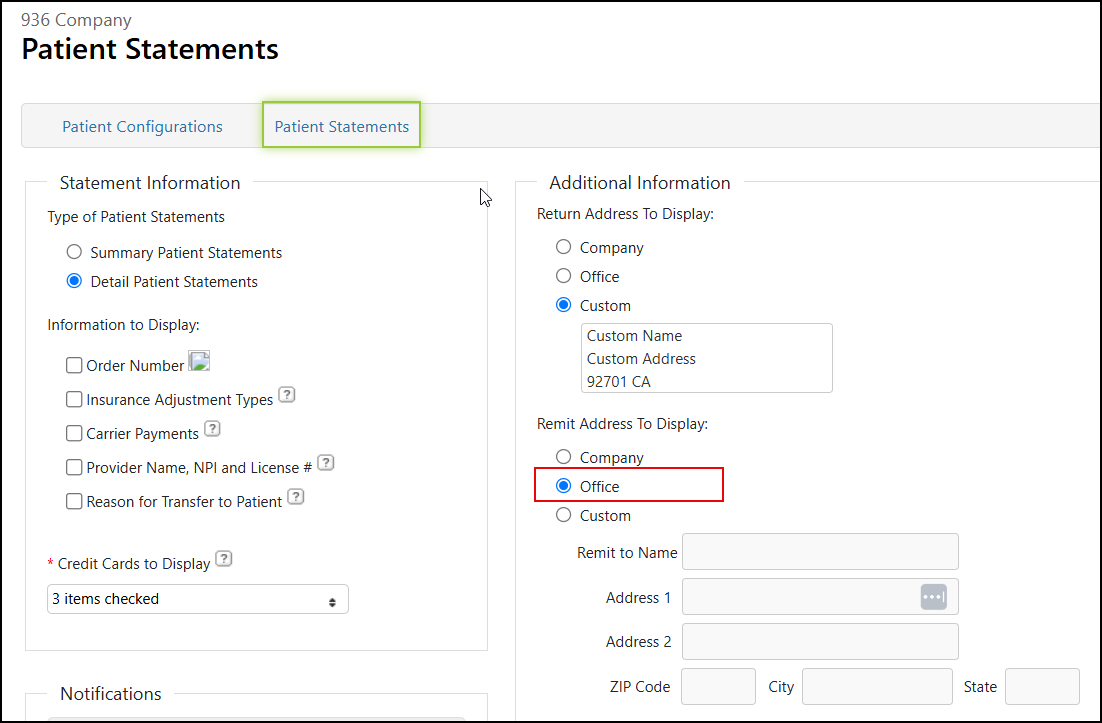
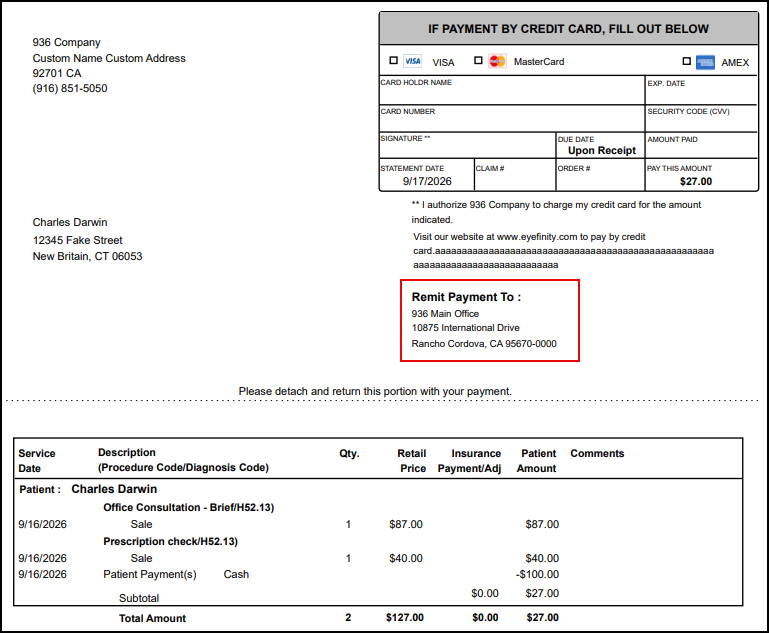
You can now select the office address as the "remit to" address on patient statements, enabling your company to receive patient payments directly at the office where services were provided. This new setting applies to both detailed and summary statements printed from either Front Office or Claim Management.
To set up office "remit to" addresses:
- On the Encompass home screen, click Administration.
The Company: Setup screen opens.
-
On the top menu bar, click Preferences and select Patient.
The Patient Configurations screen opens.
-
Click Patient Statements.
-
Under the Remit Address To Display, select Office.
-
Click Save.
When you print Patient Statements, the office address is shown in the Remit Payment To: section.
Admin Headings Get the Same Look and Layout as Front Office
For a unified user experience across practice management, we updated the header and footer in Administration to match those in Front Office.

Office Configuration List Shortened
We shortened the Office Configuration drop-down list to make it easier to manage. If your number of offices is more than the initial display, you can scroll down through the list.
New Option Lets Front Office Sell Contact Lenses from a Trial Prescription
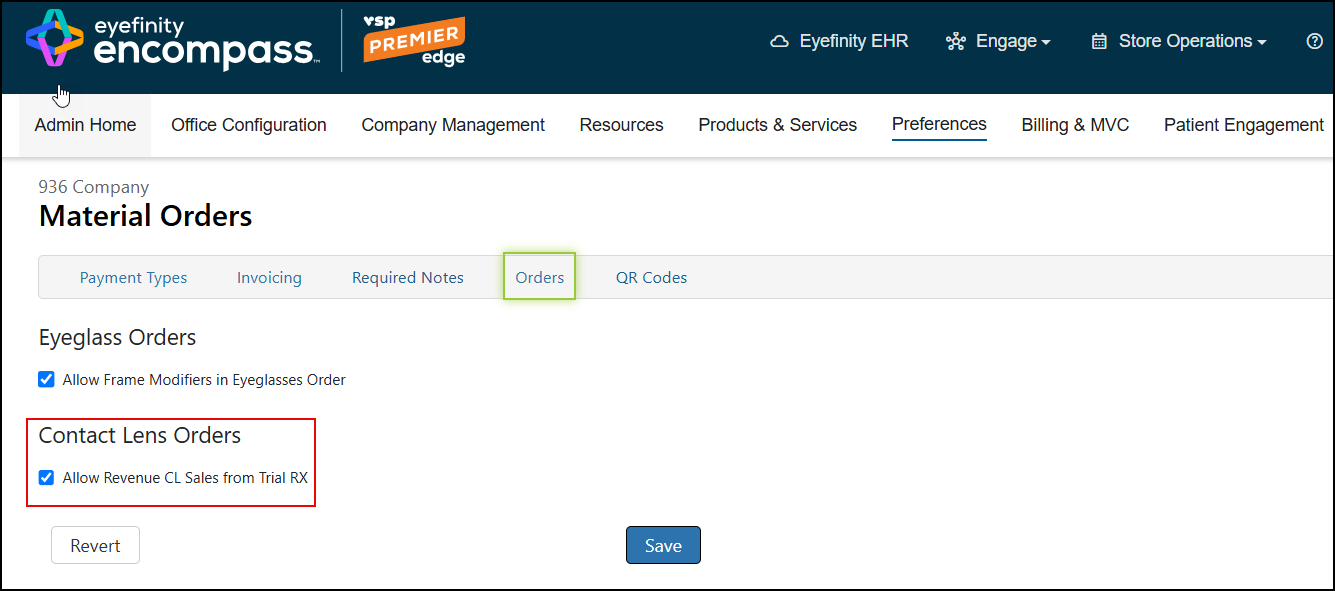
You can allow Front Office users to sell contact lenses from a trial prescription by selecting the Allow Revenue CL Sales from Trial RX check box in Administration.
With this release, the check box is selected by default. If you don't want to allow contact sales from trial prescriptions, deselect the check box. See Setting Up Contact Lens Order Preferences for instructions.
Reporting Enhancements
This release includes the following Reporting enhancements:
-
Updated Patient Open Exam Report Helps You Resolve Open Exams
-
Analytics & Insights Dashboards Get a New Look, Faster Load Times
Updated Patient Open Exam Report Helps You Resolve Open Exams
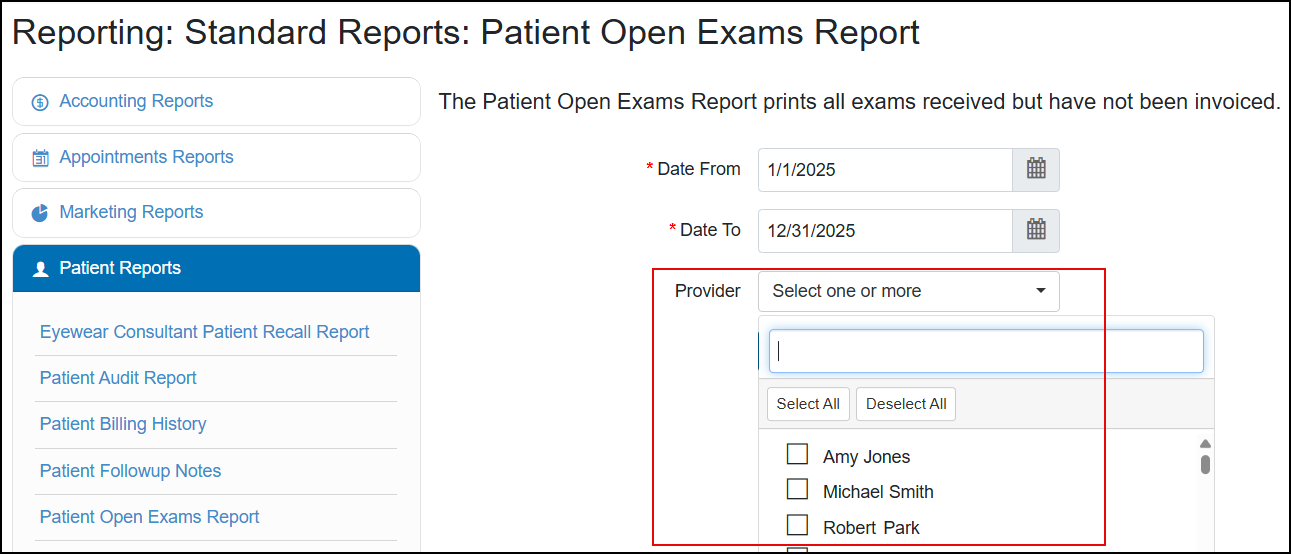
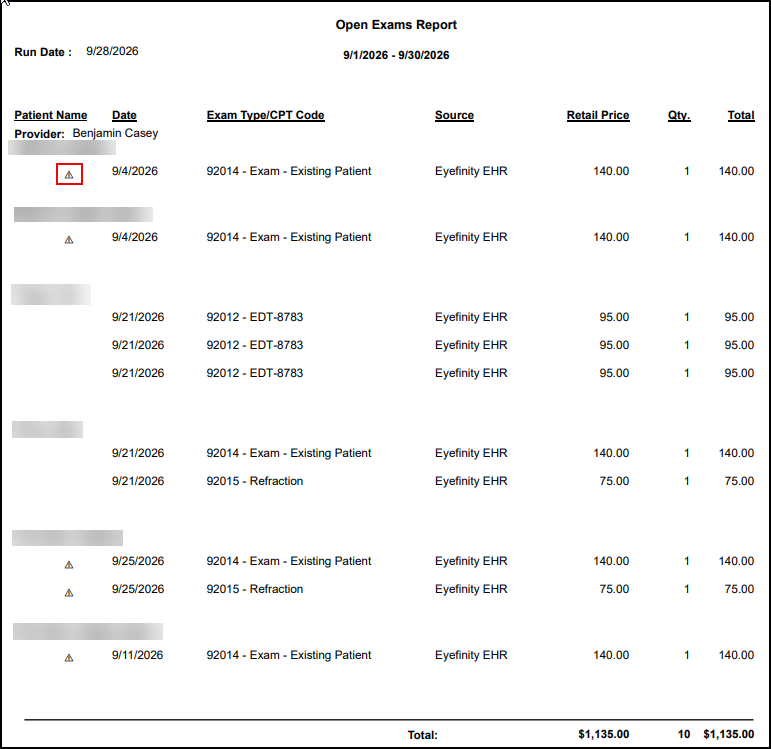
We updated the Patient Open Exam Report to provide filtering and clearer patient and service status indicators to help you quickly pinpoint actionable exams, reduce time spent searching, and eliminate guesswork. Work the right patient and service every time, improving workflow efficiency.
You can now run the report for selected providers or all providers.
On the report, if the patient is inactive, “inactive” displays in parentheses after the patient’s name. The report also includes a triangle indicator  if the exam has been priced but not invoiced.
Analytics & Insights Dashboards Get a New Look, Faster Load Times
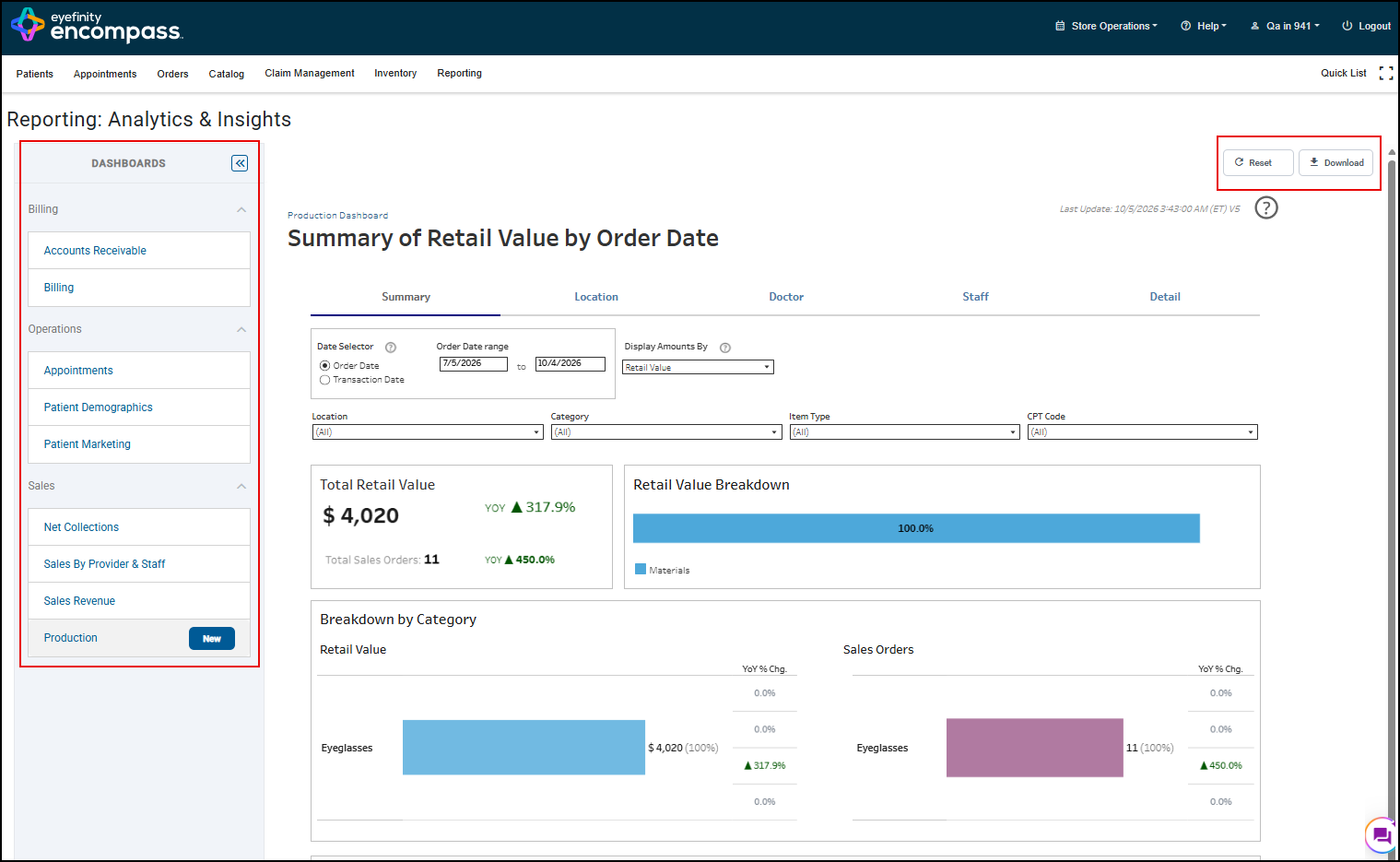
We’ve enhanced the Analytics & Insights portal to improve your experience. The dashboards display faster and with full-width viewing. We also improved navigation by organizing dashboard categories, providing a collapsible navigation menu, aligning categories with user security and adding active dashboard highlighting for better context.
You now can click Reset to restore default dashboard settings and the new Download button downloads the dashboards as JPEG image, PowerPoint, or PDF files for easier sharing.
Patient Engagement Enhancements
Eyefinity's Patient Engagement Solutions may include an additional fee and require Eyefinity setup. For more information on what's offered and pricing, go to eyefinity.com. Select Products and then Patient Engagement or select the Solution you are looking for from the list.
This release includes the following Patient Engagement enhancements:
Save Time with Direct Access to Patient Engagement Add-on Products - Coming Soon
Coming in November - For practices who have opted to use one or more Patient Engagement add-on products, you can now go directly to EncompassMessage or PatientNavigator from the new Engage drop-down menu, located in the blue menu bar at the top of the page.
EncompassMessage Enhancements - Coming Soon
Coming in November - For practices with EncompassMessage, we’ve also made it easier for you to initiate a two-way text conversation directly with the patient. A Text button has been added to the patient header on all the demographics screens.
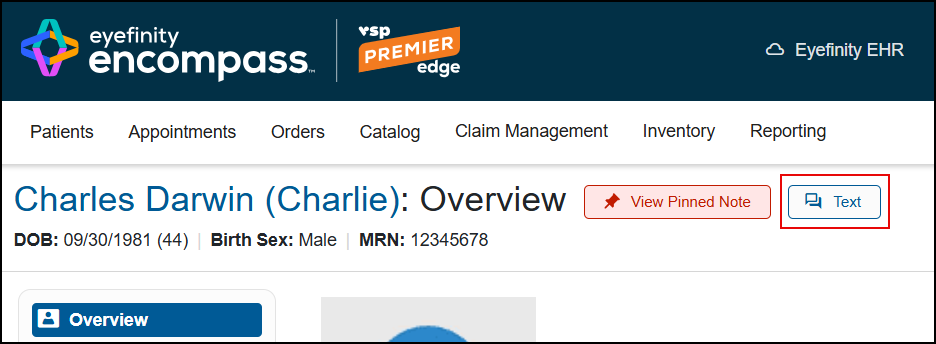
When you click this button, the EncompassMessage Two Way Text screen for the patient opens in a new browser tab.
Updated Group Message Workflow Steps You Through Create to Send
We create a workflow to simplify the process of sending a group message. The updated workflow helps you create a new group message, preview the message, select the recipients, review and send the group message.
You can also edit a message, copy a message, cancel a message, schedule a message, or delete a draft. For more information, see Understanding Appointment Group Messages in EncompassMessage.
Improved Automated Process Helps Get the Message Delivered
To meet patient preferences and improve engagement, our system prioritizes text messaging when delivering automated notifications. 95.5% of patients reported feeling more connected to their care team after receiving text updates.
Because many patients list a mobile number as their “home” phone (and may not have a traditional landline), the system does not rely on phone type when determining delivery.
How Message Delivery Works
-
Confirm patient consent for text messaging.
-
Send text to a “mobile” phone number, primary or secondary, without a bad phone indicator.
-
If unsuccessful, send text to primary “home” phone number.
-
If text delivery is not possible, verify voice consent and deliver a voice message using the same number sequence.
If a patient prefers to receive voice messages only, they should be opted out of text messaging consent to ensure proper delivery.
Additional EncompassMessage Improvments
-
Multi-Location message alerts – the message Notifications list includes the number of unread messages for each location. Making it easier for staff to help manage messages for all locations.
-
EncompassMessage now sends Patient “Scheduled” and Annual Last Exam recalls.
-
We added Birthday, Missed Appointments and Cancelled Appointments as automated notifications and a Feedback/Google Review automated notification that sends once the order status is “Delivered”.
-
You can now filter the message list to include only two-way text conversations or all messages (including automated messages).
-
Flag conversations for easy understanding of status. Customize message flags using labels and colors to easily identify messages; for example, create flags for complaints, outstanding bills, appointment confirmations, reschedule, need insurance, etc. The ability to add, remove, rename and select colors lets you get creative with how you track messages.
Coming Soon
The following feature
-
Save Time Reviewing EDI Claims with the TriZetto Claim Status Inquiry Integration
-
Taxes, Discounts and Delivery Data Added to the Production Dashboard for Better Reconciliation
Save Time Reviewing EDI Claims with the TriZetto Claim Status Inquiry Integration
This feature is available only for practices that use TriZetto as a claims clearinghouse. For information on TriZetto and to request a demo, see the TriZetto certified partner page on eyefinity.com.
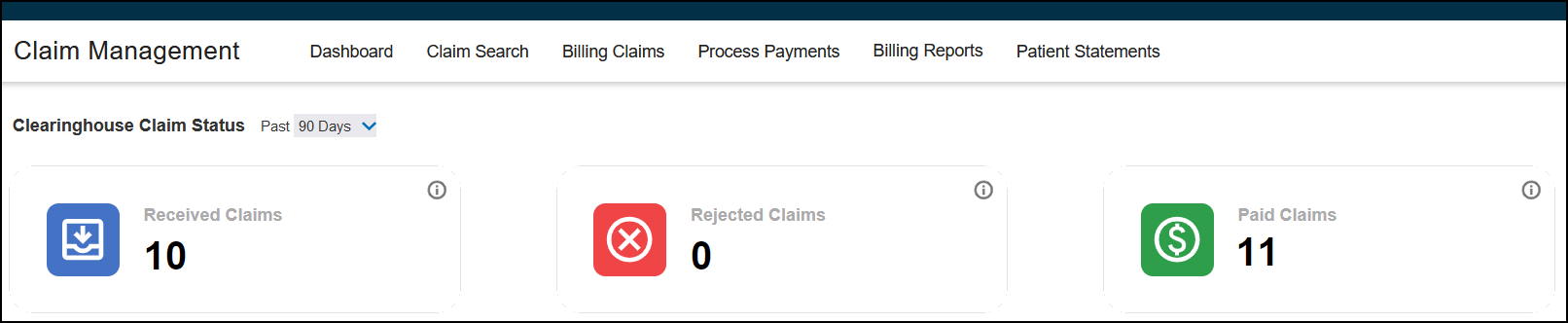
For practices that use TriZetto as a claims clearinghouse, Encompass now offers a TriZetto Claim Status Inquiry integration that displays EDI claim status updates in the Claim Search and Claim Detail screens and adds a new Claim Status Dashboard to Claim Management. Using the integration gives you real-time answers to EDI claim status questions and streamlines the review process for these claims.
See Using the TriZetto Claim Status Inquiry Integration to find out how to set up and use this feature when it becomes available.
Taxes, Discounts and Delivery Data Added to the Production Dashboard for Better Reconciliation
Coming in November - The Production Dashboard will include additional columns on the Details tab, giving you a one-stop sales data source that includes taxes, discounts, and delivery date to support better financial reconciliation.
Columns added include:
-
For the Sales Data:
-
Discount
-
Tax
-
Delivered Date – the date the eyewear was delivered
-
-
Payments Data:
-
Net Payment (Payment minus taxes)
-
Tax
-
Delivery Date
-
Also, in Payments Received view, you can configure the dashboard to include or exclude taxes.
Fixed Issues
This release includes fixed issues in the following areas:
Front Office
-
When editing a draft order, the Shipping Information Address is no longer blank.
-
When you select the Bad Address, Bad Phone Number or Bad Email checkbox for a patient, a warning is added to the screen indicating the field needs to be corrected. Previously, the warning didn't display.
Refunds now display on the Change Payments screen after Daily Closing. Previously, refund transactions would disappear from the Change Payments screen when Daily Closing was performed.
-
Lab Supplied is no longer incorrectly included as an option for the Frame Source on lens-only orders.
-
Accessory tax is now applied correctly to frame-only orders when the Tax Non-Corrective Eyewear at Accessory Rate check box is selected in Company Tax Setup. Previously, the tax would be applied on these orders even when the setting was disabled.
-
We fixed an issue where family checkout was applying credits between family members incorrectly.
-
We fixed an issue where VSP insurance information was not correctly updated after authorization retrieval, causing claims to use the insured's benefits instead of the patient's information. Previously, affected orders could invoice and bill with the wrong patient on the claim.
-
When a patient confirms their appointment via a text message, the appointment is marked confirmed and the Updated By field reflects the API (for example: proxy_eyefinity-pe-portal-api_936). Previously, the name of the last user would display.
-
When you click on the drop-down to view appointment history, the appointment history displays quickly. Previously, if you selected an appointment without any history, the system would spin.
-
You can search by first name or preferred name and the results display all possible matches. Previously, you had to enter the full first name and last name to view all possible matches.
-
When you click on the drop-down to view appointment history, the appointment history displays. Previously, if you selected an appointment without any history, the system would spin.
-
We corrected an issue with timestamps that prevented some invoiced orders from displaying on the Material Orders screen.
-
When your admin has chosen the Invoiced Orders tab as the default tab and you navigate from the patient's demographics to Material Orders, the Invoiced Orders tab displays. Previously, the system wasn't respecting the default setting.
-
The Order Number link on an invoiced order takes you to the Order Summary screen when clicked. Previously, the Build Order screen displayed.
-
When updating an order, if another user is in the order and you both save, the first order is saved and the second user receives a warning that the order has been updated already in another window. If you receive this message, refresh the page to continue.
-
When in the training environment, the Close button is available to perform daily closing. Previously the Close button didn't display.
-
When EHR sends a prescription for single vision but with an Add power, the system converts the prescription to multi-focal. This ensures the Lab Order prints correctly with no Add power. Previously, the system would not convert the order and the lab order was for single vision without the Add power.
Claim Management
-
The changes made in Encompass 10.50 to reformat and expand the information shown at the top of the Claim Detail screen are now visible to all users.
-
Fixed an issue where the Close button in the Multiple Payments Found window that displays from the Electronic Remittance Payment screen did not respond, requiring you to click outside the window to dismiss it. We also added some clearer explanatory text to the window.
-
When posting insurance payments on a claim in the Electronic Remittance Payment screen, the Remittance Record window now displays the correct information under Claim Information and Service Information. Previously, these sections were sometimes blank.
-
When printing the lab order from the claim, the lab order includes the frame measurements used on the order. Previously, the default settings were printing.
Administration
-
When creating scheduler templates, the system prevents you from creating overlapping templates. This ensures accurate template display.
-
You can create, edit and save frame pricing information - single frame pricing and bulk frame pricing; previously, you would receive an error.
Reporting
-
We fixed an issue that was causing errors when generating the Daily Transaction Payment report.
-
We fixed an issue that caused no data to display or errors when generating the Refunds and Adjustments report.
APIs
-
The Schedule Manager API only returns time slots for when the doctor is available. Previously, the API was returning protected/unavailable appointment slots in certain uncommon cases where one doctor had scheduled open timeslots and the other doctor was on a weekly scheduled rotation (without specific scheduled timeslots).
Known Issue
-
The Create an Order button on the Material Orders screen does not work when using Encompass on an iPad in portrait orientation. To access the button options to start an order, turn your iPad to landscape orientation. You can then proceed with the order in either orientation.
-
When you do a remake and go to the invoice page, the credit may not automatically apply. Enter the credit amount to be applied to the remake manually.