
What's New in Eyefinity Encompass 7.15
Released September 15, 2026
Training Sandbox Released August 14, 2026
Watch the What's New video to see highlighted features in action.
This page describes the enhancements, fixes, and known issues in the latest Eyefinity Encompass™ release.
- Release Highlights
- iPad and Web Enhancements
- Administration Enhancements
- ePrescribing Enhancements
- Regulatory Enhancements
- Fixed Issues
- Known Issues
- Encompass 7.15.3.1 Update
- Encompass 7.15.5 App Update
- Encompass 7.15.4 Update
- Encompass 7.15.1 Kiosk Update
- Encompass 7.15.5 Update
- Encompass 7.15.6 App Update
- Encompass 7.15.5.1 Update
- Encompass 7.15.5.2 Update
- Encompass 7.15.6 Update
- Encompass 7.15.6.1 Update
- Encompass 7.15.7 Update
- Encompass 7.15.7 App Update
- Encompass 7.15.2 iPhone Update
Release Highlights
Create Soft Contact Lens Prescriptions More Quickly
Automatically Apply Vertex Distance Adjustments for Contact Lenses
Calculate Adjusted IOP Automatically
Create Soft Contact Lens Prescriptions More Quickly
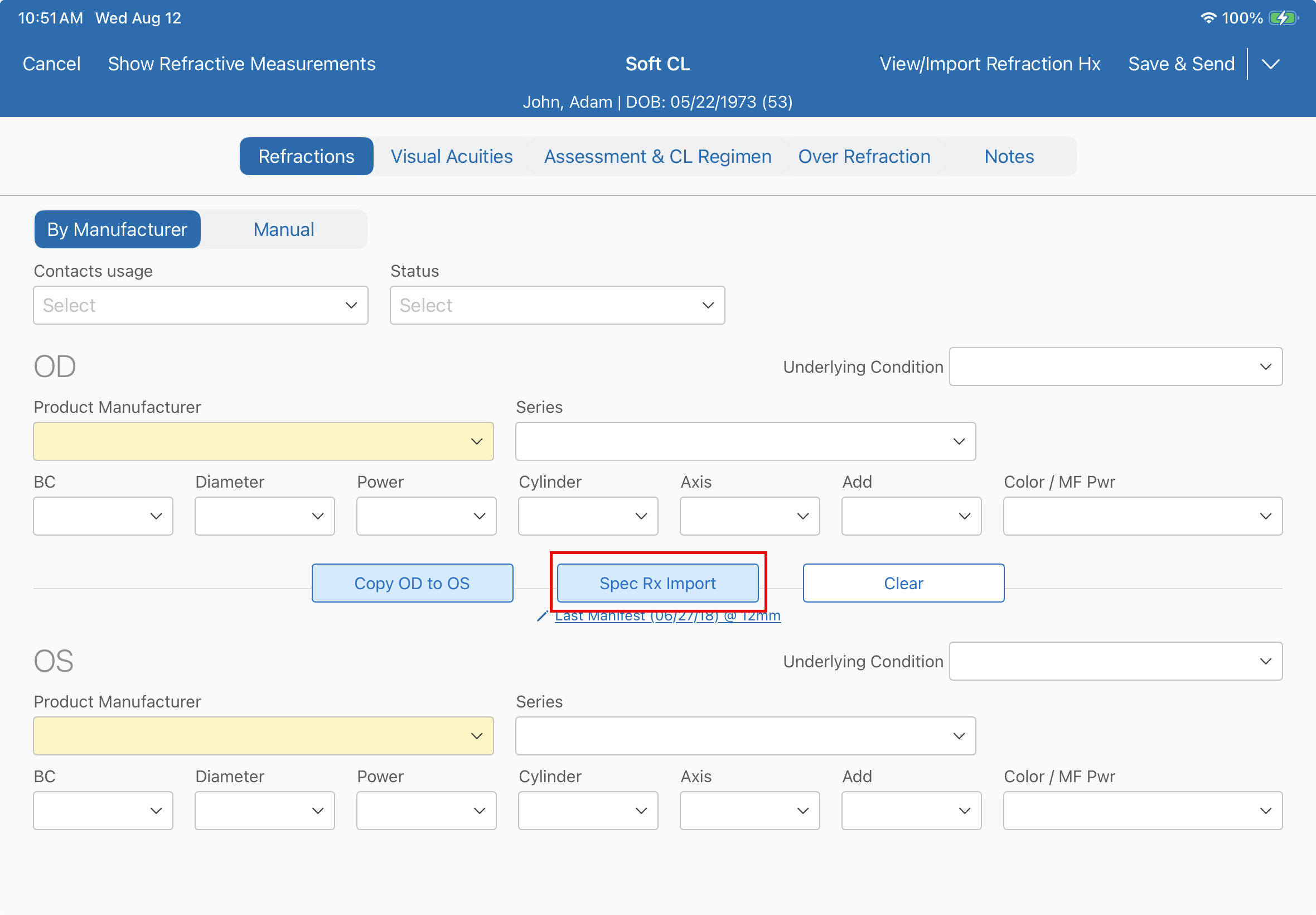
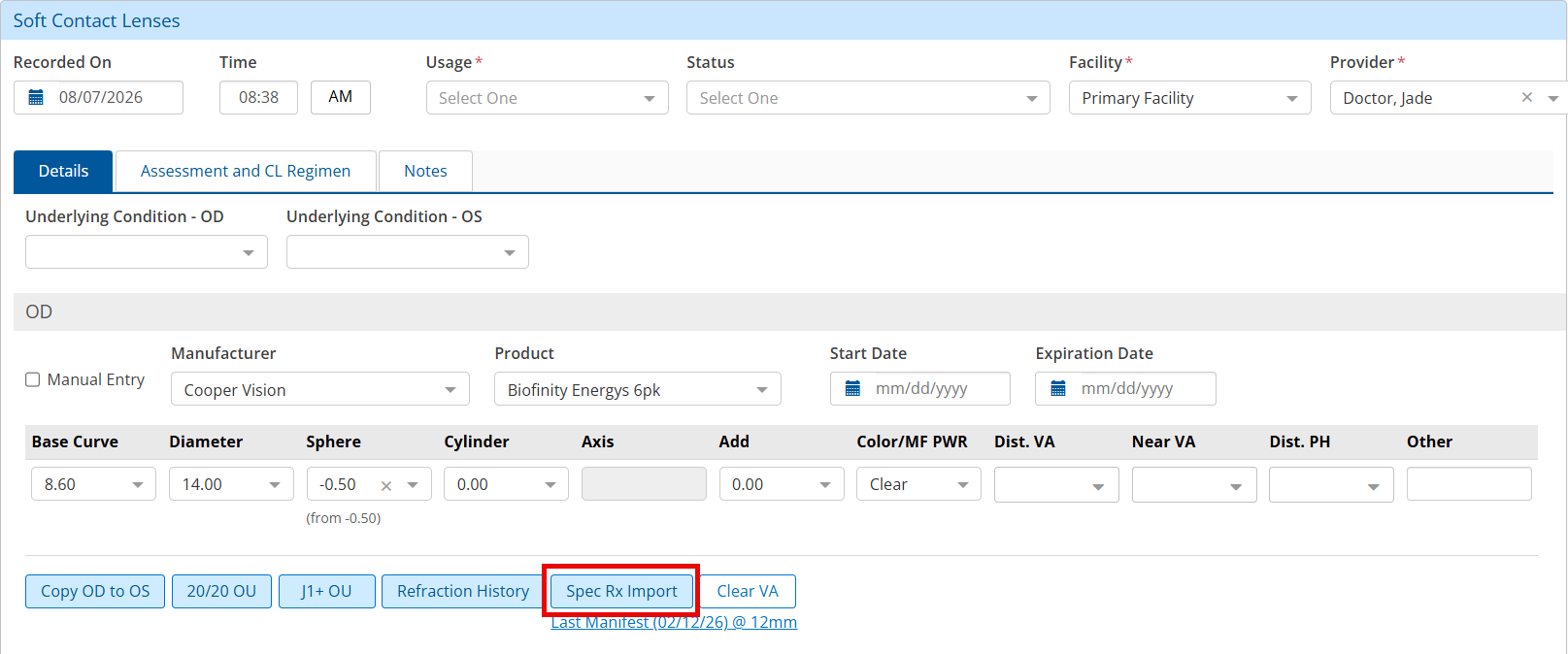
You can now save over a dozen clicks or taps per soft contact lens prescription by using eyeglass prescriptions as starting points. Import information that's already there to save you time manually entering sphere, cylinder, and axis values. When selecting a product for the right eye (OD), the EHR now automatically copies the product and manufacturer to the left eye (OS), saving you four clicks or taps. This won't occur if you've already selected a product for the left eye, and you can always edit the product for the left eye for situations where a patient wears different lenses in each eye. You can utilize this feature on both the iPad and the web:
For more information, see Viewing Refraction History and Importing Refractions in the Detailed Visit Overview (iPad).
For more information, see Viewing Refraction History and Importing Refractions in the Visit Overview (Web).
Automatically Apply Vertex Distance Adjustments for Contact Lenses
With the addition of the eyeglass prescription import feature, you can also apply vertex distance adjustments using those prescriptions as starting points for soft contact lens prescriptions. We use a default vertex distance of 12 mm for the calculation; however, you can adjust that default based on your preferences. For higher power prescriptions, the system calculates the vertex distance adjustment, rounds to the nearest available lens power, and displays reference text detailing the calculated values.
Calculate Adjusted IOP Automatically
We added an automatic adjusted IOP calculation feature to remove the cognitive load of manually calculating this measurement for your glaucoma patients. Using the patient's central corneal thickness from their most recent pachymetry, the system displays the adjusted IOP in blue under the Vision Summary, in the patient header, the pretesting section for IOPs, and the eye log. You can hover over this measurement to display the value of the associated pachymetry measurement as well as the date it was recorded on the web, or tap it if you're working in the iPad.
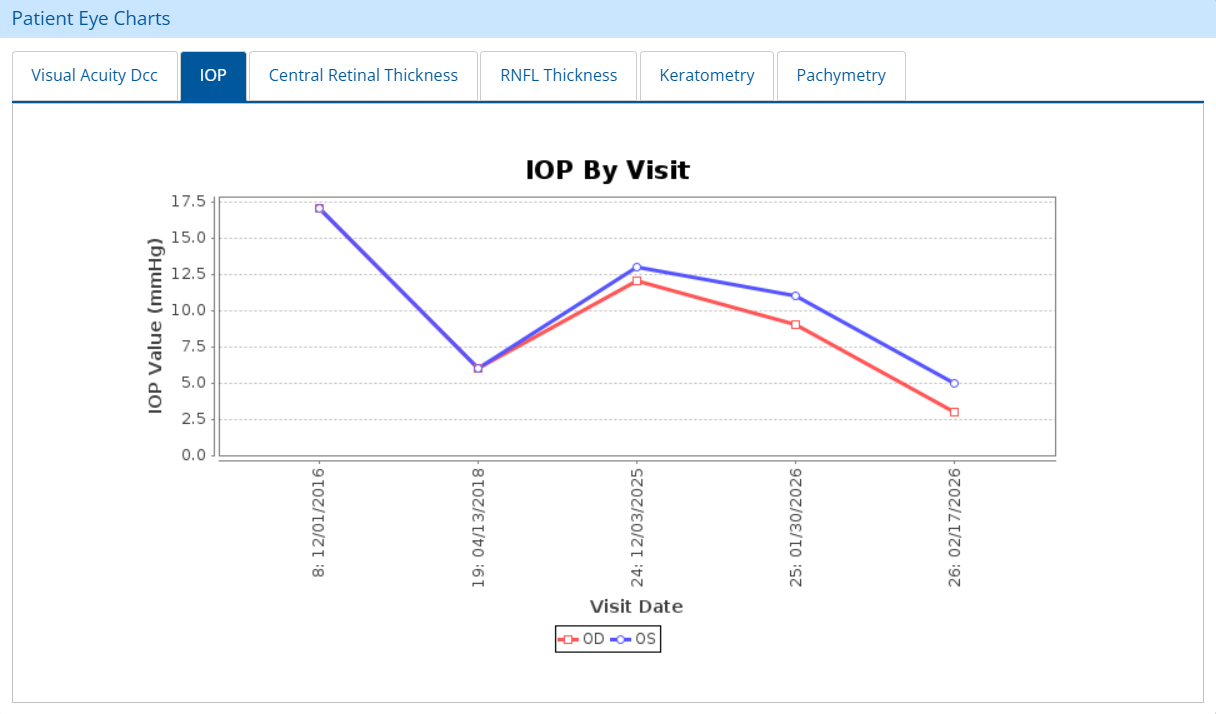
When viewing IOP values on the web under Patient Eye Charts > IOP tab, the values shown are the ones measured and entered by clinical staff, not the automatically calculated values.
iPad and Web Enhancements
The following enhancements apply on both the iPad and the web application:
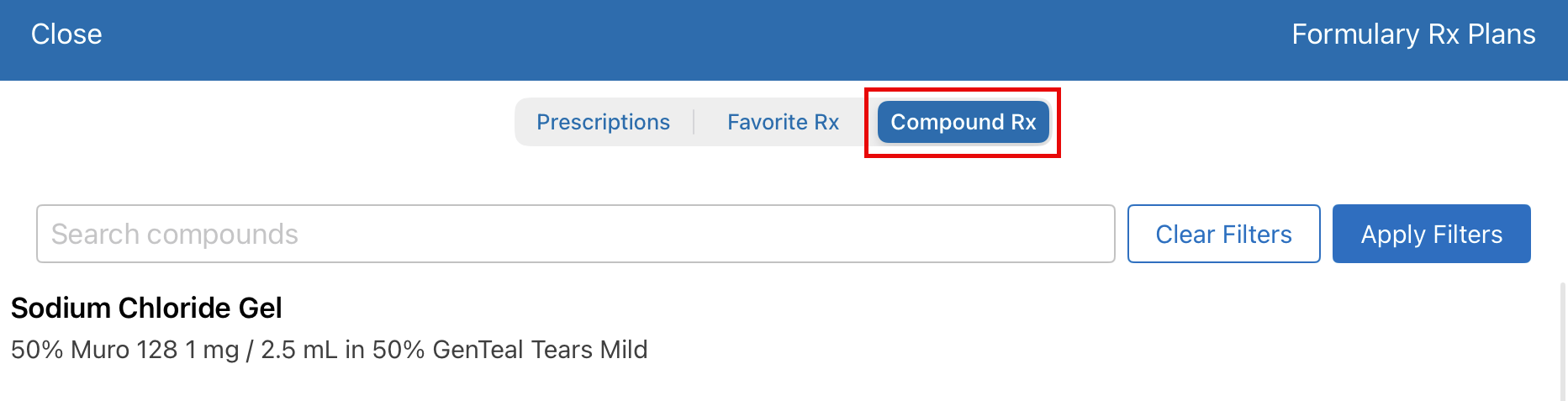
Find Compound Medications Quickly
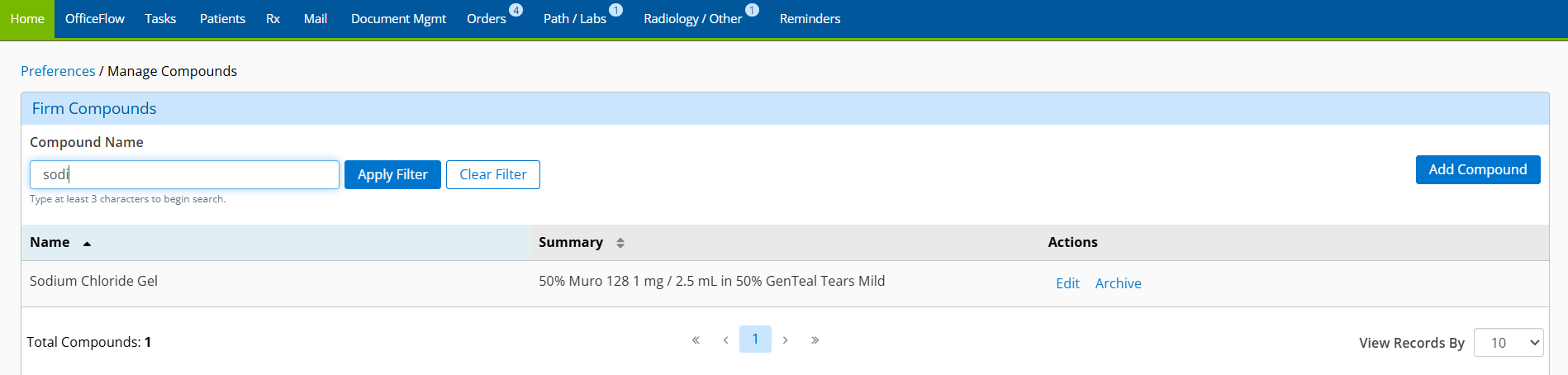
You can now search for compound medications by typing part of the compound name and clicking Filter. This saves you the hassle of having to read every compound medication shared in your practice until you find the one you need. For search results to appear, you must type at least three characters and click or tap Search.
Monitor Myopia in the Eye Log
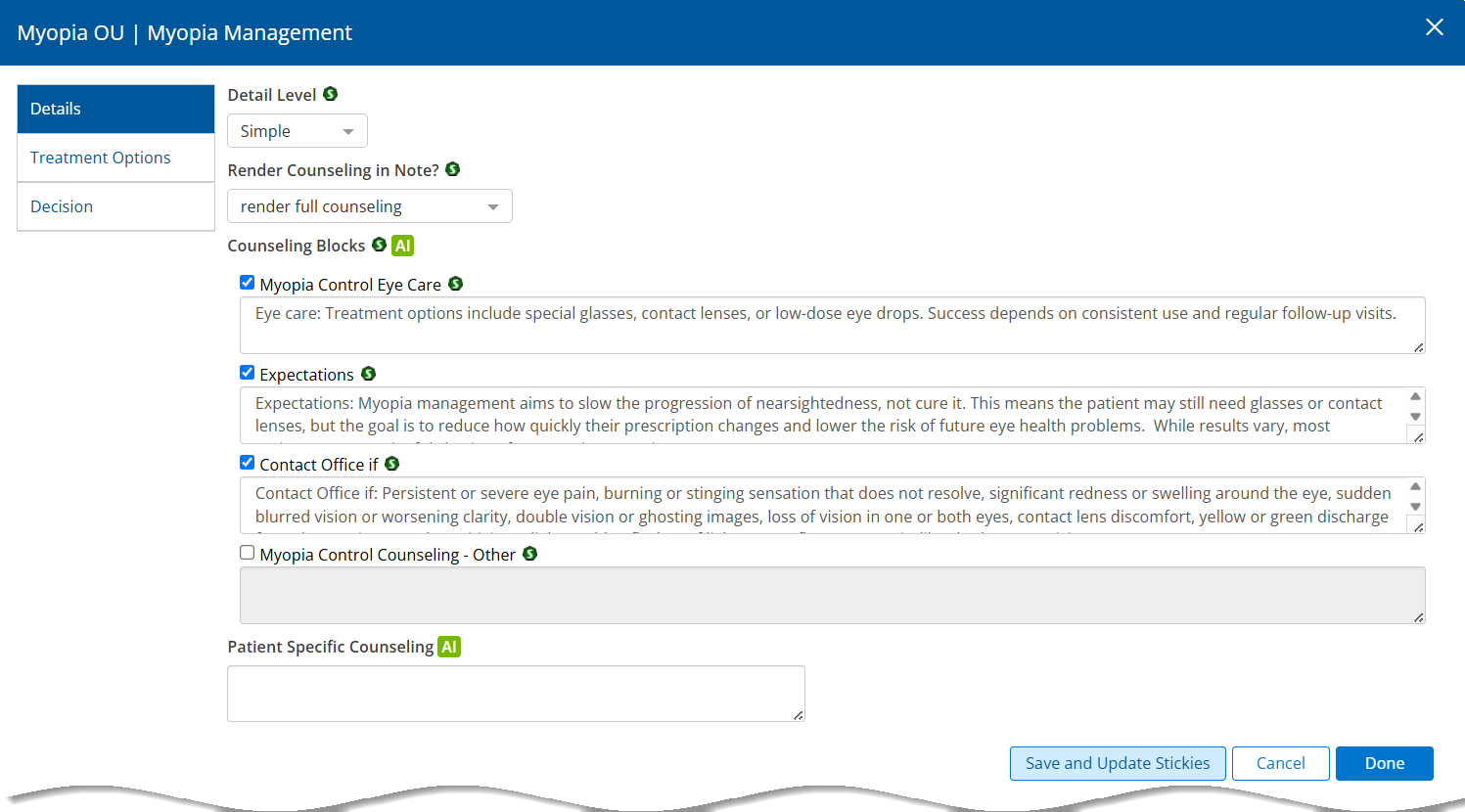
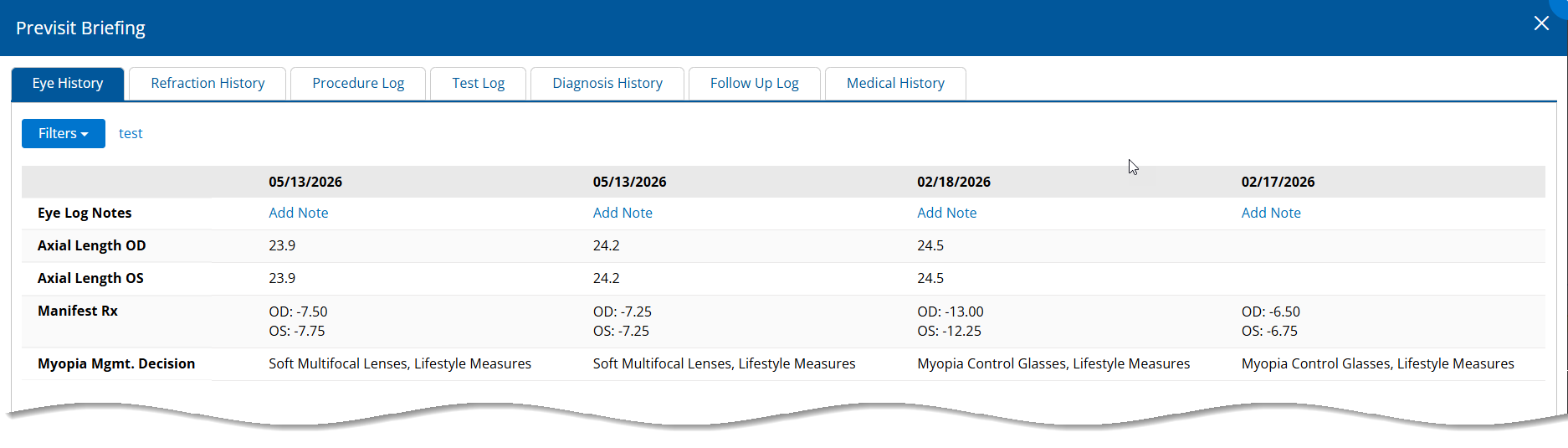
With the introduction of a manifest refraction history in the eye log that pulls information from the new Myopia Management plan , you'll be able to monitor and address myopia progression more quickly and easily than ever before. After documenting your treatment decisions, you can open the eye log and review the values in the Manifest Rx row to determine how your patients are responding to those decisions, noted in the Myopia Mgmt. Decision row, over time. Additionally, the Axial Length OD and OS rows track those values and allow you to compare them to each other at a glance. In relationship to each other, these convenient and accessible tools can help you make an even greater impact in your patients' eye health.
Administration Enhancements
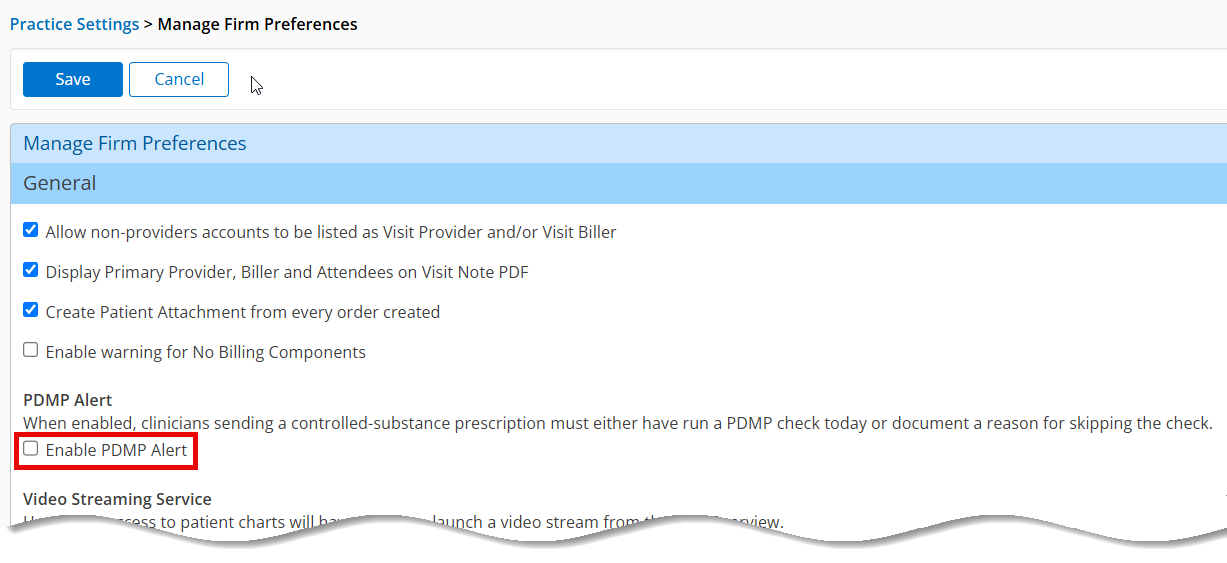
- Practice administrators can enable and disable the new PDMP warning by logging into Administration, navigating to Manage Firm Preferences, and selecting the Enable PDMP Alert checkbox as needed.
- Practice administrators may now grant Tier 2 users the ability to initiate the EHI export and download and view the EHI export file. This feature is located under the Patients tab > Reports link.
ePrescribing Enhancements
- When you attempt to prescribe a controlled substance and the system is unable to check your state's PDMP registry, a new popup window prompts you to check your state's PDMP registry and asks you to confirm how or if you checked.
Regulatory Enhancements
- You can now view the MVP dashboard as an alternative to the MIPS dashboard. To participate in the MVP program, you must opt-in through qpp.cms.gov prior to the deadline.
- We updated the following quality measures:
- Q374: Closing the Referral Loop: Receipt of Specialist Report
- Q355: Unplanned Reoperation within the 30-Day Postoperative Period
- Q384: Adult Primary Rhegmatogenous Retinal Detachment Surgery
- Q440: Skin Cancer
- Q389: Cataract Surgery
- Q304: Cataracts: Patient Satisfaction within 90 Days Following Cataract Surgery
- Q191: Cataracts: 20/40 or Better Visual Acuity within 90 Days Following Cataract Surgery
- Q134: Preventive Care and Screening
- We reformatted phone numbers in CCD XML files to conform to interoperability standards by omitting all spaces and non-numeric characters.
- We updated the list of codes required by the state of Maryland that qualify a visit as containing sensitive health information.
Fixed Issues
- To prevent errors and maintain data integrity, we disabled the ability to edit finalized visits for visits that were converted and migrated from another EHR or were migrated from another instance of Encompass. We also disabled the ability to edit finalized visits for visits that required support to force-finalize the visit.
- Adding ICD-10 impressions to a visit with a General Surgery medical domain no longer results in a 500 error experienced by some users.
- We resolved an issue producing an error message when navigating to the Manual Prior-Authorizations Requests tab.
- Medications reconciled from an uploaded CCD to a patient chart now display not only the generic ingredient name of the medication, but the strength and dose form as well.
- We updated how medications are rendered within the Pre-Visit Summary.
- When documenting IOPs, the Recorded By field now defaults to the current user documenting the measurement and the drop-down list displays all valid clinical users without truncating alphabetically. Previously, the field defaulted to the provider listed for the visit and the drop-down list truncated alphabetically, making it more difficult and time-consuming for users to locate their names and select them.
- We updated the way medications are rendered within the pre-visit summary to help you quickly assess a patient's current medication list.
-
The Order Scheduled window with an Acknowledge button now displays when providers apply previous findings or protocols that include orders for tests.
-
Multiple lines of text entered on Visit Overview screens and note outputs now all align with the left side of the text field area. Previously, some lines were offset a few spaces to the right.
-
Text entered in the Historical Assessment Summary window now appears only once per impression and plan documented.
-
We added the following fields to the EncompassScribe metadata to assist you in capturing this data:
-
Telehealth
-
Pregnant
-
Gender Identity
-
-
We updated medication rendering in the pre-visit summary when using EncompassScribe.
-
Medications now save and display with their full dispensable drug name, strength, and form when reconciling from an uploaded CCD.
-
Original visit note PDFs now display without any errors when opening them for correction.
-
Existing measurements for Light, Dark, and Near values in the Pretesting Summary are now retained on reconciliation with the use of EncompassScribe.
-
EncompassScribe now supports pre-testing for for pupils and related measurements.
-
We added Castle Decision DX - Uveal Melanoma as a default suggested plan for applicable Melanoma impressions.
-
We added the Intravitreal Yesafili plan.
-
We added added an Iheezo NDC free text field to the Details tab for applicable procedure plans.
-
Selecting Methotrexate as the Intravitreal Injection of: option in the Details tab of the Intravitreal Injection plan now suggests HCPCS code J9260 instead of J9250.
-
We fixed an issue where unselected CPT codes in the Custom Code Tracker - With Laser plan were included in the suggested billing.
Known Issues
We're investigating these issues and working to resolve them as soon as possible.
- When performing an exam on the web for the left eye only, the results display correctly in the visit note PDF but appear in the left column rather than the right on the visit overview.
- The iPad app doesn't automatically prompt you to download the latest version until you've logged in on the previous version and logged out.
- A request has been made to be able to toggle the new Calculate Adjusted IOP feature on and off as desired.
- The IOP entry form no longer displays automatically when documenting new IOPs during patient visits on the iPad.
- There is a workflow change when sending prescriptions that requires an extra click or tap to select a pharmacy. When you don't select a pharmacy this way the system defaults to the first pharmacy in the list, resulting in an increased frequency of incorrect pharmacy selection.
Encompass 7.15.3.1 Update
Released September 17, 2026
This hotfix addresses an issue where some spherical soft contact lens products required an Axis value in order to save the prescription.
Encompass 7.15.5 App Update
Released September 29, 2026
This express release contains the following updates:
- We corrected an issue that prevented the IOP entry form from displaying automatically for visits where the patient didn't already have an IOP saved.
- We fixed an issue where saving an IOP value for a single eye required a value in the Method field.
- The new spectacle Rx import feature now highlights the Axis field in red with an error message when the nearest available axis is not within 4 degrees.
- The plus sign now populates in the Visit > Pretesting > Wearing Prescriptions section when positive Sphere and Cylinder values are entered.
- We widened the Code column within the Billing card in the tile visit overview to prevent CPT codes from wrapping to a second line.
- We updated some user interface elements to reduce conflicts with Apple's Liquid Glass design and version iOS 27.
- We updated terminology to 'Vision Exam' in pretesting and 'Ocular Exam' in exams.
- We implemented the following sections under the deterministic Clinical History Container to help you review important patient information at a glance without having to switch windows:
- Exam
- 'Impressions and Plans' and 'Impressions and Plans Comments'
- Prescription
- Pretesting
- Follow-Up Reasons
- Data Reviewed
- Timeline Imports
- We fixed an issue where the Cancel, Jump To, and Print buttons on the Rx confirmation screen in the Drug Warning window weren't displaying.
- We resolved an issue where the fee schedule was still appearing even when the display setting was set to 'Hide' in Firm Admin.
- The Eye Codes button now displays when both E/M and Eye Codes are generated for a visit, even when a visit has no charges or the No Default setting is enabled for billing.
Encompass 7.15.4 Update
Released September 29, 2026
This express release contains the following updates:
- Adding a new pharmacy in ePrescribe now results in the system defaulting to that pharmacy in the Select Pharmacy drop-down menu.
- You can now select from the axis value drop-down menu under soft contact lenses and save the prescription.
- You can now manage settings to select your default exam code to E/M, Eye Code, or No Default.
- We resolved an issue where the fee schedule was still appearing even when the display setting was set to 'Hide' in Firm Admin.
- We updated terminology to 'Vision Exam' in pretesting and 'Ocular Exam' in exams.
- We fixed an issue where plan and impression names disappeared when dragging them to reorder in the visit.
- We resolved a minor design issue that removed the space between patient names and the PCP field in the patient header.
- EncompassScribe now only shows the preview training video to tier 2 and tier 3 users.
- Impressions and Plans comments are no longer double spaced on visit note PDFs.
- We updated the message that displays in the EncompassScribe Clinical Summary section for new patients.
- We updated the Reset EPCS PIN button in the EPCS Access Control tab for provider accounts to be available immediately after the provider has created their PIN.
- We fixed an issue where a cancer removed from the Cancer Log and Problem list continued to display in the patient portal Problem List.
- We fixed an issue where text in vertical or rotated fields in PDF Manager shrank to an illegible size.
- We fixed an issue where prescriptions created after 4:30 pm PST resulted in the Date Recorded for the patient's height and weight being advanced to the next day.
- We fixed an issue where the Hide From Portal button did not display for non-provider staff in the Results tab.
- We fixed an issue where patient portals were not being enabled upon appointment creation for new patients when Yes was selected for "Auto enable patient portal upon scheduling the appointment?" in practice settings.
- We fixed an issue where overriding the numerator performance for one eye for quality measure 389 incorrectly applied the override to both eyes.
- We fixed an issue where a three-point minimum was applied for quality measure 374, regardless of the provider's performance.
- We fixed an issue where qualifying visits did not display in the denominator for quality measure 277.
- We fixed an issue where quality measure 374 did not display in the MIPS dashboard.
Encompass 7.15.1 Kiosk Update
Released September 29, 2026
This express release includes the following fixes and performance improvements:
- We added a new tribal affiliation field to help capture patient demographic information more accurately.
- We updated verbiage for the records exchanges from an ‘Opted in’ selection to a ‘Share/Do Not Share’ selection.
- We added a Release of PHI tab to give patients a way to document authorized contacts for the release of their PHI.
- We fixed an issue where drop-down menus on the Demographics tab are hidden behind the keyboard and are not scrollable, preventing patients from seeing all available options to choose from.
- Patients can now go back and edit their demographic selections after moving on from the Demographics tab.
Encompass 7.15.5 Update
Released October 1, 2026
This medical release contains the following fixes and performance improvements:
- We updated applicable ICD-10 codes to reflect the 2027 ICD-10 CMS update, including but not limited to the following impressions:
- Toxic effect of other organic solvents (T52.8X4S)
- Body Mass Index 19.9 or less (Z68.1)
- We added the Q4223 (Dermabind sl optic per sq cm) HCPCS code to the Amniotic Membrane Transplant plan.
- We added a Routing tab to the Castle DecisionDx - Uveal Melanoma plan.
- We resolved an issue that allowed regular prescription medications to be replaced with controlled substances when providers don't have a controlled substance service level.
Encompass 7.15.6 App Update
Released October 2, 2026
In this optional update, we fixed a printing issue on the iPad where the printing functionality became unresponsive after printing one document, preventing you from printing additional copies.
Encompass 7.15.5.1 Update
Released October 2, 2026
This hotfix includes the following fixes and performance improvements:
- We resolved an issue that displayed an error and prevented you from being able to create soft contact lens prescriptions.
- We corrected an issue that prevented original visit note PDFs from displaying when selecting 'Preliminary - Correcting Note Visit' notes.
- We fixed an issue that truncated medication names to a generic name instead of the full dispensable drug name after CCD reconciliation.
- Text entered in the Historical Assessment Summary field in impressions and plans documented during a visit now only renders once.
Encompass 7.15.5.2 Update
Released October 5, 2026
This hotfix corrects two issues with inbound faxing, where patient search was delayed when attempting to link a patient to a fax and searching for patient names only returned results starting with the letter 'A'. You can now link patients to faxes quickly and find patient names starting with any letter.
Encompass 7.15.6 Update
Released October 7, 2026
This medical release contains the following fixes and performance improvements:
- We added the Congenital Nystagmus (H55.01) impression.
- We added a Recommendations - no CPT or HCPCS plan.
- We added a Routing tab to the Castle Decision Dx - Uveal Melanoma plan.
- We fixed an issue where text entered in the Other Treatment Type free text field did not display on the visit note when Other was selected as the Treatment Type in the Blepharitis In-Office Treatment plan.
- We fixed an issue where selecting No under the Selective Laser Trabeculoplasty plan > Details tab > Bill for Iopidine caused the vial count to display in the visit note.
- We fixed an issue that allowed non-provider medical assistant EncompassScribe accounts to electronically sign and finalize visit notes.
- We fixed an issue where selecting Review and Send or Send for prescriptions within the visit note resulted in an indefinitely grayed out screen. You can now complete prescription workflows directly inside patient charts smoothly and without interruption.
Encompass 7.15.6.1 Update
Released October 8, 2026
This hotfix resolves an issue that prevented the Rx tab from loading and blocking your ability to send prescriptions. You can now send prescriptions as normal without any impediments.
Encompass 7.15.7 Update
Released October 9, 2026
This express release includes the following bug fixes and performance improvements:
- We resolved an issue that displayed a 500 Internal Server Error when attempting to create a new admin account.
- We added telemetry calls for each section of the visit as well as the ability to expand or collapse past each section.
- We added headers for the Physical Exam and Problem List sections in the List Visit Summary section of the Pre-Visit Summary.
- We corrected an issue that caused the Quick Poll rating survey to reappear every time you select the Home button, even after completing the survey or selecting Skip for 180 days.
- We corrected an issue that prevented some soft contact lens trial reconciliations dictated before any power is measured from saving.
- We corrected an issue that caused lab orders that could be predicted for multiple diagnoses to duplicate for all diagnoses in a visit upon reconciliation. Now, lab orders are only assigned to their corresponding diagnosis selected by the provider.
Encompass 7.15.7 App Update
Released October 9, 2026
This optional update includes bug fixes and performance improvements.
Encompass 7.15.2 iPhone Update
Released October 9, 2026
This optional update includes the following bug fixes and performance improvements:
- We resolved an issue that caused the app to crash when selecting the Send Patient Intramail button.
- The text in the Terms of Service section on longer touches the top border of the text field.